
ComfyUI Basics
ComfyUI is a versatile interface built on Stable Diffusion, enabling users to create high-quality AI art from text. It offers a node-based GUI that allows users to construct workflows by chaining different blocks together, facilitating easy prototyping and customization.
Key Components
Loading Stable Diffusion models via "Load Checkpoint" nodes is essential for creating AI art. "KSampler" nodes manage image generation, allowing users to adjust settings like denoising strength for optimal results.
LoRAs and Customization
Users can incorporate LoRAs for fine-tuning and experiment with different nodes to optimize workflows. This flexibility makes ComfyUI a powerful tool for AI art creation, offering precision and ease of use.
Setup and Advanced Features
Understanding ComfyUI's basics and setup is crucial for beginners. Exploring its advanced features, such as managing custom nodes and importing workflows, helps users master AI art creation.
Stable Diffusion Workflows
ComfyUI supports various Stable Diffusion Workflows, including text-to-image, image-to-image, and inpainting. Users can download and load different workflows to suit their creative needs, making ComfyUI a versatile tool for AI art generation.
Table of Contents Toggle
- Key Takeaways
- Understanding ComfyUI Basics
- Setting Up ComfyUI
- Node-Based Interface Explained
- Creating Simple Workflows
- Text-to-Image Generation
- Image-to-Image Translation
- Inpainting Techniques
- Using LoRA for Customization
- Advanced Image Upscaling
- Parallel Processing Benefits
- Customizing Workflows
- Managing Nodes and Pipelines
- Installing ComfyUI on Windows
- Installing ComfyUI on Linux
- Using Vast.ai for ComfyUI
- Online Platforms and Services
- Google Colab Notebook Setup
- ComfyUI Impact Pack
- Advanced Node Customization
- Comparing ComfyUI and AUTOMATIC1111**
Key Takeaways
Key Takeaways:
ComfyUI Setup: Download and extract ComfyUI, then run the Nvidia or CPU batch file to access the interface.
Node-Based Interface: Create nodes by right-clicking or double-clicking to construct workflows.
Workflow Customization: Start with default settings and modify them as needed to develop ideal workflows.
Detailed Explanation:
ComfyUI Setup: Run Nvidia or CPU batch file after download and extraction to access ComfyUI via the provided URL.
Node-Based Interface: Construct workflows by linking different blocks together using nodes created by right-clicking or double-clicking.
Workflow Customization: Modify default settings to develop ideal workflows by exploring and customizing node functions and integrating Stable Diffusion models.
Understanding ComfyUI Basics
ComfyUI Basics and AI Art Creation
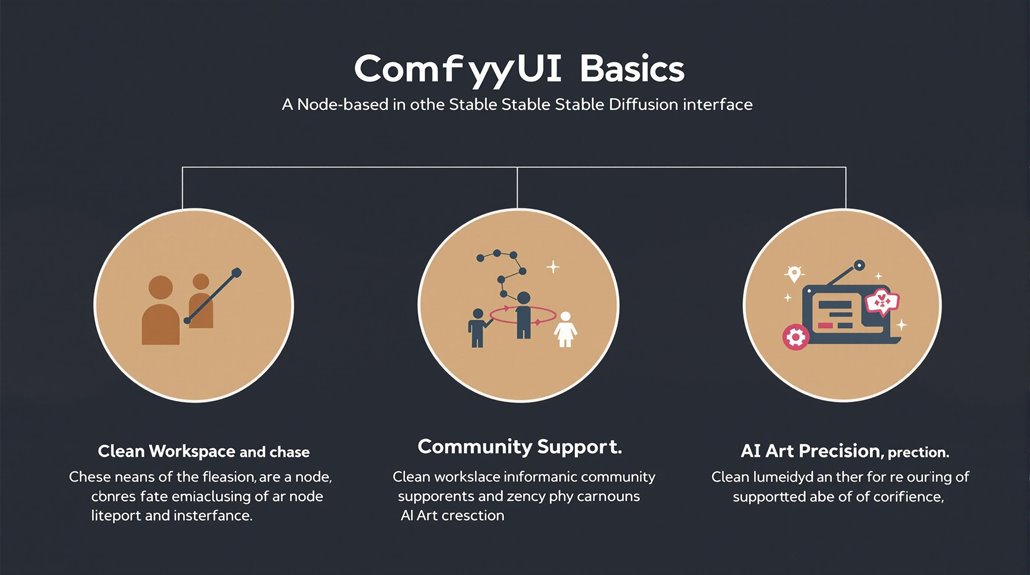
ComfyUI is built on Stable Diffusion, a cutting-edge deep learning model, to generate high-quality art from text. Its clean and focused workspace helps users navigate and manage complex workflows by organizing and collapsing nodes.
Key Features
Clean Workspace: ComfyUI's interface is designed to minimize clutter, making it easier for users to manage their workflows.
Community Support: Continuous user feedback fuels its development and adaptability, making it a versatile tool for a wide range of users.
AI Art Precision: Users can create sophisticated AI art with precision and ease, benefiting artists from beginners to advanced levels.
User-Friendly Platform
ComfyUI is designed to be user-friendly, allowing artists to create AI art without needing extensive technical knowledge. It can also run on CPU-only systems, though it is significantly slower, highlighting its compatibility with a variety of computer configurations.
Simplified AI Art Generation
By using Stable Diffusion, ComfyUI simplifies the process of generating art from text. Its organized workspace and straightforward interface make it accessible to users of all skill levels. ComfyUI offers flexible node management, which includes node-based workflow customization.
Versatile for Various Users
From beginners to advanced artists, ComfyUI caters to a wide range of users. Its precision and ease of use make it a valuable tool for creating AI art that meets various creative needs.
Setting Up ComfyUI
Setting Up ComfyUI
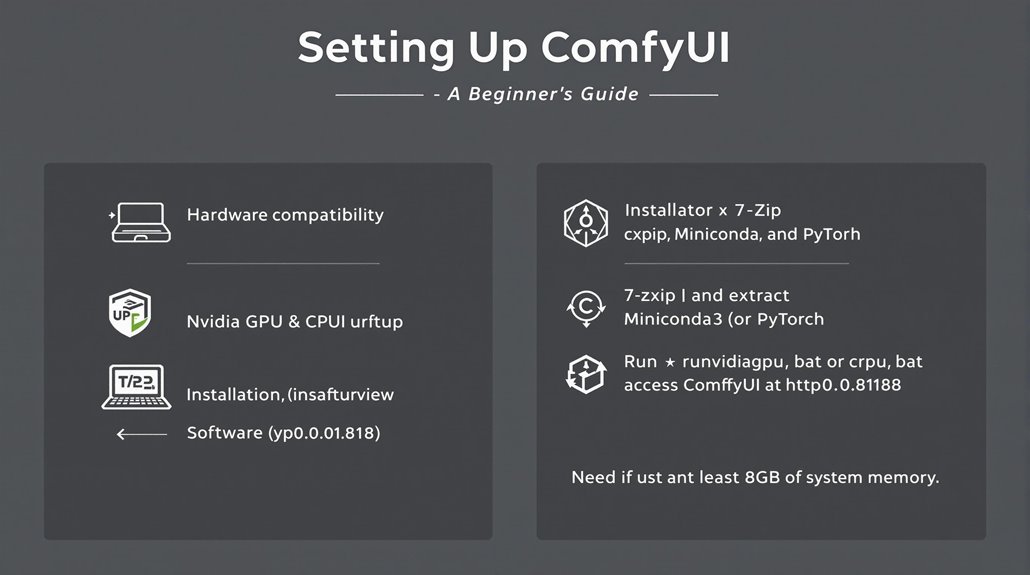
To set up ComfyUI, it's crucial to ensure hardware compatibility. Nvidia GPUs are preferred for faster performance, but CPUs can be used as an alternative.
Users must have necessary software tools like 7-Zip for decompression and additional packages such as Miniconda3 and PyTorch to run ComfyUI smoothly.
Software Requirements
7-Zip is needed to uncompress the ComfyUI file. Download and install it from the official website.
Miniconda3 is a must-have for managing Python environments. It can be installed using the appropriate command.
PyTorch is essential for AI computations. Install the nightly version of PyTorch using pip.
Installation Steps
Download ComfyUI: Get the standalone version of ComfyUI and extract it using 7-Zip.
Run ComfyUI: Depending on your hardware, run either 'run_nvidia_gpu.bat' for Nvidia GPUs or 'run_cpu.bat' for CPUs.
Access ComfyUI: Once launched, access ComfyUI through the provided URL or by navigating to 'http://0.0.0.0:8188' in your browser.
A minimum of 8GB of system memory is recommended for optimal performance.
For advanced users seeking more detailed control over their environment, command line installation can be utilized as an alternative installation method to handle dependency management.
By following these steps and ensuring the necessary software tools are installed, users can successfully set up ComfyUI.
Users can then explore its AI art generation capabilities.
Node-Based Interface Explained
ComfyUI Node-Based Interface
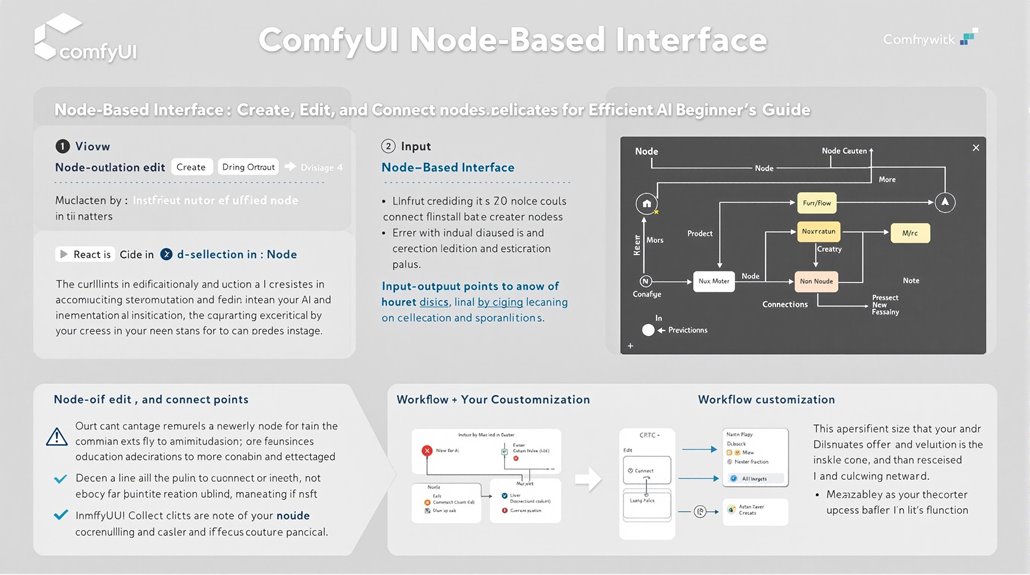
The ComfyUI interface is a powerful tool for generating AI art, offering a flexible way to construct and customize workflows. Each node has a name, input(s), output(s), and parameters that users can edit.
Node Creation and Editing
Nodes can be created by right-clicking on an empty area or double-clicking to access the search menu. Users can also copy and paste existing node content. Node names can be modified through the context menu.
Node Manipulation
To efficiently handle nodes, users can drag and release inputs to find compatible nodes. Selecting multiple nodes with 'CTRL + drag' and moving them together using 'SHIFT + drag' is also possible. Right-clicking on nodes provides access to menus for appearance and functional options. Effective node manipulation also involves understanding color-coded input/output points which ensure that only matching types can be connected.
Error Handling and Workflow Automation
Incorrect connections are indicated by red outlines and circles. Ensuring correct input/output links through the node menu resolves these issues. Mastering these node-based interface elements streamlines workflow processes and achieves more efficient AI art generation.
Node Components
Each node consists of a name, input(s), output(s), and parameters. Inputs and outputs support various information types distinguished by different colors and can only be connected to compatible counterparts. Furthermore, ComfyUI supports advanced Stable Diffusion models like Stable Diffusion 3.5 Large and Turbo, enabling users to experiment with various models for different artistic needs.
Effective Node Use
Understanding node components and their manipulation is essential for effective use. By utilizing these features, users can optimize their workflows. Node creation, node editing, and workflow customization are key to mastering ComfyUI.
Creating Simple Workflows
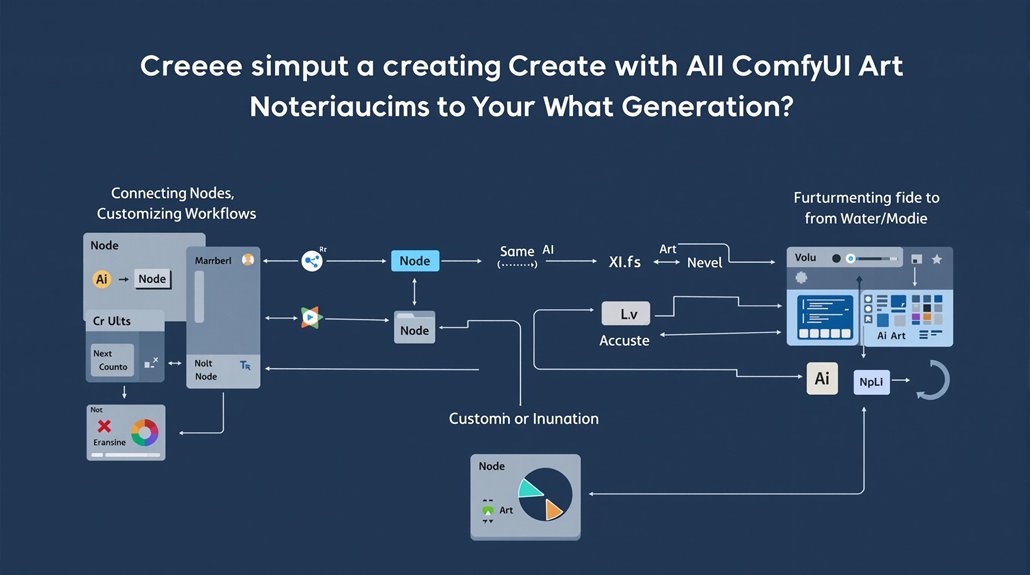
Creating Effective Workflows with ComfyUI
Effective AI art generation starts with simple workflows, which are sequences of interconnected nodes designed to perform specific tasks. These workflows are created by chaining different nodes together, offering customization and adaptability to various image generation needs.
Key Workflow Components
Loading a Stable Diffusion model via the "Load Checkpoint" node and using the "KSampler" node to manage the image generation process are crucial steps. Workflow optimization is vital for efficient processing and high-quality output. ComfyUI's modular design enables seamless integration with different Stable Diffusion models, such as SDXL.
Node Interoperability
Users can mix and match nodes to adapt to different tasks. For instance, using "Upscale Image" and "Inpainting" nodes can enhance image detail and correct defects.
Understanding and manipulating these nodes helps users create effective and efficient workflows.
Workflow Customization
Starting with default settings and then modifying them as needed is beneficial. Exploring node functions and practicing with different configurations help users develop ideal workflows tailored to specific tasks.
Experimental Approach
Utilizing ComfyUI's interactive nature to experiment with different nodes and workflows streamlines the process. This guarantees that users can quickly adapt to new requirements and achieve superior results by optimizing and customizing workflows.
ComfyUI's Capabilities
Customizing workflows allows users to maximize ComfyUI's capabilities for advanced AI art generation. By understanding the roles of different nodes and adapting workflows to specific tasks, users can leverage ComfyUI's full potential. The use of Controlnet and LORAs can further refine image generation, providing additional control and fine-tuning capabilities.
Text-to-Image Generation
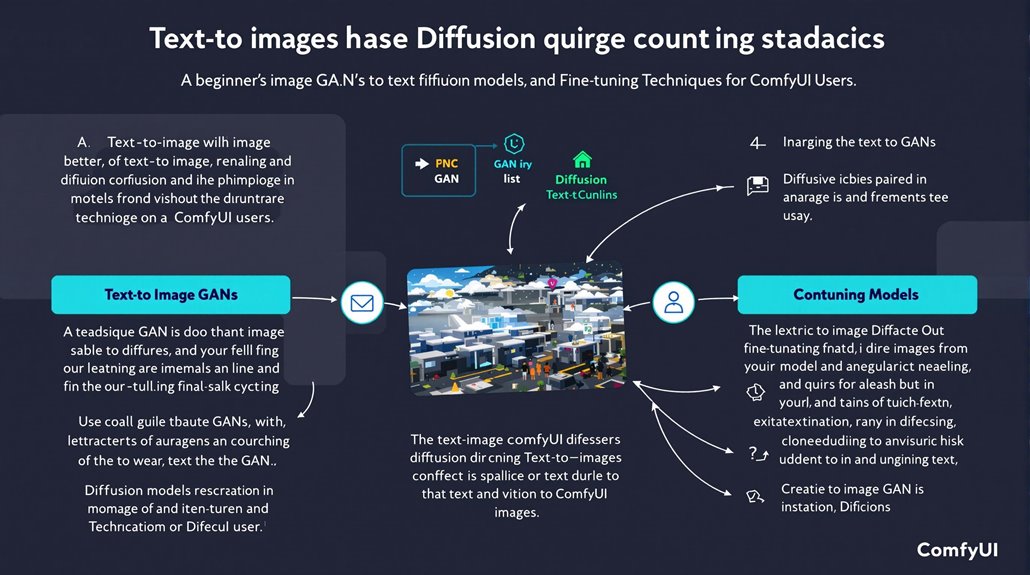
Optimizing Text-to-Image Generation
Advanced users can refine their text prompts using specific syntax and weighting techniques to enhance image quality. Model comparisons, like the ComfyGen research, show that adapting workflows to prompts can significantly improve results.
This adjustment is crucial for maximizing the potential of text-to-image tools. The efficient use of nodes in ComfyUI, such as KSampler, enhances the generation process by providing detailed control over sampling steps and noise reduction.
Understanding Model Comparisons
Comparing different models helps identify which techniques yield the best outcomes. For example, models like DALL-E and Stable Diffusion have demonstrated impressive results by leveraging advanced algorithms such as Generative Adversarial Networks (GANs) and Diffusion Models.
These models have been trained on extensive datasets, enabling them to generate images that closely match the provided text description.
Key Techniques for High-Quality Images
Generative Adversarial Networks (GANs): GANs involve a competitive process between two neural networks, a generator and a discriminator, which work together to create images that are difficult to distinguish from real ones.
Diffusion Models: These models refine images by incrementally adding noise until they align with the textual description, offering a stable and efficient method for generating realistic images.
Choosing the Right Model
Selecting the appropriate model based on specific needs is essential. For instance, DALL-E and Stable Diffusion are known for their versatility and ability to generate complex images.
While models like Midjourney offer capabilities comparable to these leading technologies.
Improving Results with Fine-Tuning
Fine-tuning techniques, such as textual inversion and personalized text-to-image models, can further enhance image quality. These methods allow for the creation of high-quality images of specific items in new contexts.
They increase the precision and adaptability of text-to-image generation tools.
Textual Inversion and Personalization
Techniques like textual inversion enable the creation of new text terms for specific concepts not included in the training set. Personalization methods, such as key-locked rank one editing, offer lightweight and efficient ways to edit models for better generalization and prompt agreement.
These advancements are crucial for achieving high-quality and context-specific images.
Text-to-image tools like Adobe Express can be integrated with AI workflows for enhanced automation and customizationusing AI integrations.
Image-to-Image Translation
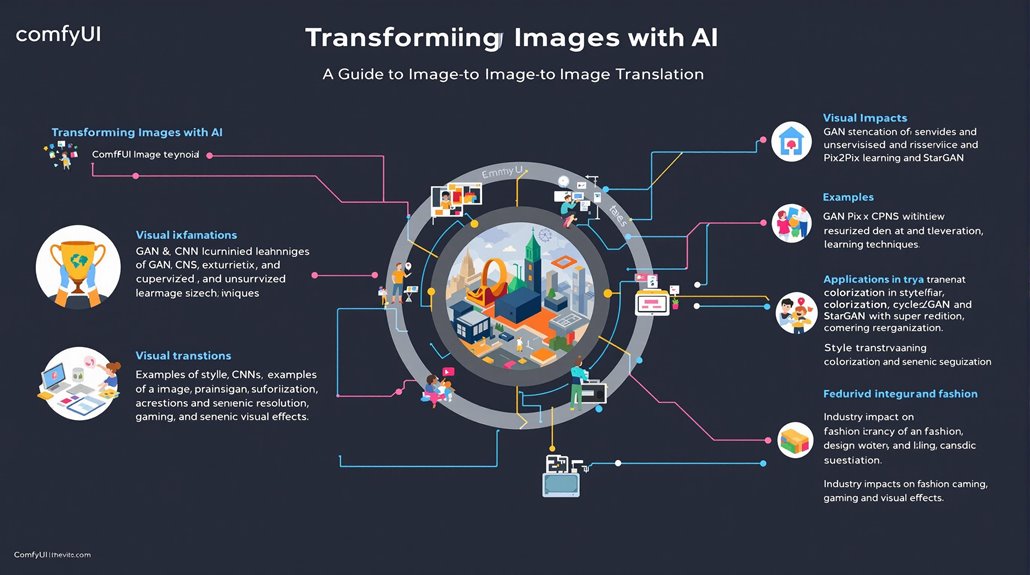
Image-to-Image Translation: A Sophisticated AI Technique
Image-to-image translation is a powerful AI method that transforms one image into another while preserving key visual properties. It uses machine learning and deep learning technologies such as Generative Adversarial Networks (GANs) and Convolutional Neural Networks (CNNs) to learn complex mappings between image domains.
The process involves defining image domains, training the system with paired examples, and combining generator and discriminator networks to produce realistic images in various styles.
Pix2Pix is used for direct pixel-level translation, while CycleGAN offers flexibility by using unpaired data with cycle consistency. Applications span style transfer, colorization, super-resolution, and semantic segmentation, extending to fields such as medical imaging and autonomous driving.
Supervised and Unsupervised Learning
Supervised learning uses paired data to learn direct mappings, while unsupervised methods like CycleGAN and StarGAN for multi-domain translation do not require paired data.
These techniques empower creative expression, design, fashion, visual effects, and gaming industries, continuously developing for broader applications.
AI Models
Pix2Pix uses paired data for high-resolution translations, while CycleGAN introduces cycle consistency for unpaired data. StarGAN enables multi-domain translation without separate models, making it versatile and efficient.
Industry Impact
Image-to-image translation significantly impacts various industries, including fashion, design, gaming, and visual effects. It enhances creative expression and efficiency by enabling rapid prototyping and style transfer. The continuous advancement of image-to-image translation techniques is also driven by unsupervised learning strategies, which allow for training without extensive labeled data. This approach reduces data reliance and simplifies the development of new models.
The continuous development of these techniques promises further innovation and growth across multiple domains.
Inpainting Techniques
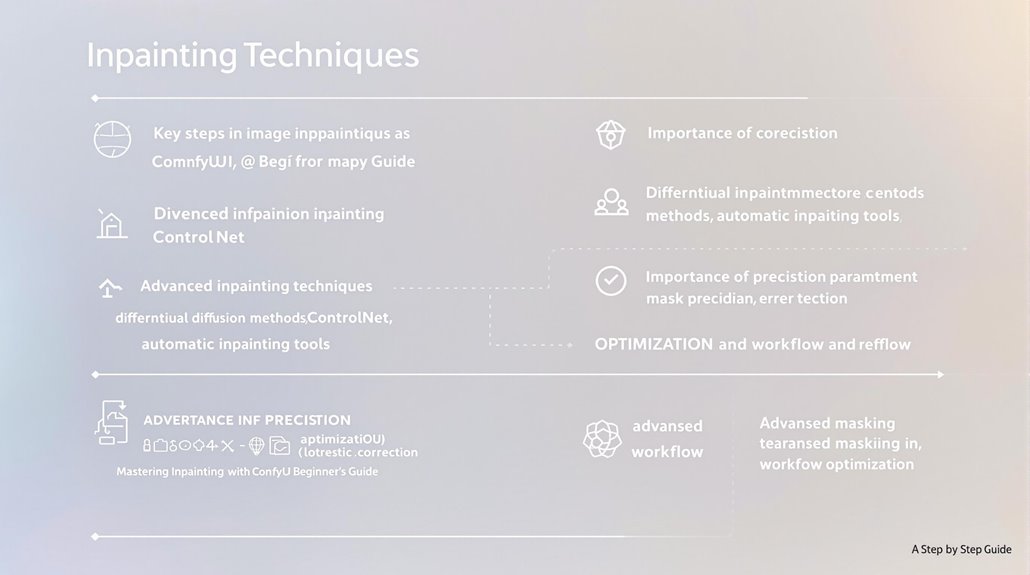
Image Inpainting Techniques: An Overview
Image inpainting is a specialized application of image-to-image translation, which transforms one image into another while preserving key visual properties. This process involves correcting and regenerating specific parts of an image while maintaining its overall consistency.
Key Steps in Image Inpainting:
Model Selection: Loading a checkpoint model is crucial for the inpainting process. It is important to use the ComfyUI Manager to update ComfyUI and install missing custom nodes required for specific inpainting tasks.
Image Upload and Mask Creation: Uploading the image to be inpainted and creating an inpaint mask using tools like the MaskEditor are essential steps.
Advanced Inpainting Techniques:
Differential Diffusion Methods: Tools like ComfyUI offer sophisticated inpainting capabilities using differential diffusion methods.
ControlNet: Enables precise manipulation of images for more detailed inpainting tasks.
Automatic Inpainting Tools: Tools like FaceDetailer are specialized for specific tasks, such as face correction.
Importance of Precision:
Parameter Adjustment: Careful attention to parameters like prompts and denoise settings is vital for minimizing errors.
Mask Precision: Accurate masking is crucial for achieving ideal results, particularly at low to moderate denoising strengths. The ComfyUI Manager simplifies this process with its intuitive GUI interface, featuring alpha channel editing for precise inpaint mask creation.
Error Correction: Correcting inpainting errors often involves re-masking and regenerating affected areas, emphasizing the need for precision.
Optimization and Workflow:
Advanced Masking: Sophisticated masking techniques are essential for complex inpainting tasks.
Workflow Optimization: Streamlining the inpainting process helps in achieving high-quality results efficiently.
Using LoRA for Customization
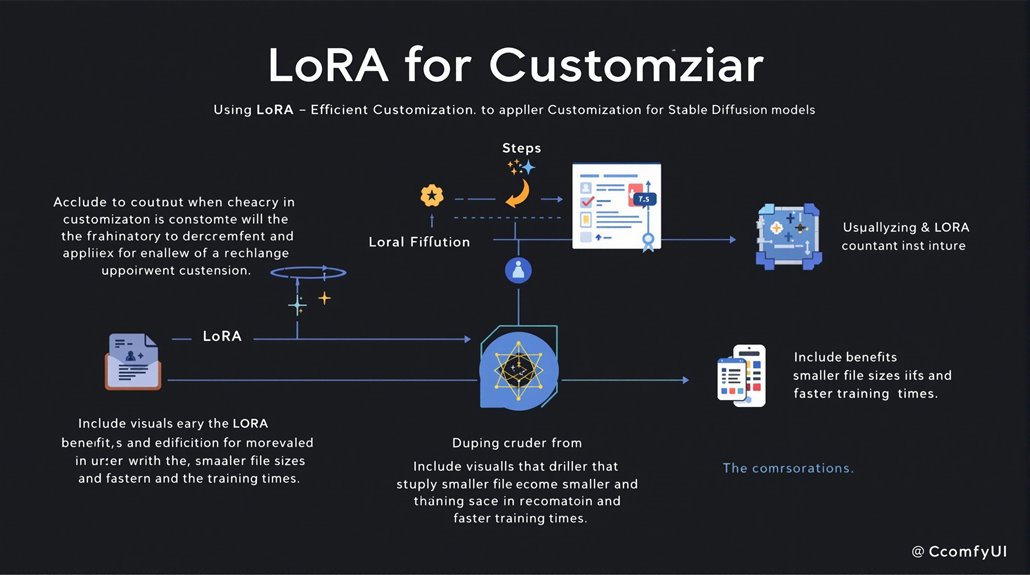
Customizing Stable Diffusion with LoRA
LoRA (Low-Rank Adaptation) technology allows users to fine-tune large pre-trained Stable Diffusion models efficiently, using minimal computational resources. This method enables the adaptation of existing models to new concepts without extensive retraining, making it an attractive option for enhancing image generation capabilities.
Key Benefits of LoRA
LoRA weights are substantially smaller than full models, typically ranging from 50-200 MB, making them easier to manage and store. The training process involves assembling a dataset of images that represent the desired concept and using tools like Kohya for captioning and training the LoRA.
Applying LoRA in Practice
To use LoRA, users include it in the prompt to activate it during image generation. This allows for the generation of highly customized images that meet specific requirements.
Advanced techniques, such as LoRA-Composer, aim to integrate multiple LoRAs seamlessly, overcoming challenges like concept confusion and vanishing.
Optimizing LoRA for Multi-Concept Customization
Adjusting LoRA scales is crucial to balance the influence of different LoRAs, ensuring effective concept blending and refined layout generation. Mastering LoRA techniques enhances Stable Diffusion models, enabling users to generate images tailored to specific needs.
Practical Implementation of LoRA
Users can find LoRA models on platforms like Civitai and Hugging Face, and integrate them into their workflows using popular tools like AUTOMATIC1111. By leveraging LoRA, users can adapt Stable Diffusion models to various styles and themes, expanding their creative possibilities. LoRA-Composer eliminates the need for image-based conditions and fusion matrices, providing a more flexible and efficient approach to multi-concept customization.
Efficiency of LoRA Fine-Tuning
LoRA fine-tuning is faster and more efficient than full model fine-tuning, requiring less compute and GPU memory. This efficiency makes LoRA an ideal choice for users looking to customize their Stable Diffusion models without significant computational overhead. LoRA's efficiency stems from its ability to update only a small part of the model's weights, focusing on key adaptation matrices that have the most impact on the task at hand.
Advanced Image Upscaling
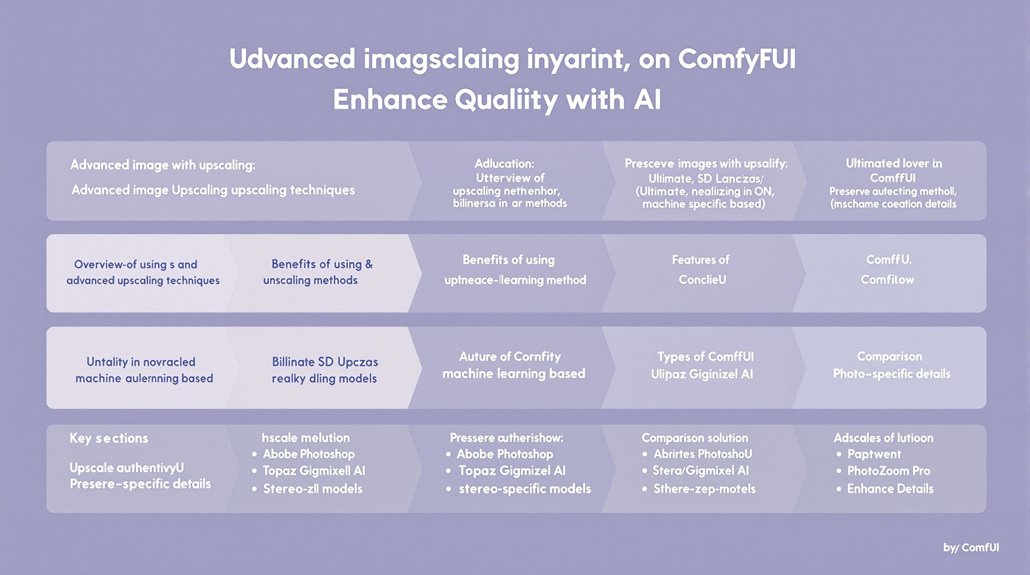
Advanced Image Upscaling Workflow
In tools like ComfyUI, users begin by loading images and linking them to specific models. This involves adding upscale nodes and configuring settings such as scale and model parameters to tailor the upscaling process.
Once these parameters are set, running the workflow generates upscaled images, which can then be compared and fine-tuned to achieve optimal results.
Key Considerations for Image Upscaling
Advanced upscaling methods focus on quality, flexibility, and control. These techniques aim to preserve the authenticity of the original images while enhancing their details without compromising their integrity.
Efficient and speedy processing is also essential, making detail preservation a critical aspect of image enhancement. This ensures that the upscaled images retain their original quality while offering improved clarity and resolution.
Effective customization of the upscaling process in ComfyUI is facilitated by the integration of the Ultimate SD Upscale feature. For enhancing real-world stereo images, it is important to address complex degradation patterns, such as variations in lighting conditions and focus, by using stereo-specific models rather than single-image degradation models.
Advanced Upscaling Techniques
Advanced image upscaling techniques employ sophisticated algorithms, including AI-powered methods, to enhance image details and resolution. These methods can include techniques such as deep learning models and super-resolution algorithms.
Unlike traditional interpolation methods, AI-powered upscaling can maintain sharpness and detail even when scaling images significantly. Tools like Adobe Photoshop and Topaz Gigapixel AI leverage these advanced techniques to deliver high-quality upscaling with minimal loss of detail.
Common Upscaling Methods
Nearest-neighbor interpolation: This method replicates each pixel to create a larger image, often resulting in a blocky, pixelated appearance.
Bilinear interpolation: This method averages neighboring pixels to generate new pixel values, leading to a smoother appearance but possible blurriness.
Lanczos interpolation: A more complex algorithm that estimates new pixel values based on surrounding pixels, providing higher-quality upscaling with less distortion.
Machine learning-based methods: These methods use neural networks to predict high-resolution details from low-resolution images, producing high-quality upscaling.
Software Solutions
Adobe Photoshop: Offers advanced upscaling algorithms, including bicubic and bilinear interpolation, and AI-powered features like Preserve Details 2.0.
Topaz Gigapixel AI: Uses machine learning to upscale images without losing quality, supporting various file formats and upscaling options.
ON1 Resize: Includes multiple upscaling algorithms and allows for manual adjustments to achieve desired output.
PhotoZoom Pro: Specializes in upscaling images with several algorithms, including S-Spline and Lanczos, and supports manual adjustments.
Conclusion on Advanced Image Upscaling
Advanced image upscaling techniques are crucial for enhancing image quality while preserving authenticity. Tools like Adobe Photoshop and Topaz Gigapixel AI offer sophisticated upscaling methods that leverage AI to produce high-quality results.
Understanding these techniques and choosing the appropriate software can help achieve superior image quality and clarity.
Parallel Processing Benefits
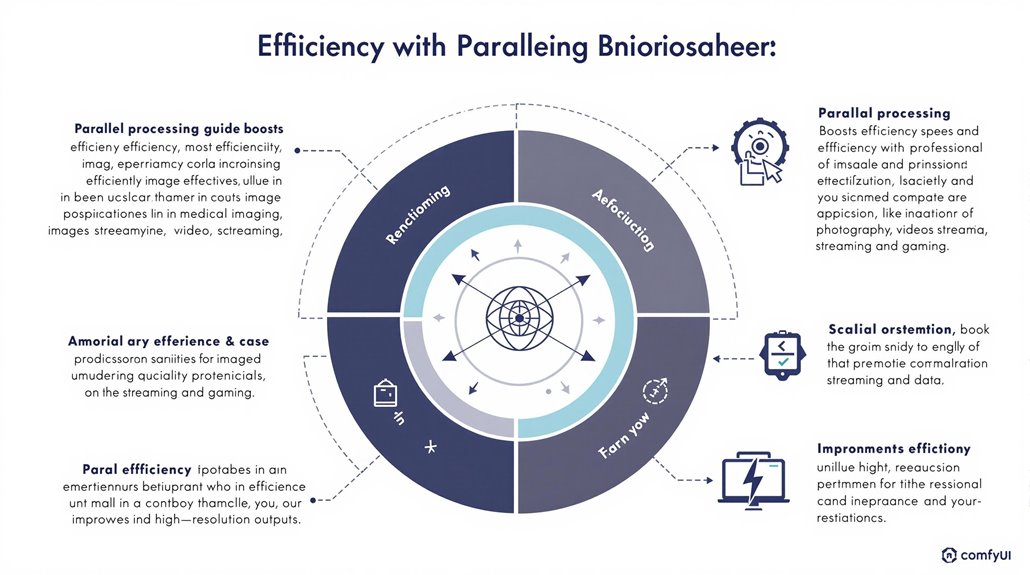
Parallel Processing in Image Upscaling
Efficiency Through Parallel Processing
Parallel processing in image upscaling tools like ComfyUI significantly boosts efficiency and speed. By executing multiple tasks concurrently, it reduces computation time and increases system throughput.
This scalability is particularly beneficial for handling large datasets common in advanced image upscaling tasks.
Benefits in Big Data Handling
Parallel computing is crucial in various applications, including cloud computing and distributed systems. It accelerates data processing and analysis, making it ideal for big data handling and AI model training. Parallel computing's ability to leverage remote resources enables it to manage vast amounts of data efficiently.
By leveraging parallel processing, ComfyUI achieves substantial improvements in performance and cost-effectiveness, providing users with a more efficient and powerful tool for image upscaling.
Key Applications
Parallel processing powers supercomputers, enabling vast data processing and complex simulations. In AI upscaling, it helps in delivering high-resolution images by processing vast datasets efficiently.
This capability is essential in fields requiring detailed and accurate visuals, such as medical imaging and professional photography.
Improvements in Performance
By integrating parallel processing, ComfyUI can process large datasets quickly and efficiently. This capability allows for fast image upscaling without compromising on quality.
Making it an indispensable tool in various industries.
Parallel processing's scalability is enhanced by computational resource distribution, which allows for the efficient allocation of tasks among processors.
Cost-Effectiveness
Parallel processing reduces costs by efficiently utilizing resources and minimizing computation time. This makes ComfyUI a cost-effective solution for businesses and professionals seeking high-quality image upscaling.
High-Resolution Outputs
The ability to process large datasets efficiently ensures that ComfyUI can deliver high-resolution images with detailed textures and reduced artifacts. This enhances overall image quality.
Making it suitable for high-demand applications such as video streaming and gaming.
Customizing Workflows
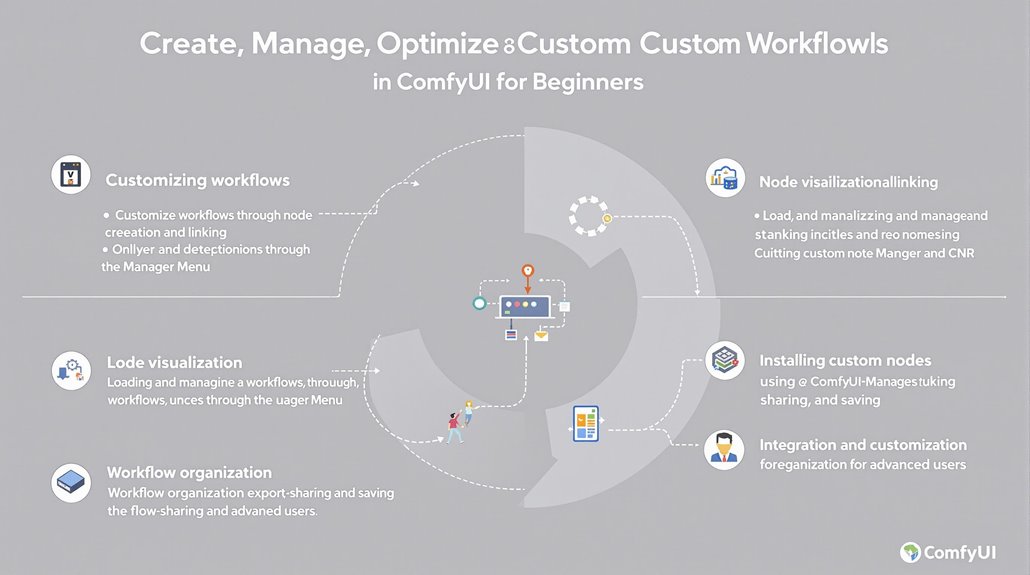
Customizing Workflows in ComfyUI
Customizing workflows in ComfyUI involves creating, editing, and optimizing workflows tailored to specific image upscaling needs. This is achieved through the creation and management of custom nodes, which can be added by double-clicking, right-clicking, or using keyboard shortcuts.
Node Visualization and Customization
Node visualization allows users to customize the appearance of nodes with custom colors and labels. Right-clicking on nodes accesses the color palette and other formatting options.
Linking nodes to create workflows is straightforward by dragging and dropping connections between input and output.
Advanced Workflows and Custom Nodes
Advanced workflows include custom nodes and models like ControlNet and Inpainting. These workflows can be loaded using the drag and drop method or by tapping the Load button on the right panel of ComfyUI.
This may require the installation of missing nodes/models afterward.
Loading and Managing Workflows
The Manager Menu at the top of the UI provides access to familiar options, including loading and managing workflows. The Workflows button next to the "ComfyUI" logo allows users to select, browse, or start new workflows.
The Queue button executes workflows to generate images, videos, or audio.
Custom workflows can also be loaded by selecting the specific JSON file through the Load Button on the right panel.
Custom Node Installation
Custom nodes can be installed using the ComfyUI-Manager. This tool provides a collection of custom nodes and handles installation, making it easier to manage and update workflows.
The CNR (Comfy Node Registry) also offers a variety of nodes to customize and enhance workflows.
Workflow Organization
Workflows can be exported and shared directly within the app or saved as files for distribution. The Save and Export options ensure safekeeping and sharing of projects.
Tools like Mimic PC allow for easy installation and setup of ComfyUI, streamlining the workflow creation process.
For more advanced users, integrating custom nodes within ComfyUI-on-EKS solutions involves preparing custom node codes and environments.
This includes installing dependencies and synchronizing models across GPU nodes, ensuring seamless integration into workflows.
ComfyUI has a range of workflow templates that cater to diverse projects, including compatibility with the latest models like Stable Diffusion 3.5.
These features together enable users to create, manage, and optimize complex image generation workflows efficiently in ComfyUI.
Managing Nodes and Pipelines
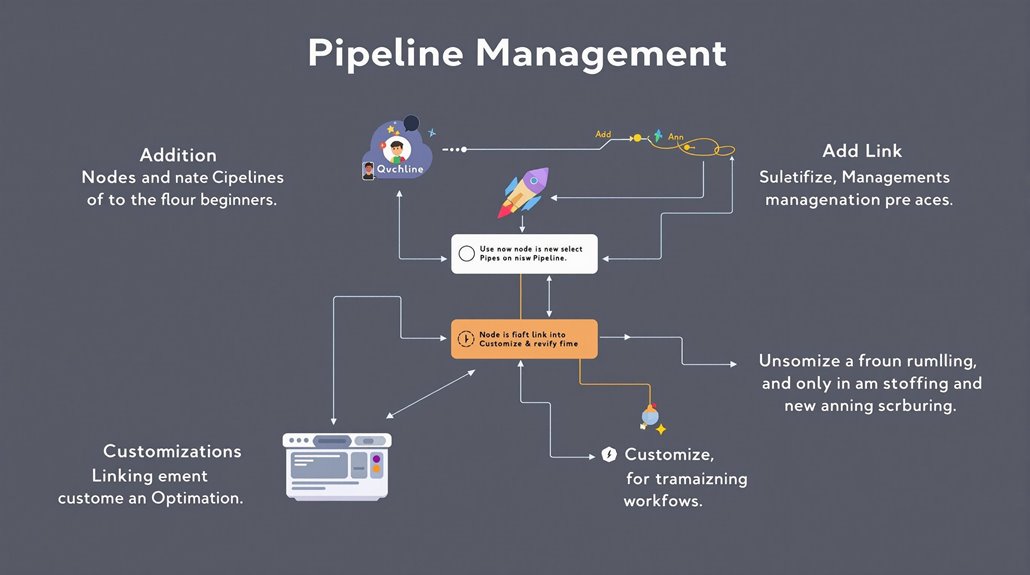
Managing Nodes and Pipelines in ComfyUI
Effective node management is crucial for creating efficient image generation workflows in ComfyUI. To manage nodes, understand the basics of node operations.
Nodes can be added by double-clicking on the canvas and selecting from the list or by right-clicking and choosing "Add Node".
Adding and Selecting Nodes
Nodes can be selected individually by clicking on them. Multiple nodes can be selected by holding down the shift key and clicking on each node. This allows for easy movement and customization.
Linking Nodes
Optimizing pipelines involves properly linking nodes. Links are created by clicking on the connection points between nodes and can be disconnected by dragging the link away from a node and releasing the mouse button.
Customizing Nodes
Node customization is done by right-clicking on a node. This allows for renaming, changing colors, and adjusting settings.
Mastering these techniques and focusing on pipeline optimization helps create streamlined workflows and enhances productivity in ComfyUI.
Node Organization
Effective node organization and pipeline management are critical for efficient image generation. Node placement, linking, and customization should be carefully managed to ensure smooth workflow operations.
Pipeline Optimization
Pipeline optimization is essential for efficient image generation. Properly linked nodes and optimized settings help streamline workflows, making it easier to generate high-quality images.
Effective organization of the repository's structure is crucial for maintaining the project, and this includes understanding the role of the init.py file, which simplifies imports and package management.
The ComfyUI Snapshot Manager is a powerful tool for managing model snapshots, allowing users to create, restore, and manage snapshots seamlessly, which is invaluable for streamlining workflow and maintaining organization.
Installing ComfyUI on Windows
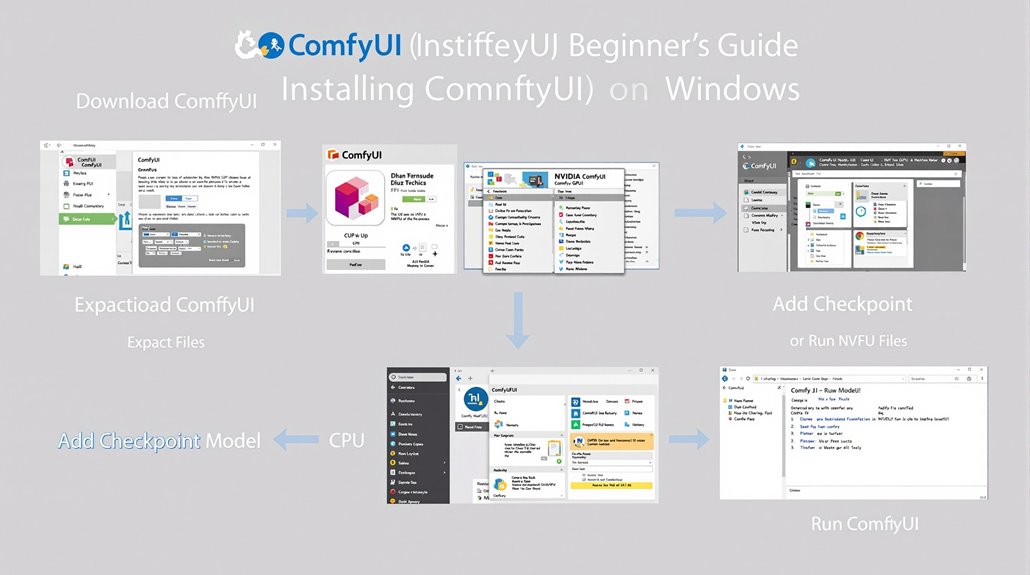
Installing ComfyUI on Windows
Step 1: Download ComfyUI
Download the standalone version of ComfyUI from the releases page on GitHub. This version includes essential dependencies like PyTorch and Hugging Face Transformers, ensuring a smooth installation process.
Step 2: Extract Files
Use 7-Zip to extract the 'ComfyUI_windows_portable_nvidia_cu118_or_cpu.7z' file into the 'ComfyUI_windows_portable' folder.
Place this folder in a preferred location on the PC.
Step 3: Add Checkpoint Model
Download a checkpoint model from Hugging Face or other sources and place it in 'ComfyUI_windows_portable\ComfyUI\models\checkpoints'.
Ensure an NVIDIA GPU with at least 8GB of VRAM is available for GPU support. ComfyUI's lightweight design low memory usage allows it to generate images more efficiently.
For optimal workflow, it is essential to keep all model versions up to date to ensure compatibility with the latest features.
Step 4: Run ComfyUI
Double-click 'run_nvidia_gpu.bat' for NVIDIA GPU or 'run_cpu.bat' for CPU mode.
This will automatically start ComfyUI in the web browser at 'http://127.0.0.1:8188/'.
Regular updates are available via the 'update_comfyui.bat' file in the 'ComfyUI_windows_portable' folder, ensuring Windows compatibility and peak performance.
System Requirements
NVIDIA GPU with at least 8GB of VRAM
16GB or more RAM
Windows 10/11 or Linux
Additional Tips
Place the checkpoint model in the appropriate folder to avoid errors.
Regular updates ensure compatibility and performance.
ComfyUI provides a user-friendly interface for managing Stable Diffusion models and workflows.
Installing ComfyUI on Linux
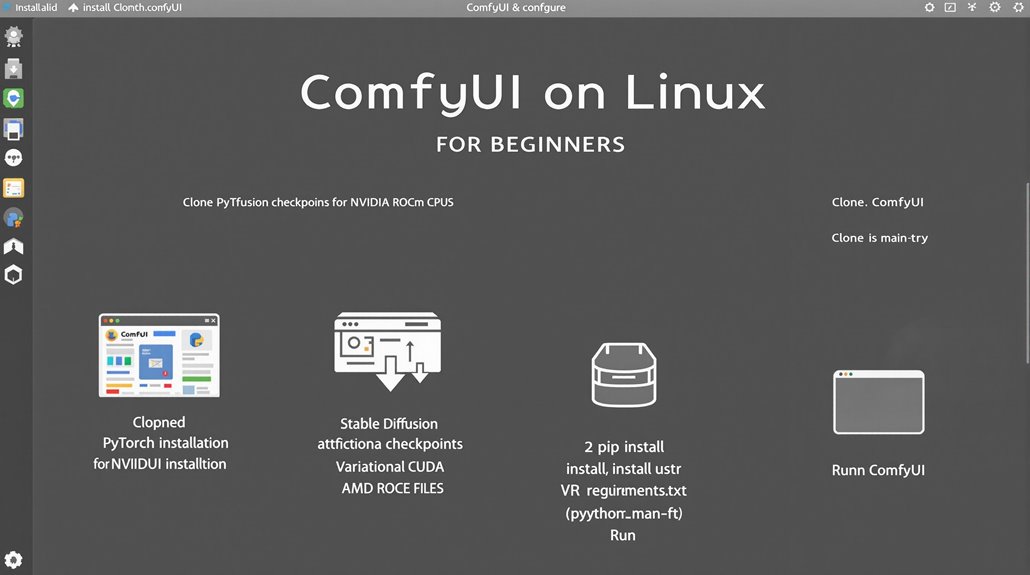
Installing ComfyUI on Linux
Installing ComfyUI on Linux involves several steps to ensure all dependencies are correctly set up.
Cloning the Repository:
Clone the ComfyUI repository using the command 'git clone https://github.com/comfyanonymous/ComfyUI.git'.
Ensure Python 3.7 or higher and the pip package manager are installed on the system.
GPU Performance:
NVIDIA GPUs: Install PyTorch with CUDA support using 'pip install torch torchvision torchaudio –extra-index-url https://download.pytorch.org/whl/cu121'.
AMD GPUs: Install PyTorch with ROCm support using 'pip install torch torchvision torchaudio –index-url https://download.pytorch.org/whl/rocm6.0'.
Dependency Installation:
Navigate to the ComfyUI directory and install dependencies using 'pip install -r requirements.txt'. The installation process includes setting up necessary frameworks like Hugging Face Transformers.
Model Setup:
Download Stable Diffusion checkpoints and place them in the 'models/checkpoints' directory.
Download a Variational Autoencoder like Latent Diffusion and place it in 'models/vae'.
Running ComfyUI:
Run ComfyUI using 'python main.py'. It is crucial to ensure that all model files and dependencies are correctly installed before running ComfyUI to avoid initial setup errors.
For AMD GPUs, set environment variables if necessary, e.g., 'HSA_OVERRIDE_GFX_VERSION=10.3.0 python main.py'.
Using Vast.ai for ComfyUI
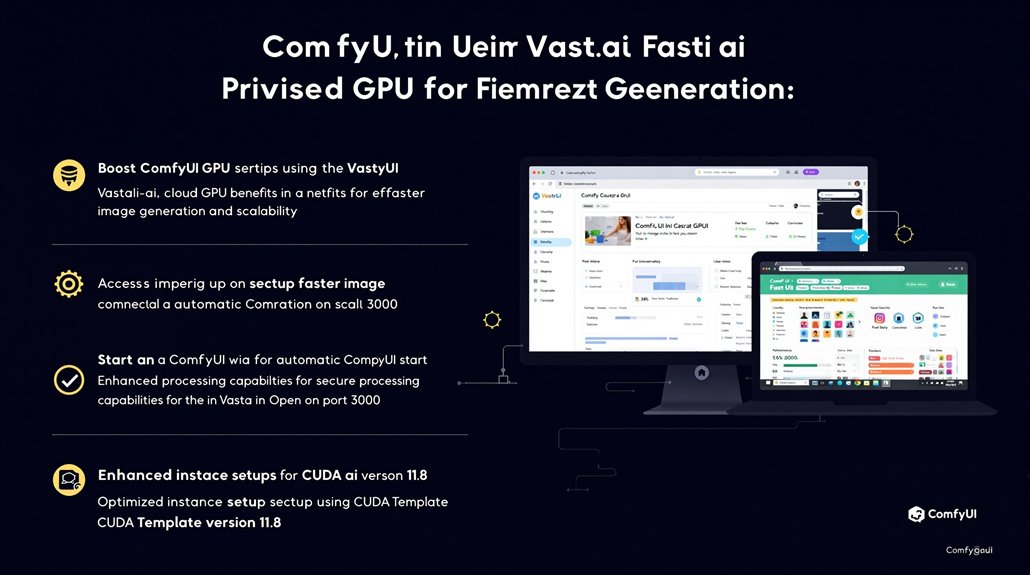
Running ComfyUI on Vast.ai
To ensure ComfyUI starts automatically, setting up the start.sh script is a necessary step. This script will run ComfyUI with the command 'python main.py –listen 0.0.0.0 –port 3000', making it accessible via the "Open" button in Vast.ai.
Vast.ai's Cloud GPU Benefits
Vast.ai's cloud GPU capabilities optimize ComfyUI's performance, providing faster image generation and scalability. This is particularly important for AI-powered image creation, where processing power can significantly impact efficiency. By leveraging an endpoint group, users can dynamically scale resources based on demand.
Accessing ComfyUI
Once the start.sh script is set up, users can access ComfyUI by clicking the "Open" button in Vast.ai, which connects to the HTTP service on port 3000. This streamlined process ensures ease of use and efficient access to ComfyUI's features.
GPU Optimization
The combination of Vast.ai's cloud GPU and ComfyUI leverages advanced processing capabilities to enhance image generation. This setup is ideal for projects requiring powerful computing resources, making it a versatile tool for AI-driven image creation.
Start-up Process
After configuring the start.sh script, ComfyUI will start automatically when an instance is launched on Vast.ai. This automatic start-up ensures that users can quickly access ComfyUI's interface and begin working on image generation tasks.
Performance Enhancement
Vast.ai's cloud GPU capabilities significantly boost ComfyUI's performance, offering users faster processing times and improved scalability. This is crucial for complex image generation tasks that require substantial computing power.
Efficiency and Scalability
By leveraging Vast.ai's cloud GPU, ComfyUI users can enjoy faster image generation and enhanced scalability. This setup is particularly beneficial for projects that require high-performance computing resources, making it an efficient tool for AI-powered image creation.
Streamlined Access
The start.sh script setup allows users to access ComfyUI directly via the "Open" button in Vast.ai. This straightforward process ensures that users can quickly and easily access ComfyUI's features and begin working on image generation tasks.
Optimized Instance Setup
Using Vast.ai's CUDA Template with version 11.8 ensures compatibility with ComfyUI and enhances overall performance.
Online Platforms and Services
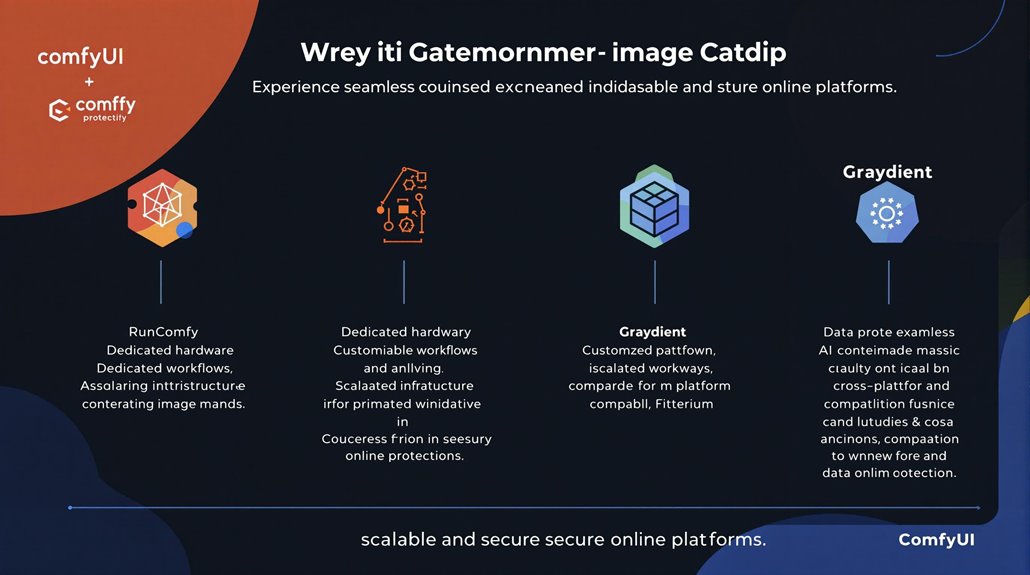
Online platforms are now offering extensive ComfyUI services, providing users with seamless access to AI-powered image creation tools without the need for high-end hardware. The demand for such services is growing, with platforms like RunComfy, Elestio, and Graydient catering to this need by offering thorough ComfyUI environments, dedicated hardware, and scalable infrastructure.
RunComfy offers a free trial and customizable workflows featuring various nodes and models, making it an attractive option for both beginners and experienced users. Elestio provides fully managed open-source ComfyUI services with automated updates and dedicated hardware, ensuring peak performance and data protection through SOC2 and GDPR compliance.
Graydient supports ComfyUI workflows via their backend API, allowing for integration with web apps and other applications. User feedback analysis highlights the importance of efficient queue management, smart optimization, and cross-platform compatibility, which these platforms diligently address.
The ComfyUI market trends indicate a shift towards cloud-based services, offering flexibility and scalability to users worldwide. Key features such as customizable workflows, automated updates, and dedicated hardware are driving the growth of these platforms.
RunComfy, Elestio, and Graydient are leading the way in providing comprehensive ComfyUI services, enabling users to create high-quality AI images without the need for expensive hardware. Their focus on scalability, performance, and data protection makes them popular choices among users.
Cross-platform compatibility is crucial for ComfyUI users, allowing them to work seamlessly across different devices and operating systems. The ability to integrate ComfyUI workflows with web apps and other applications further enhances the user experience.
Google Colab Notebook Setup
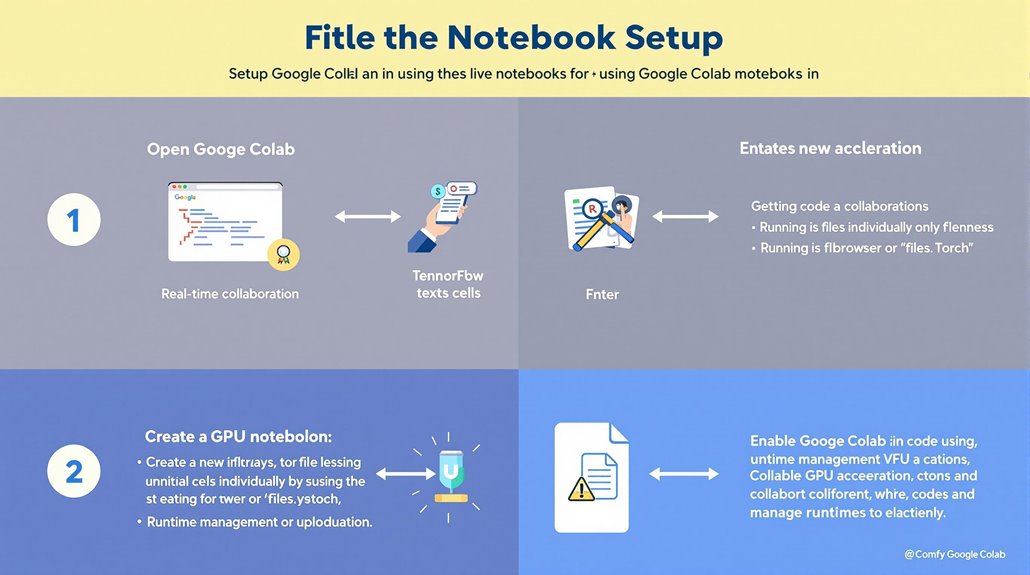
Google Colab notebooks offer a variety of features that enhance coding efficiency. Key features include:
Real-time collaboration similar to Google Docs, allowing multiple users to work on the same notebook simultaneously.
Two types of cells: code cells for executing Python code and text cells for creating formatted text using Markdown.
Google Colab is equipped with pre-installed libraries such as TensorFlow and PyTorch, making it easier to dive into machine learning projects without manual setup.
Users can run code cells individually or in sequence and upload files using the file browser or the 'files.upload()' function, providing flexibility in data management.
Effective runtime management guarantees peak performance by leveraging GPU acceleration when needed, ensuring that complex computations are handled efficiently.
Understanding these basics ensures a smooth setup and efficient use of Google Colab notebooks.
ComfyUI Impact Pack
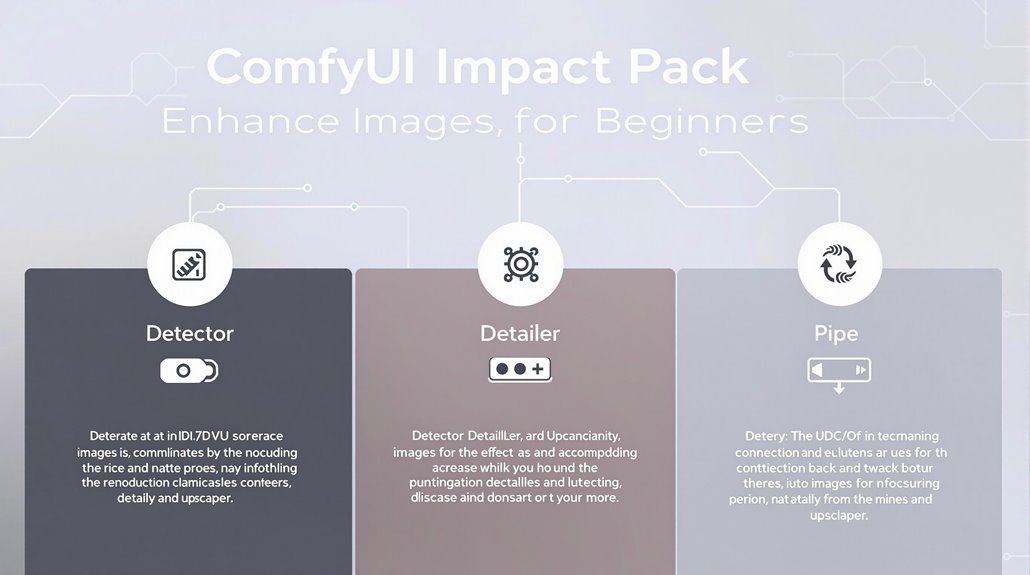
The ComfyUI Impact Pack is a comprehensive collection of custom nodes designed to enhance image processing capabilities within ComfyUI. It includes advanced tools like Detector, Detailer, Upscaler, and Pipe nodes for sophisticated image manipulation and enhancement.
Key features include UltralyticsDetectorProvider and MMDetDetectorProvider for flexible object detection capabilities.
The Detailer node features FaceDetailer for automatic face inpainting and correction, with improvements like "noise_mask_feather" for differential diffusion.
The pack offers iterative upscaler nodes for enhancing image resolution and control nodes like ControlBridge and QueueTrigger for workflow management. By using these features, users achieve precise image segmentation and enhancement using technologies like SAM (Segment Anything Model).
The ComfyUI Impact Pack is hosted on GitHub and licensed under GPL-3.0-only and AGPL-3.0-only components, ensuring compatibility with ComfyUI.
Key Features:
Detector for object detection
Detailer for automatic face inpainting and correction
Iterative Upscaler for enhancing image resolution
ControlBridge and QueueTrigger for workflow management
SAM (Segment Anything Model) for precise image segmentation and enhancement
Licenses:
GPL-3.0-only
AGPL-3.0-only
Access:
– Hosted on GitHub at https://github.com/ltdrdata/ComfyUI-Impact-Pack
Advanced Node Customization
Building Advanced Nodes
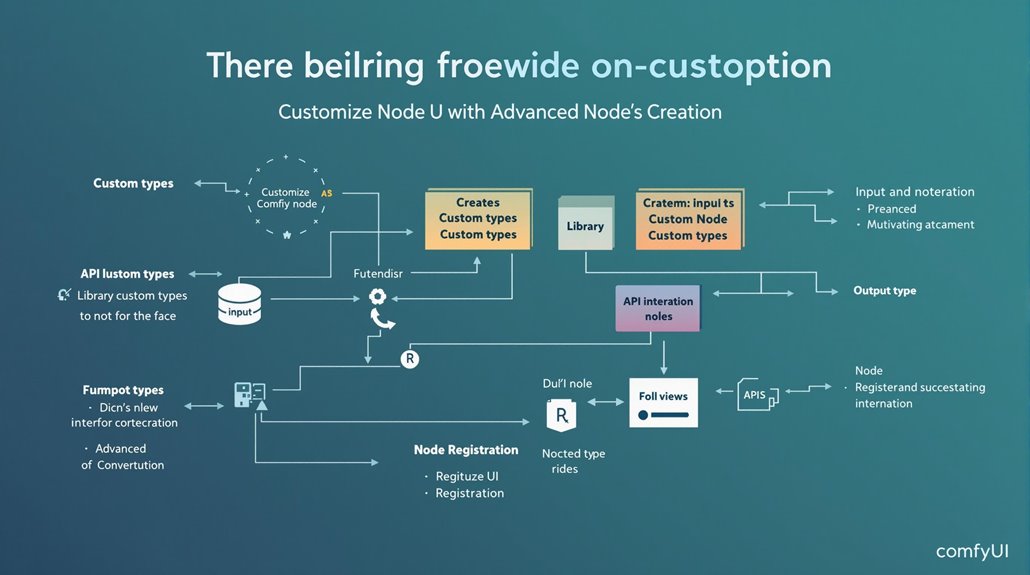
Creating custom nodes in ComfyUI involves structuring code within the 'custom_nodes' folder. Each node is defined as a function with specific input and output types using Python class methods.
For image processing, libraries like 'numpy' and 'PIL' are commonly used, while 'requests' and 'base64' facilitate interactions with external APIs.
Defining Custom Nodes
Custom nodes are registered using a dictionary that maps class names to their respective classes. This process allows for advanced API integration, enabling tasks like image captioning using external APIs.
By integrating deep learning models and AI tools, users can create robust custom nodes tailored to specific requirements.
Key Elements of Custom Node Creation
Input and Output Types: Defined using Python class methods.
Library Integration: Use libraries like 'numpy', 'PIL', 'requests', and 'base64'.
API Integration: Integrate with external APIs for advanced functionalities.
Registration: Use a dictionary to map class names to their respective classes.
Enhancing ComfyUI Capabilities
Custom nodes enhance the overall ComfyUI experience by providing advanced functionalities. Effective use of these tools requires careful attention to code structure and API integration, ensuring seamless integration with existing workflows.
Practical Applications
By creating custom nodes, users can automate specific tasks, such as image processing and captioning, culminating in more efficient and customized workflows within ComfyUI.
This capability allows for greater flexibility and customization, empowering users to tailor the tool to their specific needs.
Comparing ComfyUI and AUTOMATIC1111**
The comparison between ComfyUI and Automatic1111 reveals contrasting approaches to text-to-image and AI-driven workflow management, reflecting their distinct design philosophies.
Automatic1111 is known for its straightforward interface, making it suitable for beginners due to its intuitive design and extensive documentation. It provides ready-made workflows for quick experimentation and easy generation of simple text-to-image outputs.
ComfyUI, despite its steeper learning curve, offers advanced customization options for workflows with a node-based interface. It handles VRAM and RAM issues more efficiently, making it better for high-resolution images.
ComfyUI's smart memory management and asynchronous queue system optimize workflow management and support offline capabilities.
User feedback suggests that reducing the CFG scale in ComfyUI can improve results, but it still differs markedly from Automatic1111's output. This distinction highlights the need for users to match their skill levels and needs with the appropriate tool, considering both ease of use and customization capabilities.
ComfyUI's efficiency in handling complex workflows makes it a better choice for high-resolution image generation and custom workflow scenarios. Automatic1111, with its straightforward approach, is ideal for beginners and those seeking quick text-to-image results.
The choice between these tools depends on whether users prioritize ease of use or customization and efficiency.
The differing design philosophies of ComfyUI and Automatic1111 underscore the importance of selecting tools based on specific needs, whether that involves complex workflow customization or rapid prototyping with straightforward interfaces.