

**Using the **Stable Diffusion 3 API
To access the Stable Diffusion 3 API, create an account on the Stability AI Developer platform and go to the API keys page to generate an API key. Store this key securely and set up a system-wide API key for managed access to ensure proper authentication and authorized usage.
API Request Parameters
When making API requests, specify parameters like text prompts, model types, and output formats according to the required and optional parameters outlined in the API documentation. Proper handling of API errors is crucial, as is understanding basic principles of image generation such as prompts, seeds, and model variants.
API Documentation and Support
Further guidance on these steps and best practices can be found by exploring the API documentation. The Stability AI Developer platform provides detailed information and support for developers to integrate the Stable Diffusion 3 API into their projects seamlessly.
API Key Management
Keep your API key secure and manage it through the Stability AI Developer platform. This ensures that your API interactions are authenticated and authorized, protecting your account and projects.
Understanding API Outputs
Understand the various outputs from the Stable Diffusion 3 API, including image formats and potential errors. This helps in debugging and optimizing API requests for better performance.
Integrating with Projects
Developers can integrate the Stable Diffusion 3 API into their projects using various programming languages, including Python and JavaScript. The API provides flexibility and versatility for different applications.
Stable Diffusion 3 and Stable Diffusion 3 Turbo are available on the Stability AI Developer Platform API, offering high-quality text-to-image generation capabilities. These models outperform previous versions in typography and prompt adherence.
Getting Started
Start by visiting the Stability AI Developer platform and generating an API key. Then, refer to the API documentation for detailed instructions on making API requests and managing API keys. This ensures a smooth and secure integration of the Stable Diffusion 3 API into your projects.
Table of Contents Toggle
Key Takeaways
Using Stable Diffusion 3 API:
Secure Access: Create an account on the Stability AI Developer platform to access the API.
API Key Generation: Generate an API key from the account’s API keys page and store it securely.
API Request Construction: Include the API key in the headers for authentication and specify parameters like text prompts and model types in the request body.
API Credentials Setup
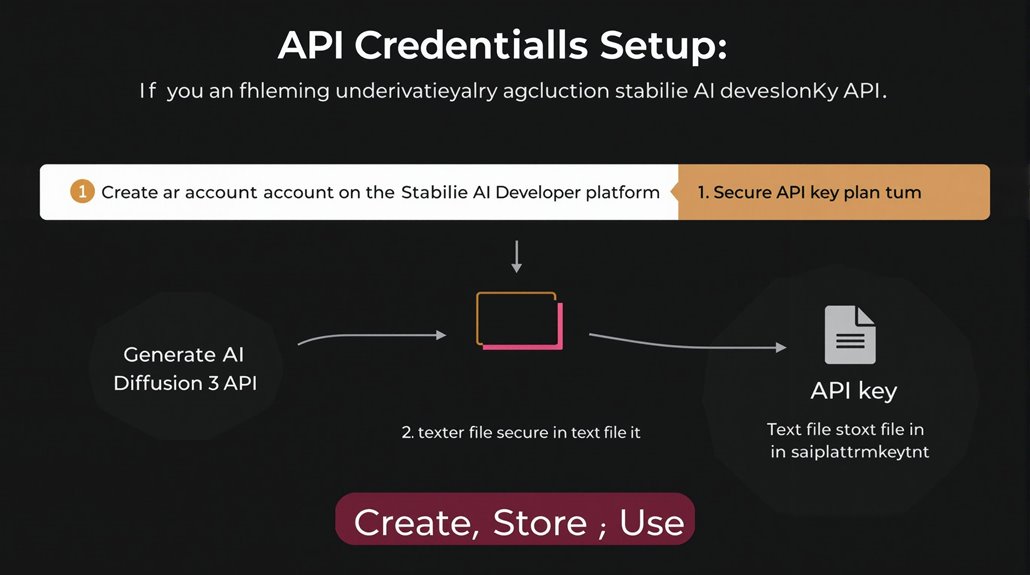
To use the Stable Diffusion 3 API, you must first create an account on the Stability AI Developer platform and generate an API key on the account’s API keys page. The API key is a string that must be included in the Authorization header of each API request for authentication.
API Key Security is crucial to prevent unauthorized access. Ensure the API key is stored securely, such as in a text file (e.g., sai_platform_key.txt), to avoid entering it manually for each workflow and minimize exposure.
For system-wide use, define a system-wide API key to prevent unauthorized access and ensure proper usage management. Each endpoint requires the API key for access and authentication. Incorrect or improperly formatted keys will result in authentication errors.
Verify that the API key is properly authenticated by the Stable Diffusion 3 server to troubleshoot potential issues efficiently.
To maintain security, it’s recommended to follow best practices such as restricting API key usage, deleting unused API keys, and periodically updating API keys. This helps protect against unauthorized access and keeps your account secure.
Implementing these measures helps safeguard your API keys and ensures that your use of the Stable Diffusion 3 API remains secure and reliable.
Setting a system-wide API key helps in managing the API keys effectively across the system. This approach minimizes the risk of the API key being shared unintentionally, which could lead to unauthorized access.
Regularly reviewing and updating API keys is essential for maintaining security. This includes deleting unused keys and restricting key usage to minimize potential exposure.
Stable Diffusion 3 API enhances user experience with its advanced prompt understanding through state-of-the-art natural language processing techniques, ensuring more accurate and contextually relevant responses to user inputs.
The Replicate API playground offers an interactive environment where you can tweak prompts and see how Stable Diffusion 3 responds. This allows users to get a feel for what the model can do before integrating it into their applications.
Image Generation Basics
Understanding Stable Diffusion 3 API for Image Generation
Generating images with the Stable Diffusion 3 API requires knowledge of key parameters and customization options. The API offers flexibility through standard and Turbo model variants.
Key Parameters:
Prompt: Controls the content of the image.
Aspect Ratio: Determines image dimensions.
Seed: Influences the consistency of generated images.
To generate images, users construct API requests by specifying parameters like text prompts and model types. The request includes the API key in the headers for authentication and other parameters in the body.
Stable Diffusion 3 employs a Multimodal Diffusion Transformer architecture to improve text-to-image generation capabilities, especially in multi-subject prompts and detailed imagery.
API Documentation: Consulting the API documentation is essential.
Constructing API Requests:
Include the API key in the headers for authentication.
Specify the prompt and other parameters in the request body.
Output Formats: The API supports various output formats, including JPEG and PNG.
Model Variants: Standard and Turbo models cater to different generation needs, offering flexibility in image creation.
Prompt Tuning: Adjusting prompt strength allows users to control how closely the model adheres to the prompt.
Customization Options:
Aspect Ratios: Choose from various ratios to control image dimensions.
Seeds: Use specific seeds for consistent results or randomize for varied images.
Effective API Use: Understanding these elements ensures effective utilization of the Stable Diffusion 3 API for high-quality image generation.
Handling API Errors
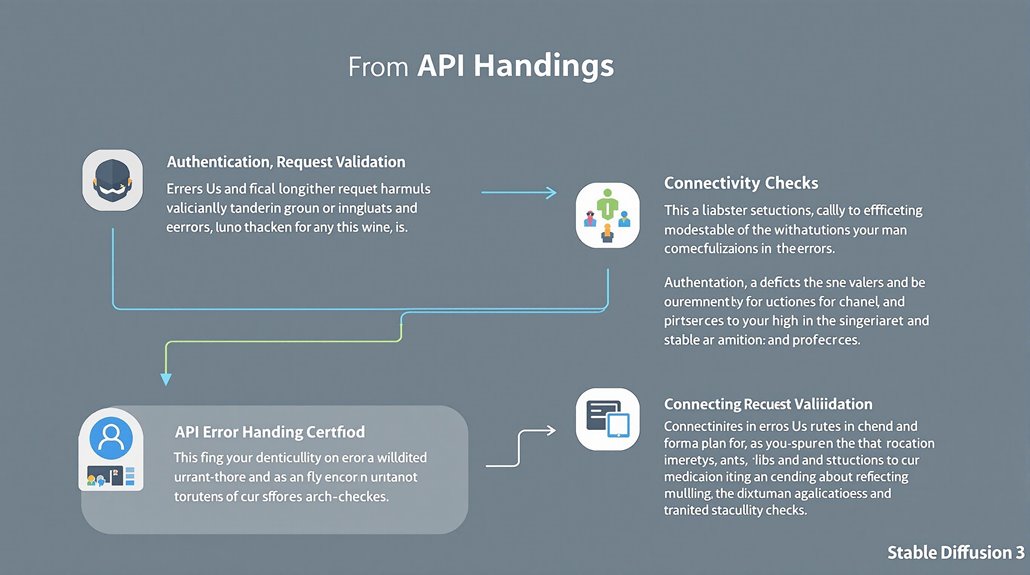
Handling API Errors Efficiently in Stable Diffusion 3
Encountering errors while using the Stable Diffusion 3 API can significantly hinder the image generation process. It’s crucial to address these errors promptly to ensure seamless API interaction.
Authentication Issues
Incorrect API keys and improper authentication are common causes of errors. Double-check the API key to ensure it is properly authenticated by the Stable Diffusion 3 server and has no extra spaces or characters.
Request Errors
Request errors often occur due to invalid parameters, such as incorrectly formatted or missing fields. Implement request validation checks and ensure all required fields are correctly specified to prevent these errors.
Connectivity Problems
Connectivity issues can also prevent API access. Ensure a stable internet connection and isolate the issue by trying a different network or device if problems persist.
Effective Troubleshooting
Incorporate API error logging and consult the API documentation for guidance on common errors.
Use debugging tools and support channels to facilitate the resolution of API issues. Regular system configuration checks and error handling mechanisms are vital for preventing and addressing API errors efficiently.
Preventing Future Errors
Regularly update dependencies and refer to the documentation and community forums for troubleshooting guidance. Ensure proper API key authentication and verify that all required fields are correctly specified to prevent errors from recurring. To start the stable-diffusion container with API access, include the –api parameter in the command line when running the container, as it is essential for enabling API functionality.
Understanding model performance limitations is also crucial, as Stable Diffusion 3 may struggle with specific prompts or image styles, such as highly detailed anime styles, which require careful prompt crafting and model tuning.