


Creating Animated GIFs with Stable Diffusion
Selecting a suitable generative AI model like AnimateDiff is crucial for aligning with the desired animation style. Start by uploading a base image to the img2img tab and applying masking techniques in the Inpaint tab to cover parts intended for animation.
Choose consistent sampling methods like DPM++ SDE for coherence. Generating frames with controlled parameters such as batch count and denoising strength is essential. Mastering these steps and integrating advanced tools can reveal more complex animation techniques and refine your creations further.
To ensure smooth animation, use a tool like AnimateDiff that leverages Stable Diffusion and motion prediction modules. AnimateDiff can generate animations from text prompts alone or animate existing static images by predicting motion and dynamics.
In the Stable Diffusion GUI, go to the Inpaint tab to mask what you want to move and generate variations, then import them into a GIF or video maker. This method is particularly useful for cyclical animations, such as flames or water splashing.
For more advanced techniques, use tools like Roop and AnimateDiff to create hyper-realistic GIFs by infusing static images with dynamic elements. By understanding and applying these techniques, you can create engaging animated GIFs with Stable Diffusion.
Key Takeaways
- Animate with Inpaint: Use Stable Diffusion’s Inpaint tab to mask image parts for animation.
- Control Frame Generation: Generate frames with controlled parameters like batch count and denoising strength.
- Assemble with ezgif: Use ezgif.com to assemble GIFs and adjust delay time and crossfade.
Detailed Steps:
- Base Image Setup: Upload a base image to the img2img tab in Stable Diffusion.
- Inpaint Techniques: Apply masking in Inpaint tab to cover parts intended for animation.
- Frame Generation: Generate frames with controlled parameters like batch count and denoising strength for consistent results.
- Animation Assembly: Assemble the GIF using ezgif.com and adjust GIF delay time and crossfade parameters for smooth animations.
- Advanced Interpolation: Use frame interpolation methods to synthesize new frames between existing ones for smoother animations.
Notes:
- Parameter Adjustments: Adjust denoising strength and CFG scale to control the level of change and adherence to the prompt.
- ezgif Usage: Upload frames to ezgif, adjust animation speed, and use frame crossfade for smoother transitions.
- Frame Interpolation: Tools like FILM or RIFE can enhance animation smoothness by creating new frames between existing ones.
Stable Diffusion Basics
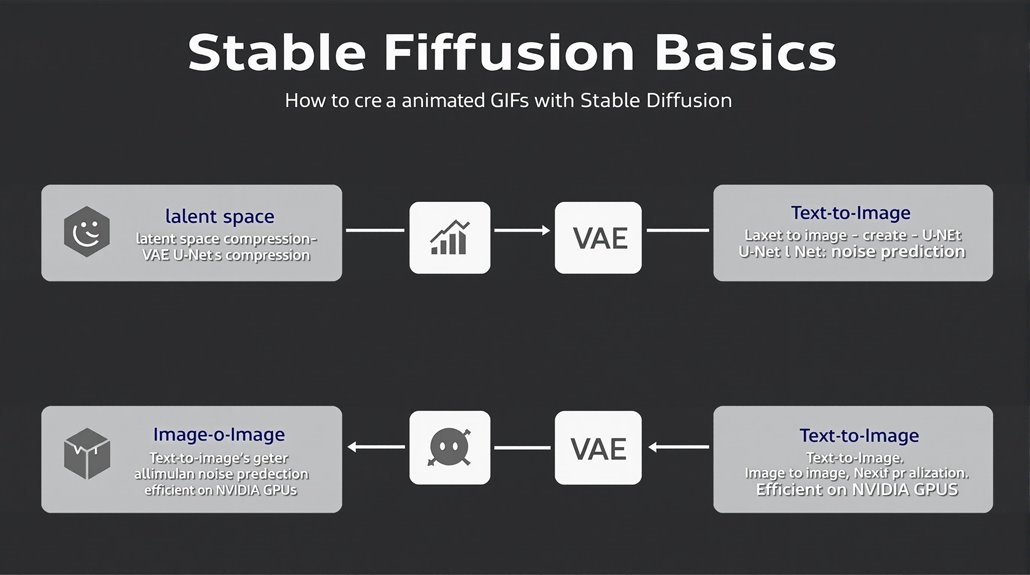
Stable Diffusion is a powerful generative AI model that creates realistic images from textual descriptions. It uses latent space, a lower dimensional representation of data, to reduce processing requirements, making it efficient on desktops with NVIDIA GPUs.
Stable Diffusion employs a variational autoencoder (VAE) to compress images into the latent space, which is 48 times smaller than the image pixel space. This process involves generating a random tensor in the latent space.
Using a U-Net noise predictor to predict and remove noise, and iteratively refining the image, the model generates a high-quality image by converting the final latent image back to pixel space using the VAE decoder, matching the provided textual description.
This combination of latent space operations and noise prediction enables Stable Diffusion to produce realistic and detailed images from text prompts.
Stable Diffusion’s key functionality includes text-to-image generation and image-to-image generation, allowing users to create new images based on text or transform existing images. The model’s use of latent space and noise prediction makes it efficient and versatile.
Unlike other models, Stable Diffusion does not require extensive computational power, making it accessible on a wider range of devices. Its capabilities include graphic artwork, image editing, and video creation, making it a valuable tool for various applications. Furthermore, Stable Diffusion can perform inpainting and outpainting tasks effectively, enhancing its flexibility in image manipulation.
The process of generating images through Stable Diffusion involves both forward and reverse diffusion steps, with the forward diffusion process gradually degrading the image towards randomness and the reverse diffusion reconstructing it back to its original form.
Choosing the Right Model
Choosing the Right AI Model for Animated GIFs
When creating animated GIFs with generative AI, selecting the right model is key to achieving high-quality animations that align with your artistic and stylistic needs.
Model Considerations
The AnimateDiff model is a straightforward method to generate videos with Stable Diffusion, offering a range of capabilities for various animation styles. However, it’s crucial to consider model compatibility and animation styles to ensure the chosen model meets the desired outcome.
For realistic character animations, models like CyberRealistic v3.3 are particularly suitable. AnimateDiff’s reliance on motion patterns learned from training data may limit its ability to produce unique or exotic motions.
Techniques like prompt travel and using ControlNet can enhance motion variety and quality.
Understanding Model Limitations
Recognizing the limitations of each model and the impact of training data on motion quality is essential for selecting the right model. By making informed choices, users can create animated GIFs that meet their artistic and stylistic needs.
Staying Current with Model Updates
Model updates, such as AnimateDiff v3, offer improved animation capabilities, emphasizing the importance of staying current with the latest model versions.
Additional Consideration
The ability to use built-in tools and extensions like img2img and Deforum significantly expands the creative possibilities for generating high-quality animations.
Key Considerations for Model Selection
- Model Compatibility: Ensure the chosen model is compatible with the desired animation style.
- Motion Variety: Techniques like prompt travel and using ControlNet can enhance motion variety.
- Training Data: Understand the impact of training data on motion quality to select the right model.
- Model Updates: Stay current with the latest model versions for improved animation capabilities.
AnimateDiff utilizes a control module to influence Stable Diffusion models, which is trained on a variety of short video clips to learn general motion patterns.
Using Img2img and Inpaint
Creating Animated GIFs with Stable Diffusion
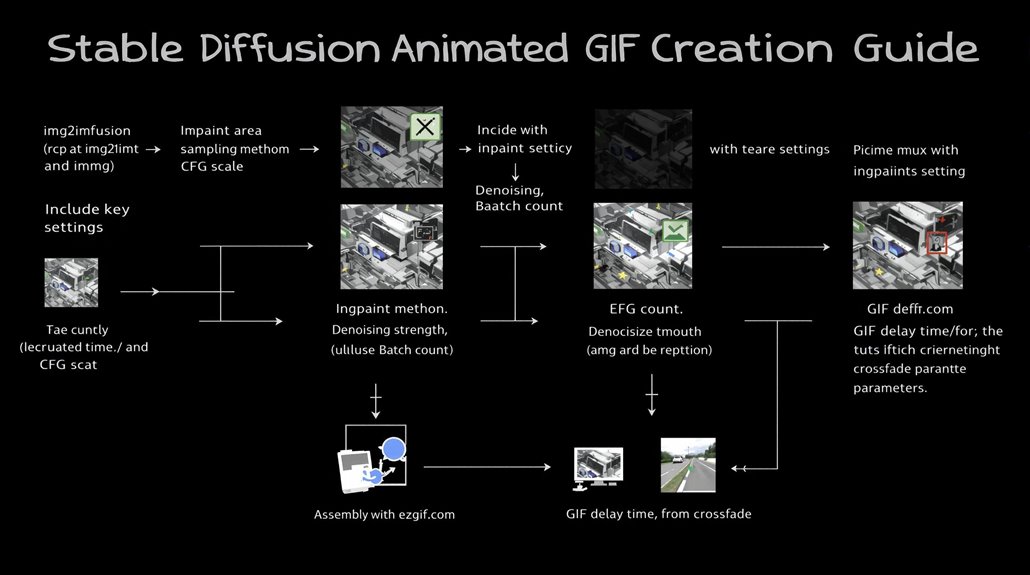
To create animated GIFs, use the img2img and inpaint functionalities in Stable Diffusion. Start by uploading a base image to the img2img tab, ensuring it is at a suitable size like 512×512 pixels.
In the Inpaint tab, apply masking techniques to cover parts intended for animation while leaving static elements uncovered. Set Mask Mode to Inpaint Masked and Masked Content to Original to ensure the existing image is used in generating variations.
Use Whole Picture for the Inpaint Area and a consistent sampling method like DPM++ SDE for animation coherence.
Generate frames with specific parameters such as batch count and denoising strength. Adjust these settings to control the animation’s smoothness and consistency, ensuring the final GIF is free from artifacts and has the desired animation effect.
Producing multiple frames with slight variations is key to creating a seamless animation. To achieve this, modify the denoising strength and CFG scale to balance the level of change between frames. Advanced users often prefer Stable Diffusion’s AUTOMATIC1111 WebUI for its extensive features and community support, which can enhance the animation process Stable Diffusion GUI.
Segmentation models like the Meta Segment Anything Model (SAM) can be integrated with inpainting techniques for more precise and efficient image restoration, particularly useful in film restoration and photo editing.
To assemble the animated GIF, use a tool like ezgif.com to upload and combine the generated frames. Adjusting the GIF delay time and crossfade parameters can help smooth out the animations.
By controlling these settings and using the img2img and inpaint functionalities, you can transform static images into vibrant animations with Stable Diffusion.
Key Settings:
- Inpaint Area: Whole Picture
- Sampling Method: DPM++ SDE
- Denoising Strength: Below 0.25 for minimal changes
- CFG Scale: Low for subtle variations
- Batch Count: High to generate multiple frames
Assembly:
- Tool: ezgif.com
- GIF Delay Time: Adjust for smooth pacing
- Crossfade Parameters: Adjust for seamless transitions
Setting Up Animation Frames
Setting Up Animation Frames for Smooth Results
For ideal animation results, it’s crucial to select a suitable motion module, such as v14 or v15, and maintain at least eight frames per second for playback.
Adjusting the sampling method and steps can further enhance animation quality.
Frame Optimization
The AnimateDiff interface, located at the bottom of the Stable Diffusion interface, allows for experimentation with different settings, including frame optimization and animation preview.
Ensuring consistent settings across frames is key to achieving smooth animations.
Controlled Output
Using seed images can provide controlled output and help maintain consistent results.
Adjusting playback speed can also help achieve the desired level of smoothness in the animation.
Enhancing Movement and Variation
Experimenting with motion LoRA and prompt travel can add more movement and variation to animations.
These features allow for increased control over animation sequences, enabling more dynamic and engaging videos.
Best Practices
- Frame Rate: Maintain at least eight frames per second for smooth playback.
- Consistent Settings: Ensure all frames have consistent settings for a cohesive animation.
- Seed Images: Use seed images for controlled output.
- Playback Speed: Adjust playback speed as needed for smoothness.
- Motion LoRA and Prompt Travel: Experiment with these features to enhance movement and variation.
- The ControlNet m2m script should be used with suitable video-to-image settings to ensure high-quality frame generation in video-to-video applications.
The AnimateDiff framework relies on custom motion model settings to control the animation’s quality and dynamics.
Tips for Smooth Animations
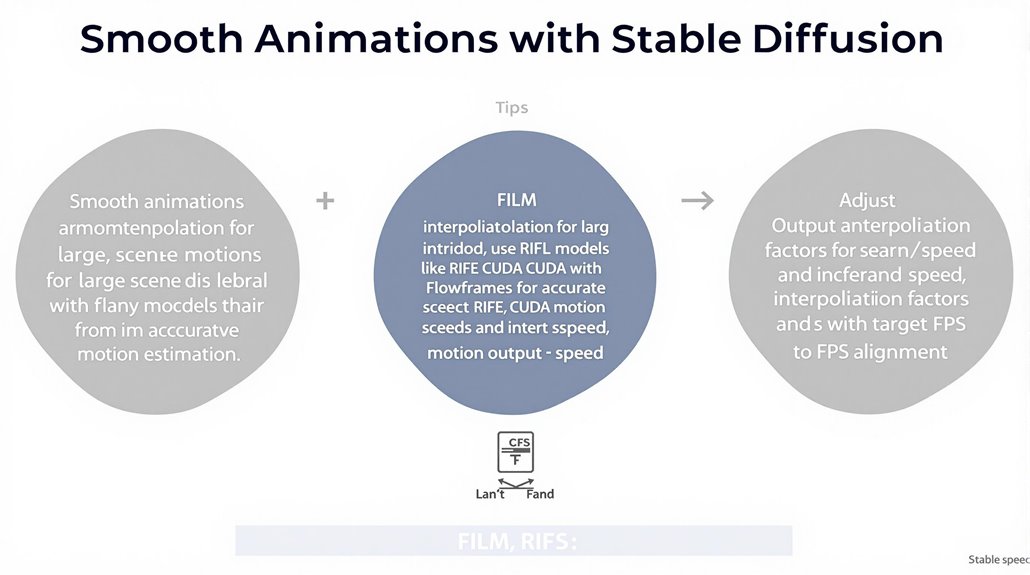
To create smooth animations with Stable Diffusion, it’s crucial to use the right techniques and settings. Frame interpolation is a key method for enhancing animation smoothness by synthesizing new frames between existing ones.
The FILM interpolation method is highly effective for smoother animations due to its ability to handle large scene motions effectively. It can seamlessly handle significant scene changes without compromising the animation’s smoothness.
For high-quality interpolated frames, using RIFE models like RIFE CUDA with tools such as Flowframes can be beneficial. These models are specifically designed for frame interpolation and provide accurate motion estimation and synthesis of new frames.
When setting up animation frames, adjusting the Output Speed can significantly impact smoothness. For example, experimenting with settings like x3 speed with x2 slowmo can help achieve smooth 30fps GIFs. Additionally, selecting the appropriate LoRA, such as a Frames grid LoRA, is essential for the animation process Frames grid LoRA.
To align the interpolation factor with the target FPS, setting it to 5 can convert an 8 FPS video to 40 FPS for a smoother animation. Proper alignment of these settings ensures a consistent and smooth animation.
Employing efficient interpolation methods and carefully adjusting settings can help creators produce smoother and more engaging animations. Stable Diffusion and ControlNet are tools that can be used to refine and control the interpolation process, providing more cohesive results.
Advanced Animation Techniques
Joint Rotations enable articulated models to be animated by specifying joint angles as functions of time, allowing for precise control over character movements and enhancing realism and fluidity.
Inverse Kinematics (IK) computes all necessary joints along a chain to reach a target pose. This technique is particularly useful for animating complex movements, such as those involving multiple limbs or extensive range of motion, making animations more natural and engaging.
Combining joint rotations and IK with motion capture capabilities further enhances the realism and precision of animations. By accurately capturing real-world movements and translating them into digital form, animators can create highly lifelike and visually compelling animations.
To ensure smooth transitions, keyframe spacing based on frame rate is crucial for achieving natural motion.
Advanced methods like automatic retargeting and sharing the same skeleton enable efficient application of animations to different meshes. This makes the animation process more versatile and time-efficient. This flexibility allows for the seamless transfer of animations between characters, reducing production time and increasing the overall efficiency of the animation workflow.
Incorporating these techniques with tools like AnimateDiff and ControlNet can further enhance the depth and dimensionality of animations. By leveraging these advanced techniques and tools, animators can push the boundaries of animation in Stable Diffusion, creating more realistic and captivating visual narratives. This provides a more immersive and engaging visual experience. The AnimateDiff extension must be installed from the Stable Diffusion UI’s Extensions tab using the URL for the extension’s git repository.
Overcoming Common Challenges**
Optimizing Animated GIF Creation with Stable Diffusion
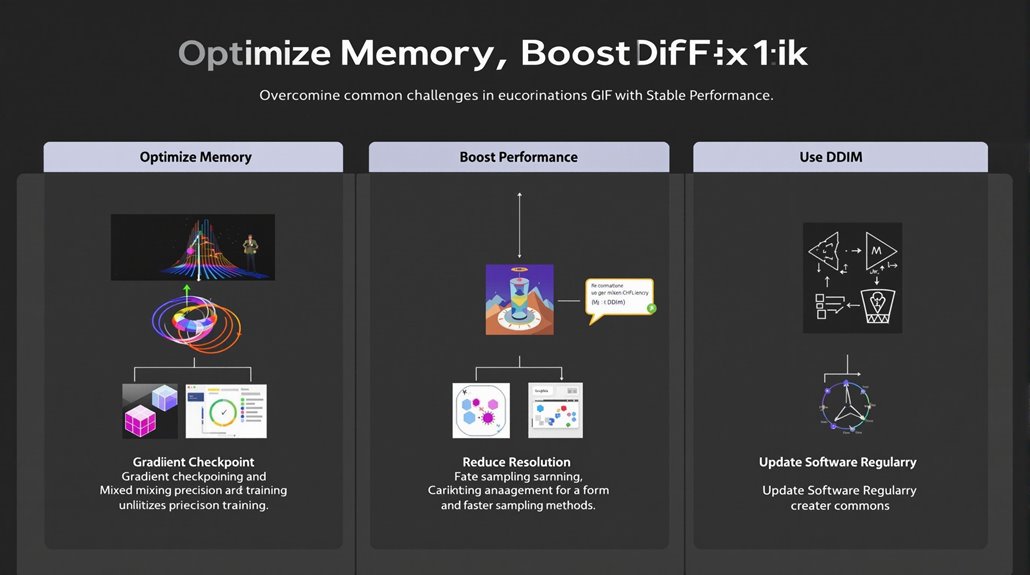
When creating animated GIFs with Stable Diffusion, overcoming technical challenges is crucial. High memory requirements can lead to Out of Memory (OOM) errors.
Reducing image resolution or batch size can mitigate OOM errors. Techniques like gradient checkpointing and mixed precision training optimize memory usage and prevent OOM errors.
Performance tuning is critical for efficient animation creation. Using faster sampling methods like DDIM and reducing the number of inference steps can speed up the image generation process.
Upgrading the GPU or utilizing cloud-based solutions can accelerate the generation process and improve performance. Adjusting the batch size, disabling unused extensions, and regularly updating Stable Diffusion and its extensions can optimize performance and prevent memory issues.
Moreover, manually verifying that all code and dependencies are up to date with commands like git pull before creating animated GIFs ensures that the software operates smoothly and prevents potential conflicts with outdated extensions.
By implementing these strategies, users can achieve smoother and more efficient animation creation. Regularly updating software and sorting extensions can ensure optimal performance and efficient memory management.
It is essential to ensure that the GPU used for Stable Diffusion meets the minimum requirements, specifically having at least 4GB of VRAM.
Performance optimization and memory management are key to successful animated GIF creation with Stable Diffusion.
