


Installing ComfyUI on Windows 11
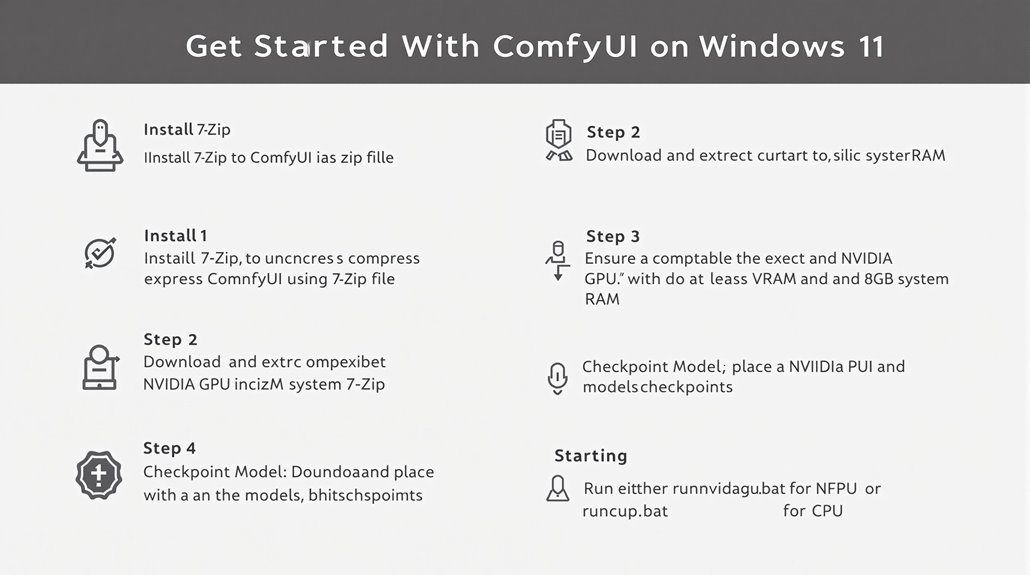
To get started with ComfyUI, download and install 7-Zip to uncompress ComfyUI’s zip file. Download the standalone version of ComfyUI from the official repository and extract it to a preferred location, creating a folder named ComfyUI_windows_portable.
System Requirements
Your computer should meet specific requirements, including a compatible NVIDIA GPU with at least 4GB VRAM and 8GB system RAM.
Downloading Checkpoint Models
Download a checkpoint model and place it in the models/checkpoints folder within the ComfyUI directory. This step is crucial for using ComfyUI.
Running ComfyUI
Double-click on run_nvidia_gpu.bat to start ComfyUI if you have an NVIDIA GPU, or run_cpu.bat if you don’t. ComfyUI should automatically start in your browser.
Key Components
- NVIDIA GPU: Ensure your GPU has at least 4GB VRAM for optimal performance.
- System RAM: 8GB is recommended for smooth operation.
- Checkpoint Models: Essential for using ComfyUI’s full capabilities.
Key Takeaways
Get Started with ComfyUI on Windows 11
- Download 7-Zip: Install 7-Zip to uncompress ComfyUI’s zip file.
- Install ComfyUI: Download and extract the standalone version of ComfyUI using 7-Zip.
- Launch ComfyUI: Double-click appropriate batch file (run_nvidia_gpu.bat for NVIDIA GPU or run_cpu.bat for CPU) to launch ComfyUI.
Detailed Steps:
- System Requirements: A compatible NVIDIA GPU with 4GB VRAM and 8GB system RAM is necessary.
- Download and Extract ComfyUI: Use 7-Zip to extract ComfyUI to a folder named ComfyUI_windows_portable.
- Start ComfyUI: Launch ComfyUI by double-clicking run_nvidia_gpu.bat or run_cpu.bat depending on your hardware.
Download and Install ComfyUI
Get Started With Comfyui on Windows 11 Quiz
Download and Install ComfyUI
To install ComfyUI on Windows 11, follow these steps:
Step 1: Install 7-Zip
Install 7-Zip to uncompress ComfyUI’s zip file. Download 7-Zip from the official website and run the exe file to install it.
Step 2: Download ComfyUI
Download the standalone version of ComfyUI from the provided link. This will ensure you have the necessary files for installation.
Extracting ComfyUI
Extract the ComfyUI zip file using 7-Zip to your preferred location.
This will create a new folder named ComfyUI_windows_portable.
System Requirements
Verify that your computer meets ComfyUI’s system requirements,
including a compatible NVIDIA GPU with at least 4GB VRAM and 8GB system RAM.
These requirements are crucial for optimal performance. Additionally, ensure that you have a modern CPU and at least 16 GB of RAM for smoother performance.
Checkpoint Model
Download a checkpoint model for use with ComfyUI and place it in the models/checkpoints folder within the ComfyUI directory.
This is essential for starting ComfyUI. ComfyUI is a node-based GUI that allows for flexible and customizable workflows.
Starting ComfyUI
Start ComfyUI by running either run_nvidia_gpu.bat for NVIDIA GPU or run_cpu.bat for CPU.
This will initiate the application, and ComfyUI will automatically start in your browser.
Setting Up ComfyUI Environment
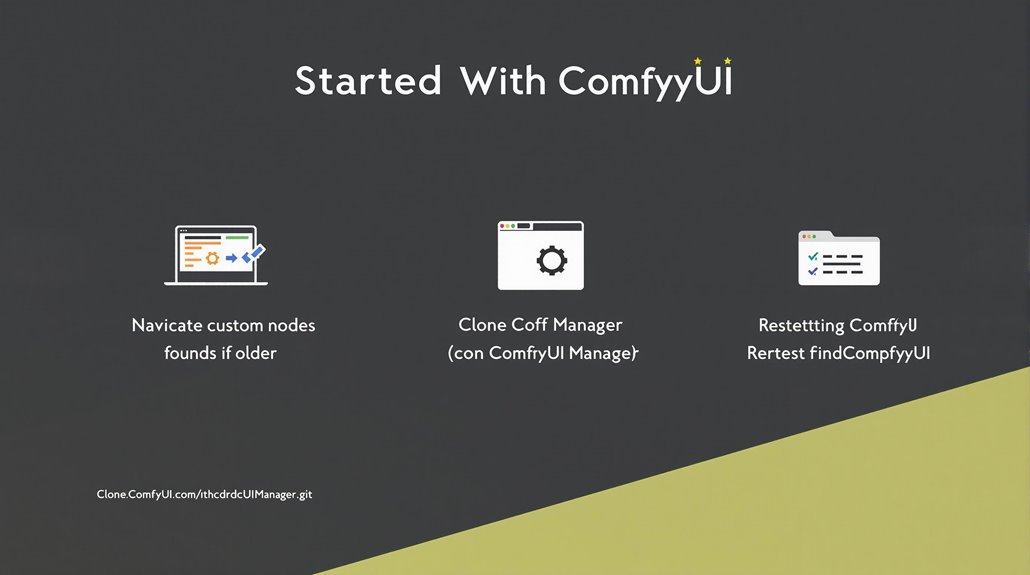
To install ComfyUI Manager, navigate to the ComfyUI custom nodes folder and open a Command Prompt. Type ‘git clone https://github.com/ltdrdata/ComfyUI-Manager.git’ and press Enter to clone the repository. Once cloning is complete, restart ComfyUI to activate the Manager feature.
This setup ensures ComfyUI runs efficiently, allowing users to utilize its capabilities within the Stable Diffusion ecosystem. ComfyUI Manager enhancing customization options such as installing custom nodes is a critical addition to the overall user experience.
Prerequisites: Ensure Git is installed on your system and ComfyUI is already set up. If Git is not installed, download and install it before proceeding with the Manager installation. Installing ComfyUI requires a system with a compatible NVIDIA GPU.
Running ComfyUI for Beginners

Running ComfyUI for Image Generation
To start using ComfyUI, users must first download a checkpoint model and place it in the ComfyUI_windows_portable\ComfyUI\models\checkpoints folder.
For Nvidia GPU users, double-clicking on run_nvidia_gpu.bat will launch ComfyUI, while those without can use run_cpu.bat for slower performance.
Loading Default Workflow
If necessary, load the default text-to-image workflow by clicking Load Default on the right panel. This ensures a standard setup for image generation.
Configuring ComfyUI for Nvidia GPU
To optimize performance, configure ComfyUI to use the Nvidia GPU. Select the appropriate Stable Diffusion checkpoint model in the Load Checkpoint node.
Regular Updates
Regular updates to ComfyUI are crucial to maintain peak performance. This ensures users have access to the latest features and improvements. Custom nodes can also enhance functionality and are managed through the ComfyUI Manager.
Advanced Workflows
For advanced users, mastering node management and troubleshooting complex issues through detailed log files and error messages is key. This guarantees effective use of ComfyUI for advanced image generation and animation tasks.
Model Optimization
Model optimization is a critical aspect of using ComfyUI efficiently. Choosing the right model and configuring it properly can significantly improve performance and results.
Custom Workflows
Custom workflows allow users to create specific image generation pipelines tailored to their needs. This flexibility makes ComfyUI a versatile tool for a variety of image generation tasks.
ComfyUI’s official GitHub repository provides detailed installation instructions, which can be accessed by navigating to the ComfyUI GitHub Repository.
Basic ComfyUI Operations Guide

Mastering ComfyUI Basics
To get started with ComfyUI, it’s crucial to understand node interactions and workflow customization. Nodes are rectangular blocks that execute specific functions, requiring inputs, outputs, and parameters.
Node Interactions
- Connecting Nodes: Drag and hold the dot of the input or output to form a connection.
- Moving Nodes: Hold and drag with the left click to move nodes around the workspace.
ComfyUI Interface
The ComfyUI interface supports basic operations:
- Adding and Removing Nodes: Add nodes to construct workflows and remove them as needed.
- Connecting Edges: Connect nodes to create image generation workflows.
- Workflow Management: Load checkpoint models and manage workflows through the menu panel.
Workflow Customization
- Saving and Loading Workflows: Use JSON files to save and load workflows.
- Clearing and Loading Default Workflows: Use the menu panel to clear the workspace or load the default workflow. The menu panel also allows for the management of image generation queues, including accessing and clearing queue tasks.
Menu Panel Options
- Settings: Access ComfyUI settings through the menu panel.
- Adding Workflows to Queue: Add workflows to the image generation queue with the ‘Ctrl+Enter’ shortcut.
- Managing Image Generation Options: Control batch size and auto queue options through the menu panel.
ComfyUI is designed to provide a transparent data flow by breaking down workflows into rearrangeable elements, making it easier for users to customize and manage their image generation processes.
Troubleshooting ComfyUI Issues

ComfyUI Troubleshooting Essentials
Running ComfyUI smoothly requires a solid understanding of its components and potential pitfalls. ComfyUI Manager plays a crucial role in resolving common issues like missing custom nodes and outdated extensions.
Common Issues and Solutions
- ComfyUI Manager Not Loading: Ensure GIT is installed in the system’s PATHs to resolve this issue. If problems persist, consider resetting ComfyUI to its default state. Manual deletion of Part 2 AppData\Roaming\ComfyUI is required for a clean reinstall.
- Missing Custom Nodes: Use the ComfyUI Manager to install the necessary components. Analyze error logs to identify specific issues and ensure all extensions are up to date.
- Model Loading Issues: Verify that models are correctly named and placed in designated folders. Regular log checks and model installation verification are essential for maintaining a stable ComfyUI environment.
Troubleshooting Steps
- Load Custom Nodes: Install missing custom nodes using the ComfyUI Manager. This often resolves workflow errors.
- Update Extensions: Keep all extensions up to date to prevent conflicts and errors.
- Verify Model Placement: Ensure models are placed in the correct folders and are correctly named.
Disabling extensions can prevent conflicts by reducing execution time and making the workflow lighter; thus, disabling extensions before proceeding with critical operations is a recommended practice.
Regular Maintenance
- Log Checks: Regularly check logs to identify and address issues promptly.
- Model Verification: Verify model installation to ensure a stable ComfyUI environment.
