
Installing SD.Next: A Step-by-Step Guide
System Requirements:
Discrete NVIDIA graphics card with at least 4 GB VRAM
8 GB of RAM
10 GB of storage space
Python 3.10
Git
Up-to-date NVIDIA drivers
Preparation Steps:
Verify System Compatibility: Ensure your computer meets the minimum system requirements.
Create a Virtual Environment: Use Conda to create a new virtual environment.
Clone the SD.Next Repository: Navigate to your installation directory and clone the repository using ‘git clone https://github.com/vladmandic/automatic’.
Run the Launcher Script: Activate your environment and run the appropriate launcher script.
Install Required Libraries: Allow the server to install the necessary libraries. Access the web interface at the provided Local URL to configure paths and download models.
Troubleshooting and Specific Platform Instructions:
Check the installation directory for detailed logs.
For NVIDIA GPUs, ensure CUDA is installed.
For AMD GPUs, use ROCm if necessary.
For issues, refer to the GitHub repository for additional help.
Accessing SD.Next:
Open the Web Interface: Use the Local URL provided during installation to access the SD.Next interface.
Configure Model Paths: Navigate to the System tab and adjust the model folder path if necessary.
Download Models: Select models to download directly from the interface. Follow the on-screen instructions to complete the installation.
Table of Contents Toggle
- Key Takeaways
- Pre-Installation Requirements
- Setting Up the Environment
- Navigate to Installation Directory
- Create a Virtual Environment
- Clone SD.Next Repository
- Activate Virtual Environment
- Initial Setup Steps
- Platform-Specific Instructions
- Advanced Install Options
- Troubleshooting Common Issues
- Final Setup Verification
Key Takeaways
SD.Next Installation Steps
Install Prerequisites: Install Git, Python 3.10 or 3.11, and up-to-date NVIDIA drivers before proceeding.
Clone Repository: Clone the SD.Next repository using ‘git clone https://github.com/vladmandic/automatic’ and navigate to the directory.
Launch SD.Next: Run the launcher script for your OS (e.g., ‘webui.bat –debug’ for Windows) to set up the server and access the web interface.
Pre-Installation Requirements
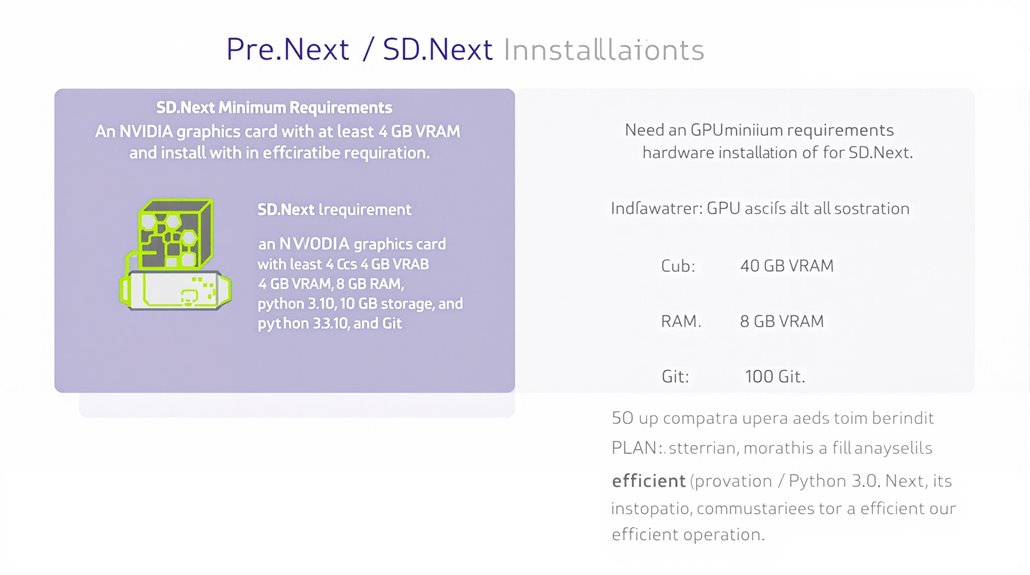
SD.Next Pre-Installation Requirements
Hardware Requirements
SD.Next requires specific hardware to operate efficiently. It needs a discrete NVIDIA graphics card with at least 4 GB VRAM. However, for smooth operation, particularly when working with larger models like SD 3.5 Large, 12 GB VRAM is recommended. This aligns with Stable Diffusion 3.5’s capability to run on consumer hardware with at least 12 GB of VRAM Consumer Hardware Support.
A decent CPU is vital for overall system performance, and adequate RAM, such as 8 GB or more, is important for system stability. At least 10 GB of storage is required for the installation and model files.
Software Requirements
SD.Next requires Python 3.10 and Git for management and updates. It is designed to run on Windows machines with up-to-date NVIDIA drivers for peak GPU performance and compatibility.
Users should consider the various models available, including SD 3.5 Large, Large Turbo, and Medium, each with different requirements and capabilities.
Verification and Planning
Understanding these pre-installation requirements is essential for planning necessary hardware upgrades and verifying GPU compatibility.
Proper preparation helps ensure a smooth installation process and efficient operation of SD.Next. Compatibility issues may arise with certain extensions or models, highlighting the need for careful planning and hardware configuration.
SD.Next supports multiple backends, including Diffusers and Original, allowing users to choose the best option for their specific needs.
Setting Up the Environment
Setting Up the Environment for SD.Next
Navigate to Installation Directory
Navigate to the directory where you plan to install SD.Next, ensuring it has read/write/execute access. This prevents permission-related issues during installation and execution. It is also crucial to avoid directories requiring admin permissions for smooth installation.
Create a Virtual Environment
Use ‘conda create’ to set up a virtual environment, which is important for managing dependencies and isolating the environment from other Python projects.
Clone SD.Next Repository
Clone the SD.Next repository using ‘git clone https://github.com/vladmandic/automatic’. Then, go into the cloned directory to prepare for installation. This ensures all necessary files and configurations are available for a successful setup.
Activate Virtual Environment
Activate the virtual environment using ‘conda activate’ and verify that all necessary libraries and dependencies are correctly installed and configured. This creates an ideal environment for SD.Next.
Key Commands:
Create Virtual Environment: ‘conda create -n envname python=x.x anaconda’
Activate Virtual Environment: ‘conda activate envname’
Clone SD.Next: ‘git clone https://github.com/vladmandic/automatic’
Before proceeding with the setup, it is essential to understand how Docker images are built using a specified tag, as seen in the example command ‘docker build -t saladtechnologies/sdnext:dreamshaper-8 build context‘.
Initial Setup Steps
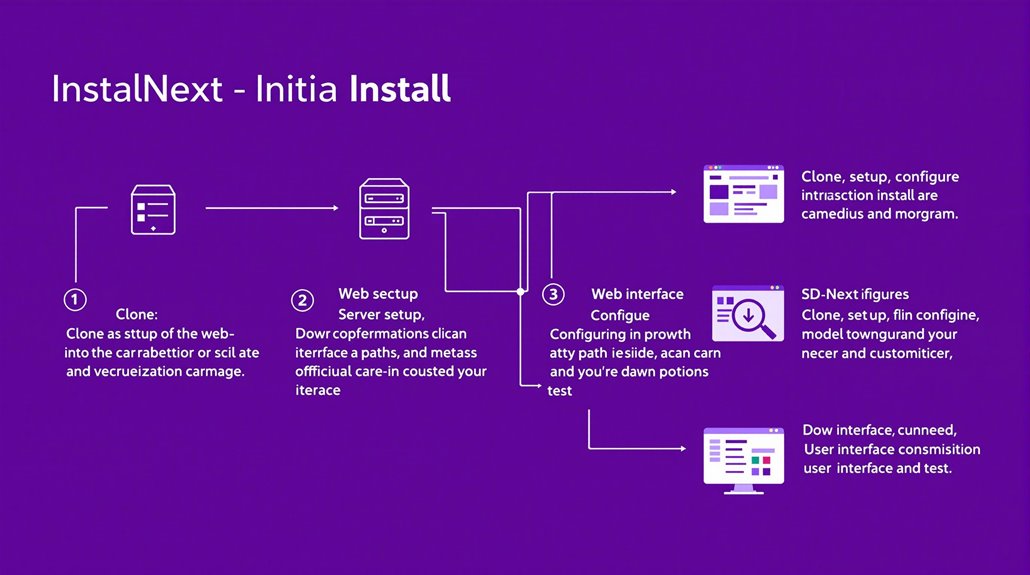
SD.Next Installation
To ensure a successful installation of SD.Next, follow these steps:
- Clone SD.Next by running ‘git clone https://github.com/vladmandic/automatic ‘ in the desired location.
Navigate into the cloned directory and run the appropriate launcher for the OS, such as ‘webui.bat –debug’ for Windows or ‘./webui.sh –debug’ for Linux and Mac.
Wait for Server Setup: Allow a few minutes for the server to install all required libraries, indicated by the console showing “Startup time.”
Access Web Interface: Go to the Local URL listed in the console, typically ‘http://localhost:7860/’.
Configure Paths: In the web interface, navigate to System > Settings to adjust paths for model customization and various data.
Specify the Folder with Huggingface models and Folder for Huggingface Cache, and use Base path to set a common root for all paths.
Apply these settings and restart the server.
- Download Models: Download Models from the official repository using the SD.Next Web-UI.
Navigate to the Models page and the Huggingface tab to enter the model name and press Download Model.
Customize User Interface: Make user interface tweaks in the User Interface section.
Test Installation: Generate an image with a simple prompt to verify that the installation is working correctly.
Before starting the installation, ensure that Miniconda and Git are properly installed on your system.
System and Model Setup
System Settings: Ensure that system paths are correctly configured to prevent errors during model download and usage.
Model Management: Download and manage models efficiently using the SD.Next Web-UI.
User Interface Customization: Tailor the user interface to suit your preferences for a smoother experience.
Troubleshooting Tips
Check the console for error messages if issues arise during installation.
Restart the server after applying any changes to settings or updating models.
Refer to the SD.Next GitHub repository for advanced troubleshooting and debugging guides.
Updating dependencies, particularly PyTorch and Transformers, is crucial for preventing compatibility issues with newer models.
Platform-Specific Instructions
Platform-Specific Considerations for SD.Next Installation
For Windows installations, Git and Python must be installed and accessible in the system PATH. Miniconda should be installed and set up in the desired directory.
Followed by updating environment variables to include Miniconda and any GPU SDKs, such as HIP SDK for AMD GPUs.
To start the web interface, execute the launcher script, for example, ‘webui.bat –debug –use-xxx’, with necessary flags for specific GPU support, like ‘–use-zluda’ for AMD GPUs.
Linux and MacOS Installations require similar prerequisites and environment setup. Git, Python, and necessary dependencies like CUDA for NVIDIA GPUs or ROCm for AMD GPUs are essential.
Tools like Conda manage environments to achieve cross-platform compatibility and peak GPU performance.
Each platform requires detailed instructions and troubleshooting guides to guarantee a successful installation. The launcher script should be modified with the correct flags, such as ‘./webui.sh –debug –use-xxx’, to ensure seamless installation.
Key Environment Variables must be updated to include Miniconda and any GPU SDKs to support the specific GPU type. Detailed platform-specific instructions are available to ensure a smooth installation process.
Troubleshooting guides are critical for resolving issues during installation. Users should refer to these guides if they encounter errors during the setup process.
GPU Support includes various options:
NVIDIA GPUs using CUDA libraries on Windows and Linux.
AMD GPUs using ROCm libraries on Linux and ZLUDA on Windows.
Intel Arc GPUs using OneAPI with IPEX XPU libraries on Windows and Linux.
Choosing the Right Backend is essential. SD.Next supports two main backends:
The Diffusers backend is based on the new Huggingface Diffusers implementation and supports all models listed.
The Original backend is based on the LDM reference implementation and is fully compatible with most existing functionality and extensions written for A1111 SDWebUI.
SD.Next supports multiple diffusion models, including those from StabilityAI, such as Stable Diffusion 3.5, which offer extensive customization capabilities.
For each platform, ensuring that all dependencies are correctly installed and that environment variables are updated will significantly streamline the installation process. GPU SDKs and backend selection play crucial roles in achieving optimal performance. Key Environment Variables and troubleshooting guides are essential for resolving any installation issues promptly.
Advanced Install Options
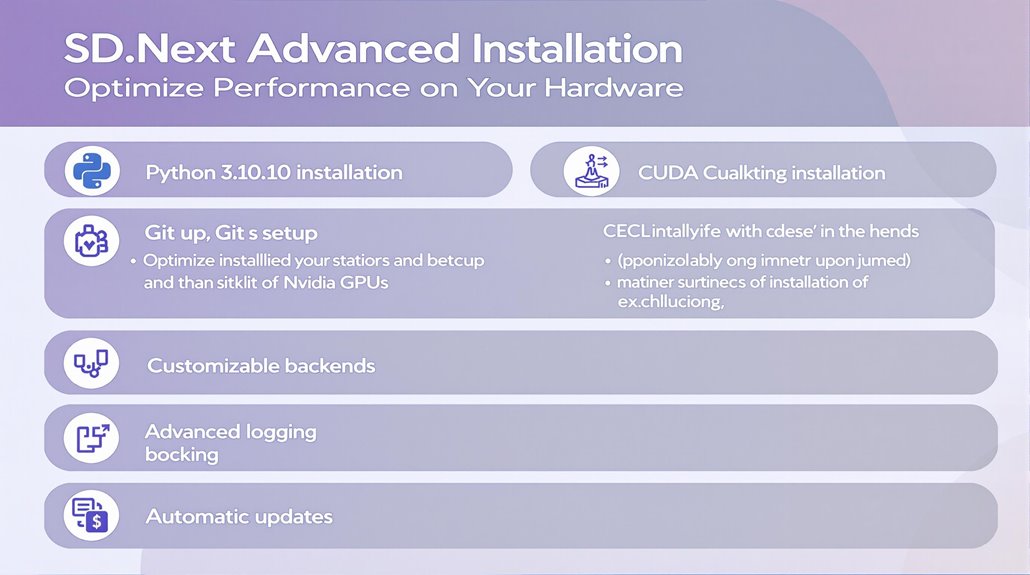
Advanced Installation of SD.Next
Installing SD.Next requires a detailed understanding of its dependencies and system requirements. The first step is to download and install Python 3.10.10, ensuring “Add Python 3.10 To PATH” is checked during installation.
System Requirements and Dependencies
Git should be installed using default settings.
.gitignore configuration file is essential for excluding unnecessary files from version control.
CUDA Toolkit version should be installed for Nvidia graphics cards to optimize performance.
Customizable Backends
SD.Next offers customizable backends for tailored performance optimization and adaptation to specific hardware configurations. These include Diffusers, Original, Triton, ZLUDA, StableFast, DeepCache, OpenVINO, NNCF, IPEX, and OneDiff.
Advanced Features and Troubleshooting
Advanced logging features are integrated to provide extensive feedback on system operations and potential errors, facilitating efficient troubleshooting. Users can execute command line arguments such as ‘–debug’ or set environment variables like ‘SD_DEBUG=true’ during the installation process.
The installer also includes automatic updates and dependency management.
Optimized Performance
The installer ensures that SD.Next remains up-to-date and optimized for different platforms. This thorough approach to installation enables users to utilize the full potential of SD.Next’s advanced features.
Installation and Updates
Automatic updates and dependency management are included in the installer. This ensures that SD.Next remains optimized and compatible with various hardware configurations.
Users can customize their experience through command line arguments and environment variables.
SD.Next comes with new model support Stable Diffusion XL and Kandinsky, enhancing its versatility and performance in AI generation tasks.
Troubleshooting Common Issues
SD.Next Troubleshooting Essentials
Effective troubleshooting of SD.Next installation and operation issues requires attention to several key components, including Git, Python, and NVIDIA GPU with CUDA.
Git Setup
To prevent installation issues, ensure Git is correctly installed and accessible via the command line.
Verify the Git version using ‘git –version’ in PowerShell and reinstall Git if necessary.
Dependency Management
Confirm necessary dependencies and libraries, such as ControlNet, are installed and up-to-date.
Use ‘pip list’ in PowerShell to verify installed dependencies.
Updating dependencies can resolve installation issues.
Clean Installation Environment
Ensure a clean installation environment free from conflicting versions.
Use dedicated directories for SD.Next installation.
This helps prevent issues.
Model Path Configuration and Compatibility
Regularly check the model path configuration.
Verify model compatibility with SD.Next.
Proper setup of these components and diligent troubleshooting can prevent and resolve common issues.
NVIDIA GPU and CUDA Configuration
Ensure that NVIDIA GPU and CUDA are correctly installed and configured.
This is crucial for SD.Next to function properly.
Refer to the NVIDIA CUDA Toolkit documentation for installation and troubleshooting guides.
Stable Fusion models may require specific Python library versions to function correctly.
System Requirements
Ensure that system requirements are met, including having a compatible NVIDIA GPU.
Ensure sufficient available resources.
The minimum hardware requirements include a GPU with at least 4 GB VRAM.
This helps in preventing installation and operation issues.
Troubleshooting Resources
For advanced troubleshooting and configuration details, refer to specific resources like GitHub discussions.
Refer to official documentation related to NVIDIA CUDA and SD.Next.
Final Setup Verification
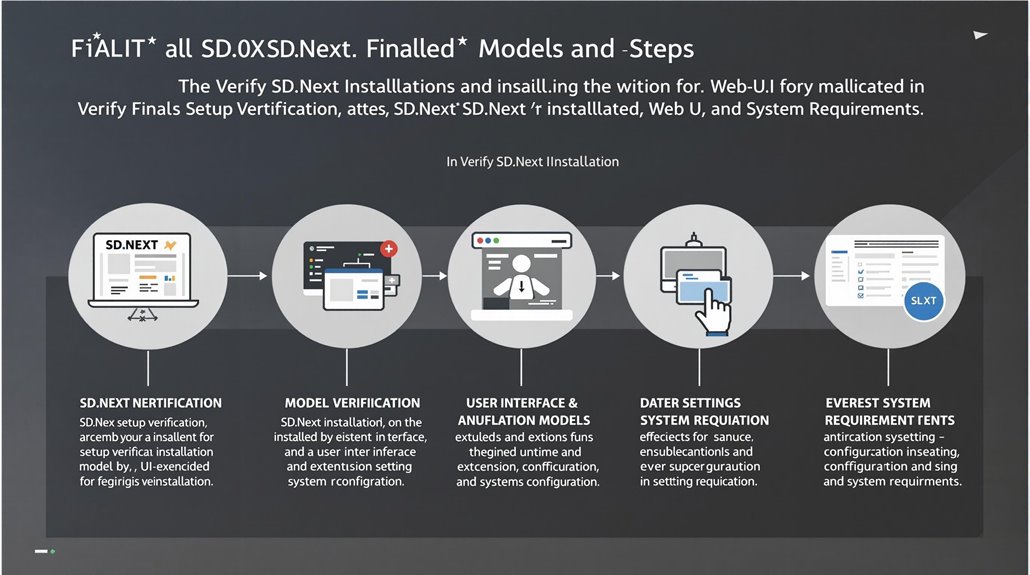
SD.Next Setup Verification
Verify the installation by accessing the Local URL ‘http://127.0.0.1:7860/’ in a browser to confirm the webui is operational.
Model Verification
Download the SDXL base and refiner models from the official repository.
Switch to the diffusers backend to use these models.
Confirm the download progress and ensure the models are correctly integrated and functioning.
Test the Installation
Generate an image with a simple prompt, such as ‘a cat’, and press Generate to confirm the system is operational.
User Interface and Extension Verification
Confirm the user interface resembles the AUTOMATIC1111 Web-UI.
Note any extension compatibility issues.
Settings Configuration
Review the settings configuration to guarantee the SDXL model checkpoints and diffuser pipeline are correctly configured.
System Requirements Verification
Monitor the console output for any errors.
Verify that the system meets the minimum hardware requirements, including a discrete Nvidia GPU and sufficient disk space. It is essential to ensure a stable system by having a dedicated NVIDIA GPU with at least 8 GB VRAM.
It is crucial to have a compatible CUDA installation to ensure smooth operation of SD.Next, especially with NVIDIA graphics cards.