Getting Started with Stable Diffusion WebUI by AUTOMATIC1111
The Stable Diffusion WebUI by AUTOMATIC1111 is a user-friendly interface for AI image generation. It offers easy installation on multiple platforms, including Windows, Mac, and Linux, and also supports Google Colab for efficient processing.
Installing on Windows:
To start, download the ‘stable-diffusion-webui.zip’ file and extract it. Install Python 3.10.6 and Git.
Then, clone the repository using ‘git clone https://github.com/AUTOMATIC1111/stable-diffusion-webui.git’.
Download a Stable Diffusion model and run ‘webui-user.bat’ to start the WebUI server at ‘http://127.0.0.1:7860.
Key Features:
This interface provides detailed installation steps and advanced settings to enhance your AI image generation experience.
It allows you to explore various models and settings to create unique images.
Setting Up the Interface:
Upon launching the WebUI, you’ll see the txt2img tab where you can turn your text ideas into images.
Choose your model from the Stable Diffusion Checkpoint dropdown menu and refresh the list if you add new models.
Advanced Settings:
You can adjust settings like width, height, batch size to customize your image generation.
The seed value allows you to fix the content of an image and tweak the prompt.
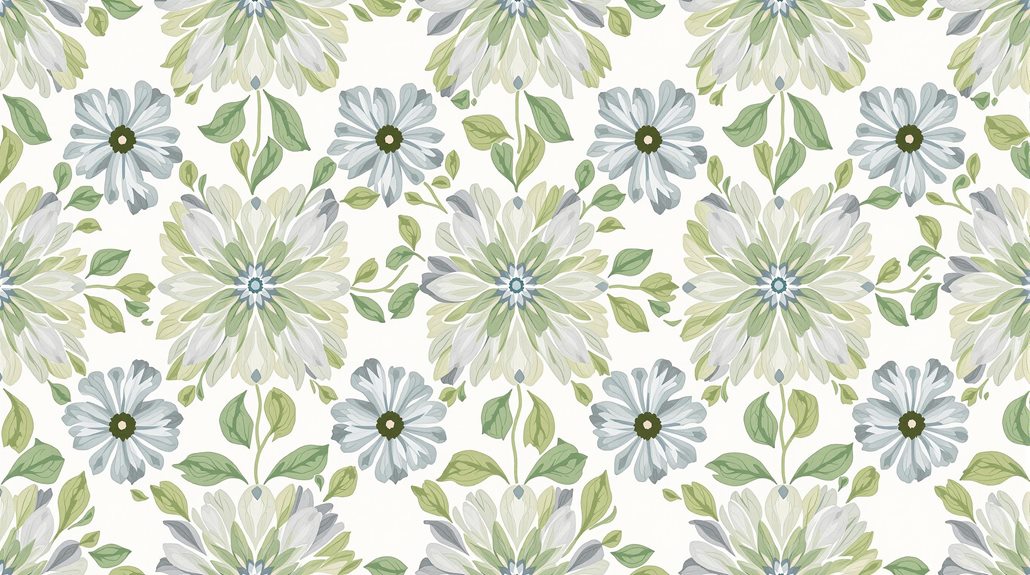
The tiling option can create repeating patterns like wallpapers.
Exploring Further:
By following the guide, you can learn more about upscaling.
You can also learn about installing extensions and using control net for more detailed images.
Install Python from the official Python website, ensuring it’s added to the system path.
Download ‘stable-diffusion-webui.zip’, extract it to a folder, and navigate to the ‘models’ folder to download a Stable Diffusion model file from Hugging Face.
Run the WebUI by opening the command prompt in the ‘stable-diffusion-webui’ folder and executing ‘webui-user.bat’. Alternatively, clone the repository using ‘git clone https://github.com/AUTOMATIC1111/stable-diffusion-webui.git’.
Key points:
Python version: Use Python 3.10.6.
Stable Diffusion model: Download from Hugging Face.
Command Prompt: Execute ‘webui-user.bat’ in the ‘stable-diffusion-webui’ folder.
Installation tips:
Direct Download: Download ‘stable-diffusion-webui.zip’ for a straightforward installation.
GitHub Clone: Clone the repository for a more flexible installation.
System Path: Ensure Python is added to the system path during installation.
Platform Compatibility Guide
Stable Diffusion WebUI Compatibility
Stable Diffusion WebUI AUTOMATIC1111 supports multiple operating systems, including Windows, Mac, and Linux, making it accessible to a wide range of users. For Google Colab users, a 1-Click Google Colab Notebook is available for easy setup without requiring extensive technical knowledge.
Windows and Mac Installation
Detailed installation guides are provided for Windows and Mac users, ensuring a smooth setup process. These guides offer specific instructions for different environments, such as using NVIDIA GPUs on Windows or following separate links for Mac and Linux installations.
This makes it easy for users to start generating images using Stable Diffusion models regardless of their operating system.
Cross-Platform Flexibility
Automatic1111’s cross-platform compatibility makes it an ideal choice for both beginners and experienced users who need a flexible and user-friendly interface for AI image generation.
This versatility ensures that users can quickly get started with generating images using Stable Diffusion models on their preferred platform.
Windows Installation Steps
Windows Installation Steps for Stable Diffusion WebUI
To begin the installation process, download the ‘stable-diffusion-webui.zip’ file from the latest release and extract its contents to a designated folder, such as ‘stable-diffusion-demo-project’.
Installing Required Software
Install Python 3.10.6 from the official Python website, ensuring to add Python to the system path during installation. Also, download and install Git.
Cloning the Repository
Open a command prompt in the designated folder and use the ‘git clone’ command to clone the AUTOMATIC1111 repository:
Navigate to the ‘models’ folder inside the ‘stable-diffusion-webui’ folder, and then to the ‘stable-diffusion’ folder. Download a Stable Diffusion model file from Hugging Face and place it in this folder.
Running the WebUI
Open the command prompt in the ‘stable-diffusion-webui’ folder and run the ‘webui-user.bat’ file by double-clicking it. This will set up and launch the web UI, installing all necessary dependencies. Once complete, access the web UI through your browser at the local URL:
”’http://127.0.0.1:7860”’
Mac Installation Guide
Installing the Stable Diffusion WebUI on a Mac involves a few key steps. First, install Homebrew, a package manager for macOS, to simplify the process of installing and managing required software.
1. Open the Terminal application on your Mac.
2. Run the command to install Homebrew if it isn’t already installed.
Once Homebrew is installed, use it to install necessary dependencies like ‘cmake’, ‘protobuf’, ‘rust’, ‘[email protected]’, ‘git’, and ‘wget’.
3. Clone the Stable Diffusion WebUI repository using Git by running the command ‘git clone https://github.com/AUTOMATIC1111/stable-diffusion-webui’.
4. Navigate to the cloned repository directory with ‘cd stable-diffusion-webui’.
5. Download and place the required Stable Diffusion models in the ‘stable-diffusion-webui/models/Stable-diffusion’ folder.
6. Run the Stable Diffusion WebUI by executing ‘./webui.sh’ in the terminal.
7. The WebUI will be accessible at the local URL provided in the terminal, typically ‘http://127.0.0.1:7860/’.
Ensure you follow each step carefully to complete the installation process successfully. This setup allows you to use Stable Diffusion on your Mac to generate AI art.
Install Homebrew
Installing Homebrew on MAC
MAC users can efficiently manage software and tools using Homebrew, a comprehensive package manager.
To start the installation, open the Terminal application and paste the command ‘/bin/bash -c “$(curl -fsSL https://raw.githubusercontent.com/Homebrew/install/HEAD/install.sh)”‘ into the terminal window.
Follow the on-screen instructions to complete the installation, which may include entering your password to grant administrative privileges.
Verifying Installation
After installing Homebrew, run the command ‘brew –version’ in the Terminal to confirm that it is correctly installed and ready for use.
To keep Homebrew updated, periodically run ‘brew update’ and ‘brew upgrade’ to ensure you have the latest package versions.
Using Homebrew to Install Dependencies
Homebrew can be used to install necessary dependencies for various applications.
For example, to install Python or Git, run the commands ‘brew install python’ and ‘brew install git’.
This ensures that your system has the necessary dependencies to run these applications smoothly.
Clone WebUI
Cloning Stable Diffusion WebUI Repository
To install the Stable Diffusion WebUI on a Mac, start by opening the Terminal application and navigating to the desired directory using the ‘cd’ command. For example, to clone the repository in your Downloads folder, use ‘cd Downloads’.
Once in the correct directory, use ‘git clone https://github.com/AUTOMATIC1111/stable-diffusion-webui’ to download the repository from GitHub. This will create a ‘stable-diffusion-webui’ folder containing all necessary files.
Installing Dependencies
Before running the WebUI, ensure you have the necessary dependencies installed. Use Homebrew to install packages such as ‘cmake’, ‘protobuf’, ‘rust’, ‘[email protected]’, ‘git’, and ‘wget’.
Navigate to the cloned repository using ‘cd stable-diffusion-webui’ and execute the ‘./webui.sh’ script. This will initiate the installation process, set up the environment, and launch the WebUI.
The WebUI will be made accessible via a local URL in your web browser.
Launching the WebUI
After running ‘./webui.sh’, a Python virtual environment will be created and activated. The WebUI can be accessed at ‘http://localhost:7860/’. This interface allows users to generate and modify images using the Stable Diffusion model.
To stop the WebUI, return to the Terminal and press ‘CONTROL + C’. To update the WebUI, run ‘git pull’ in the repository directory.
Run WebUI Command
Running the Stable Diffusion WebUI on a Mac involves executing the WebUI command. To do this, navigate to the directory where you cloned the Automatic 1111 repository using the ‘cd’ command in the terminal.
Configure and Launch WebUI
Modify the ‘webui-user.sh’ file to include any additional options you need, such as ‘–xformers’ and ‘–auto_launch’. These options can improve performance and streamline the launch process.
Execute the ‘webui-user.sh’ file to set up the environment and start the WebUI server.
Verify Model Installation
Ensure that the necessary Stable Diffusion models are downloaded and placed in the ‘models/stable_diffusion’ folder. These models are crucial for generating images.
Access WebUI
Once you have launched the script, the WebUI should be accessible in your browser. You can then interact with the interface to generate images using the Stable Diffusion model.
Launch Command
To launch the WebUI, use the command ‘./webui.sh’ in the terminal after navigating to the correct directory. This will initiate the setup and start the server.
Setup Verification
After running the command, verify that the WebUI interface opens in your browser and that you can generate images using the Stable Diffusion model.
Google Colab Setup
Stable Diffusion Setup on Google Colab
The Colab notebook offers a user-friendly interface to work with various Stable Diffusion models. For new users, the v1.5 base model is recommended due to its versatility and performance.
This interactive setup allows users to input prompts, adjust parameters, and generate images without managing local resources.
Leveraging Cloud Resources
Using Google Colab for Stable Diffusion takes advantage of cloud computing, making it more efficient than running the WebUI on local hardware, especially for users with limited GPU capabilities.
This setup ensures that users can focus on creative tasks without technical complexities.
Exploring Features
Once the setup is complete, users can explore the full range of features offered by Stable Diffusion WebUI AUTOMATIC1111, making the most out of this powerful image generation tool.
The Colab environment allows for seamless interaction with Stable Diffusion models, enhancing the creative process.
Google Colab and AI
Google Colab’s cloud-based environment provides an ideal platform for running AI models like Stable Diffusion. By leveraging these cloud resources, users can work with advanced AI tools without needing high-end hardware, making AI more accessible and efficient.
Model Selection and Usage
The Colab notebook supports various Stable Diffusion models, including the v1.5 base model and more advanced options like v2 models. Users can select the model that best suits their needs and generate images using the interactive interface.
This flexibility makes it easier to experiment with different models and techniques.
Key Considerations
For optimal performance, users should ensure they have a paid Colab plan, as free accounts have restrictions on usage.
Setting up the Colab notebook involves several steps, including installing necessary models, connecting to Google Drive, and launching the Stable Diffusion Web UI.
Following these steps ensures a smooth and efficient experience.
Text-to-Image Generation
Effective Text-to-Image Generation with Stable Diffusion WebUI
Selecting the right Stable Diffusion model is crucial for effective text-to-image generation. The v1.5 base model is recommended for first-time users due to its robustness and versatility.
Crafting specific and detailed prompts ensures the model produces the desired results. Use clear and concise language to describe what you want to see in the images.
Image size is also critical. For v1 models, it is recommended to set at least one side to 512 pixels. Adjusting the batch size allows for generating multiple images at once, which can be useful for testing and refining prompts.
Negative prompts can be valuable with v2 models, allowing you to specify what you do not want to see in the images.
Sampling parameters such as the denoising algorithm (e.g., DPM++ 2M Karras), sampling steps (e.g., 25 steps), and CFG scale control how strictly the model follows the prompt, offering further refinement of the generation process.
Managing Model Settings
Model selection directly impacts the quality and style of generated images.
Prompt specificity ensures that the model accurately interprets the desired output.
Sampling parameters provide additional control over the generation process.
Using Sampling Parameters
Denoising algorithms and sampling steps influence the model’s ability to follow the prompt accurately.
CFG scale adjusts the model’s adherence to the prompt, offering more precise control over the generated images.
Image-to-Image Transformations
Transforming Images with Stable Diffusion WebUI
The process of transforming images with Stable Diffusion WebUI starts with uploading the base image into the img2img tab. This allows users to modify existing images and generate new variations.
Configuring Transformation Settings
Sampling Method and denoising strength are crucial for controlling the extent and quality of the changes. By refining these settings, users can achieve desired outcomes and refine the output results to meet specific needs.
Key Transformation Settings:
Denoising Strength controls how much of the original image is preserved or changed.
Sampling Method influences the balance between quality, speed, and computational resources.
Refining Output Results
By adjusting denoising strength, users can achieve different levels of transformation. For slight changes, lower denoising strength is preferred, while higher denoising strength is used for significant changes.
Sampling Method choices like DPM++ 2M Karras, DPM++ SDE Karras, and Euler offer balanced quality and speed.
Iterative Approach
Generating an image and then using it or a modified version for another round of img2img helps refine details or correct issues. This iterative process allows for precise control over the transformation outcome.
Image Upload Process
Image Upload and Transformation Process in Stable Diffusion WebUI
In Stable Diffusion WebUI AUTOMATIC1111, users initiate image-to-image transformations by uploading a base image to the img2img tab. This involves dragging and dropping the image into the designated area.
To maintain the original proportions, users adjust the aspect ratio, indicated by a rectangular frame in the image canvas. For example, setting the width to 760 while keeping the height at 512 ensures a consistent aspect ratio.
Setting Parameters for Transformation
Choosing the sampling method, such as DPM++ 2M Karras, and specifying the number of sampling steps, for instance, 25 steps, controls the denoising process. A prompt must be input to describe the desired changes to the image, guiding the transformation.
Adjusting Image Dimensions
Resize mode options like “Crop and Resize” or “Resize and Fill” allow users to preserve or adjust the original aspect ratio. This flexibility ensures the transformed image fits the new dimensions as needed.
The resize mode options provide several benefits:
“Crop and Resize” will crop the image to fit within the new dimensions while maintaining the original aspect ratio.
“Resize and Fill” will resize the image to fit within the new dimensions, filling any empty spaces with padding if necessary.
Batch Processing
Users can also process images in batches by specifying an input directory, output directory, and inpaint batch mask directory. This allows for efficient handling of multiple images.
Control Over Transformations
The ability to set these parameters gives users detailed control over the transformation process, ensuring the output aligns with the intended modifications. This level of control is crucial for achieving precise and desired outcomes in image transformations.
Configuring Transformation Settings
Configuring Transformation Settings for Stable Diffusion WebUI
To start transforming images with Stable Diffusion WebUI AUTOMATIC1111, drag and drop your base image into the img2img tab.
To maintain the original proportions, adjust the width or height while keeping the aspect ratio intact, which is indicated by a rectangular frame in the interface.
Key Transformation Settings
Sampling Method: Choose a method like DPM++ 2M Karras to control the denoising process.
Sampling Steps: Specify the number of steps, such as 25, to determine the quality of the generated image.
Denoising Strength: A value of 0.75 is a good starting point for adjusting how much the new image changes from the input image.
Resize Mode Options
Just Resize: Fits the image within specified dimensions, possibly stretching it.
Crop and Resize: Ensures the image fits within specified dimensions by cropping if necessary.
Resize and Fill: Fills the new dimensions with the input image, maintaining aspect ratio, and fills extra space with the average color.
Just Resize (latent upscale): Scales the image using latent space, which may alter the image significantly with higher denoising strength.
Using these settings provides detailed control over the transformation process, allowing for precise adjustments to achieve the desired output.
Choosing the Right Model
Select a model from the Stable Diffusion checkpoint dropdown menu to influence the transformation quality. If you add new models, put them in the ‘stable-diffusion-webui > models > Stable-diffusion’ folder and click the refresh button next to the dropdown menu to update the list.
Fine-Tuning Transformations
Seed: Experiment with different seed values to tweak the image while keeping the rest of the transformation parameters constant.
Width and Height: Specify the dimensions to fit the transformed image, ensuring it aligns with your desired output.
Refining Output Results
Refining Output Results in Image-to-Image Transformations
Stable Diffusion WebUI AUTOMATIC1111 provides a versatile platform for transforming existing images through the img2img tab. Users can upload a base image and adjust aspect ratios while specifying detailed prompts to guide the transformation, ensuring specific elements are retained or changed.
The denoising strength control is crucial for fine-tuning how much the new image deviates from the input image. A denoising strength of 0.75 provides a good balance between change and preservation.
Choosing the appropriate resize mode is essential for handling different scaling needs while maintaining or adjusting the aspect ratio.
Inpainting for Targeted Alterations
Creating a mask over areas of the image you want to regenerate allows for precise control over which parts of the image are transformed. This feature enables targeted alterations, ensuring the resulting image aligns closely with the desired outcome.
Effective use of these features is key to achieving high-quality image transformations.
Key Parameters for Customization
Denoising Strength: Controls the deviation from the input image.
Resize Mode: Handles different scaling needs.
Masking: Enables targeted alterations by specifying areas to regenerate.
Inpainting Techniques
Stable diffusion inpainting offers a detailed method for refining images by repairing areas with defects or making targeted adjustments. Key adjustments include selectively enhancing details of an image, adding new elements, or replacing existing objects within the base image.
To begin inpainting, users must send the image to the img2img tab. Once in the img2img tab, a mask is created over the area that needs to be regenerated using the paintbrush tool. The mask defines the region where Stable Diffusion will apply changes.
Creating a mask involves defining the area to regenerate and selecting key settings. Denoising strength controls how much the model alters the original image, while mask content and mask mode dictate how the model interacts with the masked area.
Batch size should be set to generate multiple inpainted images at once, allowing users to test different prompts and parameters efficiently.
Generating the inpainted image involves pressing the Generate button, which produces a new image with the specified area regenerated according to the user’s prompt. Selective enhancements can be made by adjusting parameters and testing different prompts to achieve the desired outcome.
Setting a denoising strength of around 0.6 or 0.75 typically yields good results, though this may need to be adjusted based on the specific image and desired change. Mask content should be set to original for most cases, allowing the model to generate content that blends seamlessly with the surrounding area.
Upscaling Images
Upscaling Images in Stable Diffusion
Image upscaling is a critical step in improving the detail and clarity of generated images within the Stable Diffusion WebUI. To begin, navigate to the Extras page and upload the image to the canvas.
Setting the Scale Factor
Set the scale factor under the Resize label to specify how much you want to upscale the image. This is typically a multiple of the original resolution, such as 2x or 4x.
Choosing an AI Upscaler
Select an appropriate AI upscaler from the Upscaler dropdown menu. Popular options include R-ESRGAN 4x+ and ESRGAN 4x, which enhance the quality of the upscaled image.
Considerations for Upscaling
Be mindful of the native resolution limitations of Stable Diffusion, typically 512 pixels or 768 pixels for certain v2 models.
Scale up a smaller generated image to avoid composition issues.
Adjusting Settings
Adjust settings as needed to achieve the desired level of detail and clarity in the upscaled image.
This includes selecting a suitable upscaler and scale factor.
The process allows for flexible customization to meet specific image enhancement needs.
Final Steps
Once your settings are in place, click Generate to begin the upscaling process.
The resulting image will be saved in the extras-images subdirectory of your outputs folder.
Understanding Seed Values
Understanding Seed Values in Image Generation
Seed values are crucial in AI image generation, as they determine the randomness and consistency of the images produced. In AUTOMATIC1111, users have the option to set the seed value manually, which is essential for achieving specific outcomes.
Setting Seed Values
Random Seed: Setting the seed to -1 generates a random seed value. This is useful for exploring different variations of an image.
Fixed Seed: Using a fixed seed value is beneficial for maintaining consistency. Each generated image is associated with a specific seed value, which is logged below the image canvas for easy reference.
Using Seed Values for Consistency
Seed values can be copied and reused, allowing users to tweak their prompts while maintaining a consistent foundation. This feature is particularly useful when aiming to generate a series of images with a similar theme or aesthetic.
Additional seed options, such as variation seeds and strength, enable blending images, providing even more creative control over the generated images.
This flexibility allows users to experiment with different styles and themes while maintaining a consistent base.
Benefits of Seed Values
Consistency: Fixed seed values ensure that images generated under the same prompt and settings are consistent.
Variability: Random seed values allow for the exploration of different variations of an image, providing endless possibilities.
Face Restoration Options
Face Restoration with CodeFormer
Face Restoration Settings: Users can specify the face restoration model in the Settings tab. CodeFormer is recommended due to its versatility and effectiveness in enhancing facial features. Set the CodeFormer weight to 0 for maximal effect and click Apply settings to save the changes.
Applying Face Restoration: Proceed to the txt2img tab and check Restore Faces. This ensures the face restoration model is applied to all generated images, enhancing facial feature quality and realism.
Users can turn off face restoration or adjust the CodeFormer weight to mitigate style effects on faces, achieving more natural and coherent results.
CodeFormer Effectiveness: CodeFormer is a robust face restoration algorithm suitable for old photos or AI-generated faces. It uses a Transformer-based prediction network to model global composition and context, providing rich visual elements for generating high-quality faces.
Proper configuration and application are vital for better results in AI-generated images.
Using face restoration models like CodeFormer improves the quality and realism of facial features in generated images. Users can adjust the CodeFormer weight to balance between quality and fidelity, ensuring natural-looking faces that closely approximate the target faces.
This flexibility makes CodeFormer a versatile tool for various image restoration needs.
For optimal results, it is crucial to experiment with different CodeFormer weight settings. A lower weight emphasizes quality, while a higher weight prioritizes fidelity, allowing users to control the restoration process according to their needs.
CodeFormer‘s ability to restore faces effectively makes it a valuable tool for improving AI-generated images, especially those with deformed or unnatural facial features. By leveraging this algorithm, users can achieve more realistic and detailed facial features, enhancing the overall quality of their images.
It is important to note that the effectiveness of CodeFormer depends on proper configuration and application. Users should carefully adjust the CodeFormer weight and apply the face restoration model in the appropriate context to achieve the desired results.
CodeFormer‘s robustness against image degradation and its ability to balance quality and fidelity make it a standout tool in the field of face restoration. Its versatility and effectiveness in enhancing facial features make it a recommended choice for users looking to improve the realism and quality of AI-generated images.
To achieve the best results with CodeFormer, users should understand how to adjust the CodeFormer weight and apply the face restoration model in the txt2img tab. By doing so, they can effectively enhance the quality and realism of facial features in their generated images.
Tiling and Patterns
Tiling with Stable Diffusion
The Tiling feature in Stable Diffusion WebUI AUTOMATIC1111 allows users to create images that can be seamlessly tiled, making them ideal for textured backgrounds or wallpapers. To enable this feature, navigate to the Settings page and select the Tiling checkbox. This activates the model’s ability to generate patterns that can be repeated without visible seams.
Creating Seamless Textures
When using the Tiling feature, it’s essential to craft specific prompts that help the model understand the desired pattern. Start with a clear description of the pattern, such as “floral design” or “wooden texture,” followed by details on the art style and any additional elements you want to include.
Ensure the Tiling option is checked before generating the image.
Evaluating Tiling Quality
After generating an image with the Tiling feature, inspect the edges closely for any visible seams. If the tiling isn’t perfect, you can refine the prompt for better clarity, adjust tiling settings (if available), or run the model again with a different seed value.
This iterative process helps ensure that the generated texture can be seamlessly repeated.
The Tiling feature is a powerful tool for creating continuous and uniform patterns, making it particularly useful for generating textures or wallpapers that need to be continuous and uniform.
Advanced Settings and Extensions
Advanced Extensions for Stable Diffusion WebUI
The Stable Diffusion WebUI by AUTOMATIC1111 offers a versatile platform for image generation, but its true power lies in its extensions. These add-ons can significantly enhance functionality and provide users with detailed editing capabilities.
Extensions can be installed from the extensions tab within the WebUI. This includes features like aspect ratio selectors, Control Net, and Canvas Zoom.
After installation, users must apply and restart the UI to utilize these new features.
Control Net:
Control Net is particularly noteworthy for its powerful image manipulation capabilities. By adjusting various settings, users can achieve precise control over image generation.
Tutorials are available to help users maximize this extension’s potential.
Canvas Zoom:
Canvas Zoom enables in-detail changes and adjustments, accessible directly from the UI after installation. This extension is invaluable for precise editing tasks.
Customizing Settings:
Adjusting settings based on specific needs and preferences, such as setting live previews for real-time image generation, can greatly improve the user experience.
By leveraging these advanced settings and extensions, users can unlock a broader range of creative possibilities with Stable Diffusion WebUI AUTOMATIC1111.
Key Extensions:
ControlNet: Offers advanced control over image generation and supports various preprocessors and models.
Canvas Zoom: Enables precise editing by zooming into images for detailed adjustments.
Aspect Ratio Selectors: Allows users to quickly select from preset aspect ratios or define custom ones.