
ComfyUI Setup for Windows beginners requires a few steps:
Setup involves installing 7-Zip software to handle .7z files. Download the software from the official 7-Zip website.
The next step is to download the ComfyUI package. Go to the ComfyUI Github page or Stable Diffusion Art website and download the ‘ComfyUI_windows_portable_nvidia_cu118_or_cpu.7z’ file.
Unzip the downloaded file to a new folder to access the ComfyUI setup.
To add checkpoint models, download them from trusted sources like Hugging Face or CivitAI. Place these models in the ‘ComfyUI\models\checkpoints’ folder within the ComfyUI directory.
Start ComfyUI by running either ‘run_cpu.bat’ for CPU or ‘run_nvidia_gpu.bat’ for NVIDIA GPU, depending on your hardware.
This setup allows you to explore ComfyUI’s full capabilities.
To use different models, organize them by creating folders for each version in the ‘checkpoints’ folder. This helps distinguish between model versions.
For example, create folders like ‘SD1.5’, ‘SD2.0’, ‘SDXL’, and ‘FLUX’ within ‘checkpoints’. Place the downloaded model files in these corresponding folders.
ComfyUI will recognize this file hierarchy, making it easier to manage and use different models.
After installing or updating models, restart or refresh ComfyUI to ensure the new models are available for use.
Table of Contents Toggle
- Key Takeaways
- Installing 7-Zip Software
- Downloading ComfyUI Files
- Unzipping ComfyUI Package
- Downloading Checkpoint Models
- Starting ComfyUI
- Running ComfyUI Batch Files
- Troubleshooting ComfyUI Issues
- Managing ComfyUI Nodes
- Optimizing ComfyUI Performance
- Upgrading ComfyUI Software
Key Takeaways
ComfyUI Windows Setup Key Takeaways:
Download 7-Zip from the official website and install.
Extract ComfyUI: download ‘ComfyUI_windows_portable_nvidia_cu118_or_cpu.7z’ and extract using 7-Zip.
Run ComfyUI: navigate to the ComfyUI folder and run ‘run_cpu.bat’ or ‘run_nvidia_gpu.bat’.
Detailed Steps:
Download 7-Zip from its official website, choosing the correct system architecture.
Download ComfyUI by accessing the ComfyUI Github page and downloading ‘ComfyUI_windows_portable_nvidia_cu118_or_cpu.7z’ file.
Extract ComfyUI using 7-Zip to a new folder named ComfyUI_windows_portable.
Run ComfyUI by navigating to the ComfyUI folder and running either ‘run_cpu.bat’ or ‘run_nvidia_gpu.bat’, depending on hardware.
Access ComfyUI Web Interface by copying and pasting the provided local host URL into a web browser after running the batch file.
Installing 7-Zip Software
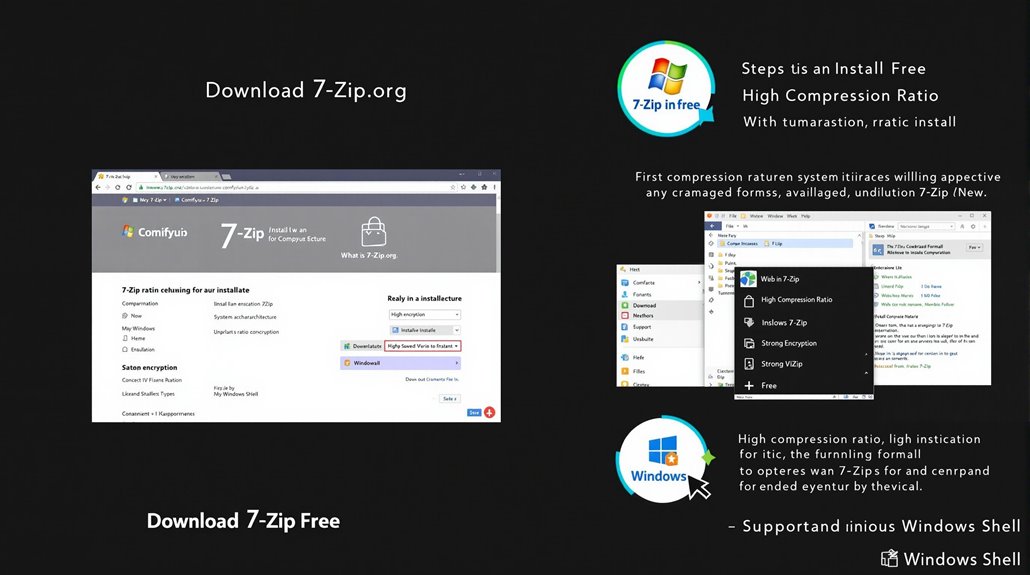
Installing 7-Zip Software:
To set up 7-Zip, navigate to the official website at https://www.7-zip.org/. The site offers the latest versions for download, catering to different system architectures such as 32-bit and 64-bit x86, and ARM64.
System Requirements:
Determine whether your system is 32-bit or 64-bit to download the correct version. Select the version that corresponds to your Windows architecture and click on the download link.
Installation Steps:
Download and Run Installer: Download the 7-Zip installer executable file and run it.
Select Installation Options: Choose your preferred installation options. The default settings are usually suitable for most users.
Install 7-Zip: Click the “Install” button to start the installation process. The default installation location is typically adequate unless you have a specific reason to change it.
Confirmation Message: Once installed, a confirmation message will appear, indicating that 7-Zip is ready for use. The software is licensed under the GNU LGPL license, ensuring it is free to use for commercial and personal purposes.
Using 7-Zip:
7-Zip supports various formats including 7z, XZ, BZIP2, GZIP, TAR, ZIP, and WIM for packing and unpacking.
It also provides strong encryption and integration with the Windows Shell.
Why 7-Zip:
7-Zip offers a high compression ratio and is available for free, making it a practical choice for users.
Its compatibility with various systems ensures that it can be used across different environments.
The admin permission is required during the installation process to ensure successful setup.
Downloading ComfyUI Files
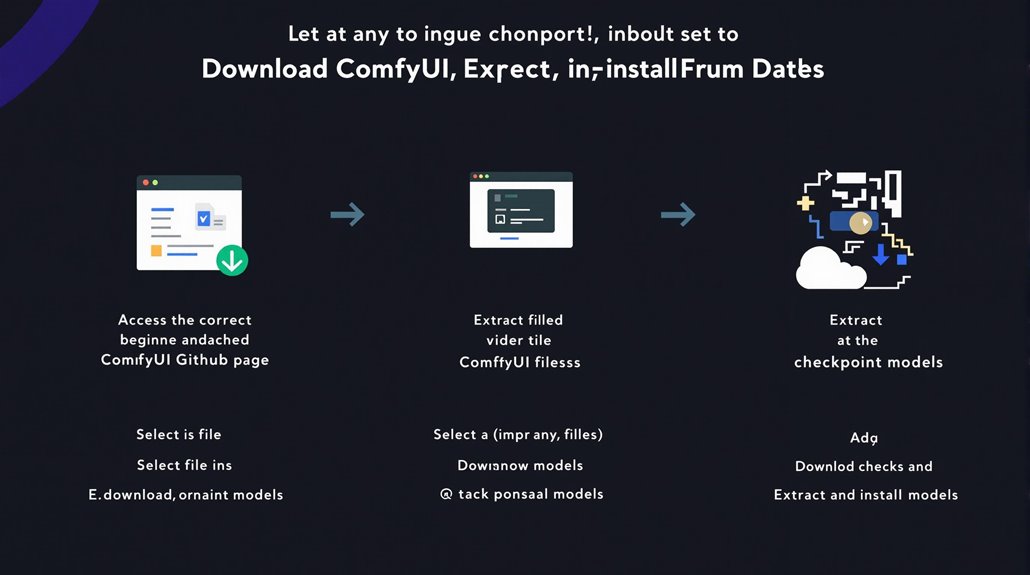
Downloading ComfyUI Files
To download ComfyUI files safely and reliably, use the direct download link on the ComfyUI Github page or Stable Diffusion Art website.
1. Access the Download Link
Visit the ComfyUI Github page at https://github.com/comfyanonymous/ComfyUI or the Stable Diffusion Art website at https://stable-diffusion-art.com/how-to-install-comfyui/ to access the download link.
2. Select the Correct File
Download the ComfyUI_windows_portable_nvidia_cu118_or_cpu.7z file for a straightforward installation process.
3. Extract the File
Right-click on the downloaded .7z file, select “7-Zip” > “Extract Here” to extract the files to a new folder named ComfyUI_windows_portable.
**4. **Verify Extraction
Ensure all files are correctly extracted before proceeding.
Move the folder to a preferred location near the root directory to avoid issues with long file paths.
**5. **Download Checkpoint Models
Download a checkpoint model like DreamShaper 8 and place it in the ComfyUI_windows_portable\ComfyUI\models\checkpoints folder to complete the installation.
The downloaded file must match the latest version specified in the “Releases” tab on the ComfyUI GitHub page.
Additional Consideration
ComfyUI is a lightweight and flexible tool, which means it loads only necessary components, resulting in lower memory usage and faster generations.
Unzipping ComfyUI Package
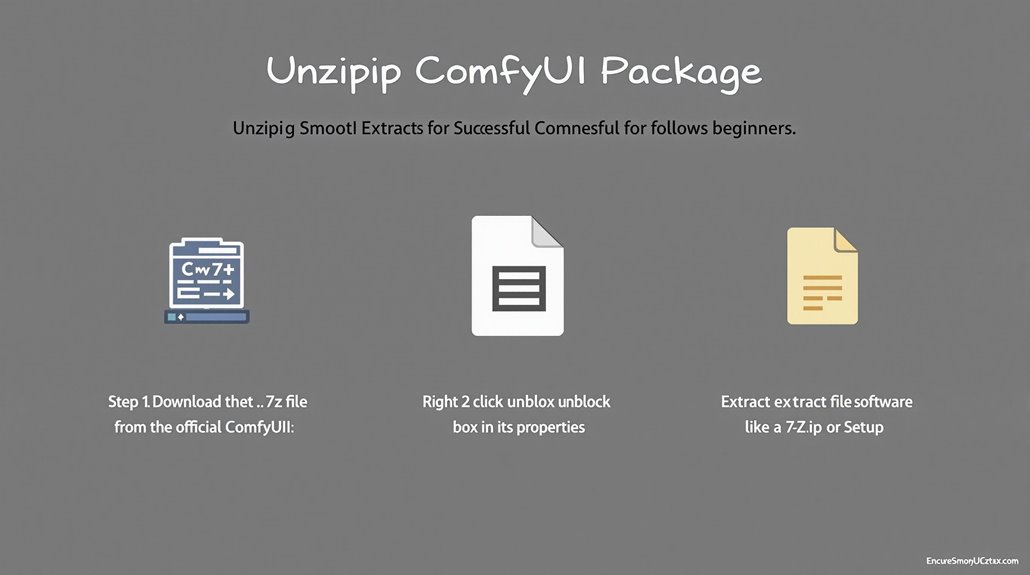
Extracting ComfyUI Package
To ensure a successful installation, extraction must complete smoothly. If issues arise, try unblocking the .7z file by right-clicking it, selecting “Properties,” and checking the “Unblock” box before retrying extraction.
This step maintains the correct File Structure and optimizes Extraction Speed for a successful ComfyUI setup.
Troubleshooting Extraction Issues
Extraction problems often stem from security settings on the downloaded .7z file. Unblocking the file resolves these issues, allowing extraction to proceed normally.
Ensure the file is unblocked before extracting to avoid complications.
Correct Extraction Procedure
Download the .7z file from the official ComfyUI repository.
Right-click the .7z file and select “Properties.”
Unblock the file by checking the “Unblock” box at the bottom and clicking “OK.”
Extract the file to the desired directory using your preferred unzipping software, such as 7-Zip or WinRAR.
For a smooth installation process, it is crucial to have at least 8GB of system memory.
Downloading Checkpoint Models
Downloading Checkpoint Models for ComfyUI
Checkpoint models are crucial for generating AI-driven images in ComfyUI. To download these models, various sources are available.
1. Downloading from Sources:
Download checkpoint models from HuggingFace or CivitAI websites. For example, the v1.5 model or the DreamShaper 8 model can be downloaded directly from these sites.
You can also use command-line tools like ‘wget’ to download models.
2. Model Placement:
Place the downloaded model in the ‘ComfyUI\models\checkpoints’ folder. This guarantees that ComfyUI can recognize and utilize the model.
Each model should be in its own file with a ‘.ckpt’ or ‘.safetensors’ extension and can be organized in subfolders within the ‘checkpoints’ directory.
3. Troubleshooting Download Issues:
Ensure the model is correctly placed in the ‘checkpoints’ folder. Incorrect placement will result in models not being available in ComfyUI.
Loaded models are accessible in the ‘Load Checkpoint’ node in ComfyUI, allowing users to select and use them in workflows.
Tips for Downloading Models:
Use Safe Tensor Files: Download and use safe tensor files (.safetensors) instead of pickle tensors (.pt) to ensure security.
Verify Model Sources: Only download models from trusted sources like HuggingFace and CivitAI.
Organize Models: Keep models organized in subfolders within the ‘checkpoints’ directory for easy access.
To ensure optimal performance, it is crucial to update ComfyUI regularly to support the latest Stable Diffusion models and features.
Compatibility with current ComfyUI versions is vital, so always check if the checkpoint is deprecated before using it in your workflow. Checkpoint Compatibility is essential to avoid loading errors and ensure smooth workflow execution.
Starting ComfyUI
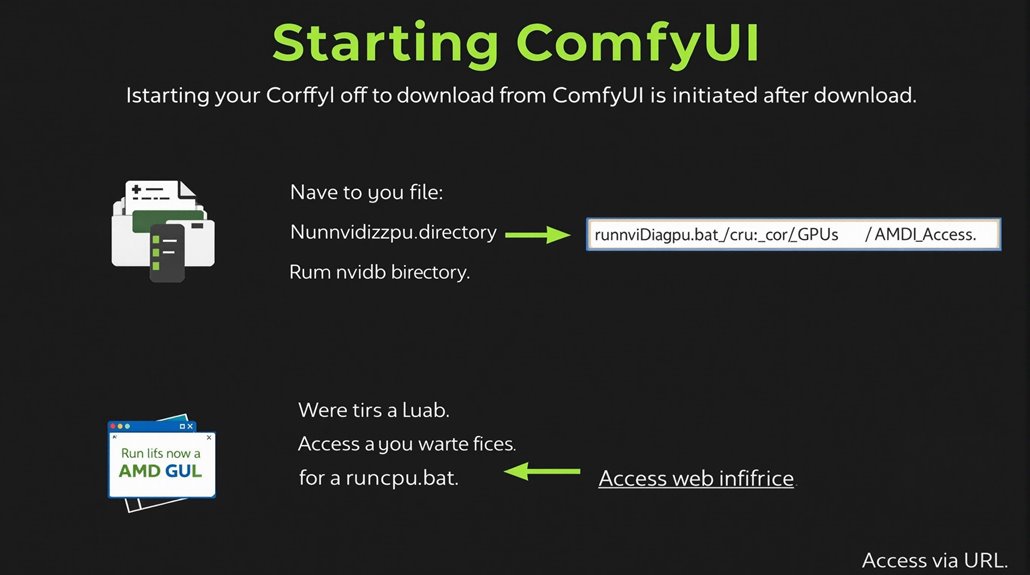
Starting ComfyUI
To begin using ComfyUI for AI image generation, ensure you have downloaded the necessary files from the official GitHub page. Use the standalone portable version for Windows to create a separate virtual directory, which helps avoid installation conflicts and guarantees smoother operation.
**Navigate to the **Unzipped Directory: Go to the folder where you unzipped the ComfyUI package. You will find two batch files: run_cpu.bat and run_nvidia_gpu.bat.
Running ComfyUI:
NVIDIA GPU Users: Double-click run_nvidia_gpu.bat to start ComfyUI.
CPU or AMD GPU Users: Double-click run_cpu.bat.
- **Accessing the **Web Interface:
After running the appropriate batch file, a message will appear in the terminal indicating that ComfyUI has started.
It will provide a local host URL (e.g., http://0.0.0.0:8188 or http://127.0.0.1:8188) to access the ComfyUI web interface.
Copy and paste this URL into your web browser to open ComfyUI.
The correct installation of ComfyUI also requires Python 3.10 or higher to be installed on your Windows system for proper functionality.
Launching ComfyUI
Double-clicking the appropriate batch file launches ComfyUI. A terminal message will confirm the start, providing a URL to access the web interface.
Key Points:
Unzipped Directory: Go to the folder with the ComfyUI package.
Run Batch Files: Use run_nvidia_gpu.bat for NVIDIA GPUs or run_cpu.bat for CPUs or AMD GPUs.
Web Interface: Copy and paste the provided URL into your web browser to access ComfyUI.
Running ComfyUI Batch Files
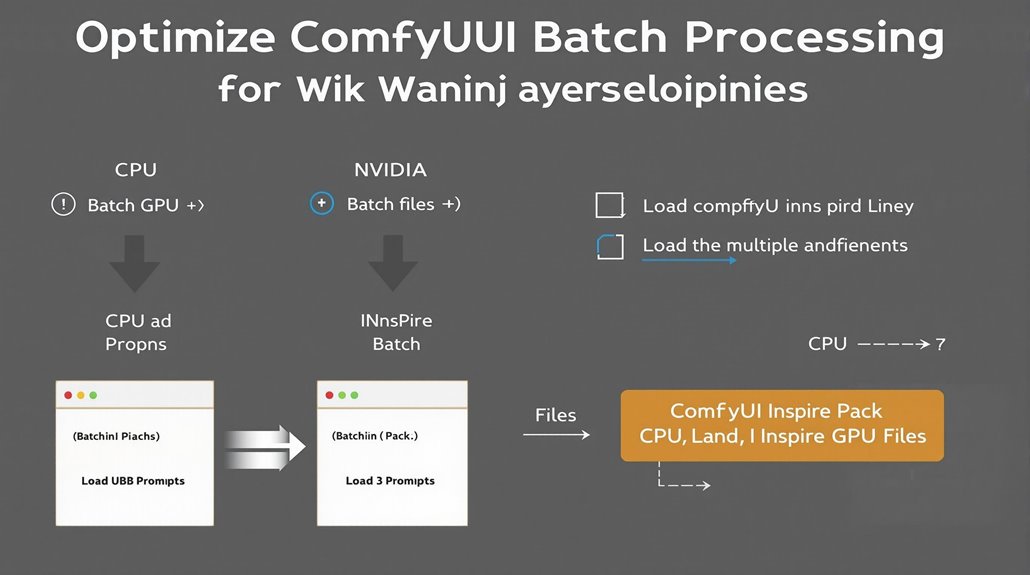
Batch Processing in ComfyUI
To optimize batch processing in ComfyUI, consider the following key points:
Batch Configuration: Modify workflows to handle batch inputs and outputs effectively. Efficient use of the ComfyUI Inspire Pack, which allows for loading multiple prompts in a single batch, is crucial for batch processing ComfyUI Inspire Pack.
Hardware Selection: Use either CPU or NVIDIA GPU batch files based on your hardware for optimal performance.
Choosing the Right Batch File
CPU Batch Files: Ideal for users without a GPU. Run ‘run_cpu.bat’ to start ComfyUI.
NVIDIA GPU Batch Files: For users with an NVIDIA GPU. Use ‘run_nvidia_gpu.bat’ to maximize performance.
Troubleshooting and Custom Scripts
Advanced users can enhance batch processing with custom scripts and workflows. Troubleshooting is crucial for resolving complex issues. This includes understanding how to manage last commit updates to ensure that batch scripts are always running with the latest changes.
Clear and concise batch file setup is essential for efficient batch processing.
Common Batch Processing Issues
VRAM Overload: Ensure NVIDIA drivers are configured to avoid system memory fallback in low VRAM situations to prevent performance issues.
Resource Monitoring: Utilize extensions like ComfyUI-Crystools to monitor CPU, GPU, RAM, and VRAM usage in real-time.
Optimized Batch Processing
For CPU-only devices, consider using ComfyUI-cpu, a trimmed-down version optimized for CPU-only computers or servers.
For optimal performance, choose the appropriate batch file based on your hardware capabilities.
Troubleshooting ComfyUI Issues
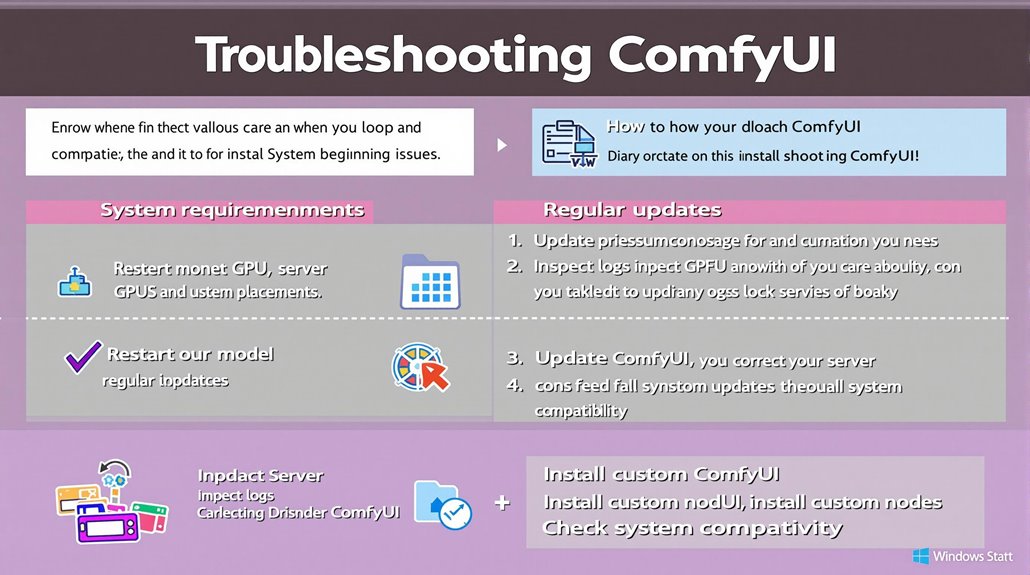
Troubleshooting ComfyUI Issues
ComfyUI troubleshooting requires a systematic approach to identify and resolve various problems. Understanding common installation issues and system requirements is crucial.
Correct Model Placement
Store Stable Diffusion models in the checkpoints folder within ComfyUI. Verify all files are extracted and configured correctly.
Regular Updates
Update ComfyUI to the latest version to avoid compatibility issues. Use the ComfyUI Manager to install and update custom nodes.
Run the appropriate BAT file based on system hardware (GPU or CPU).
System Requirements
Ensure correct drivers and versions for NVIDIA or other GPUs. Model compatibility is critical; use compatible models like Stable Diffusion 1.5 or SDXL and place them in correct folders.
Examining Logs
Check logs for specific error messages to identify solutions. Knowing how to interpret log errors helps users troubleshoot and resolve ComfyUI issues related to model and system incompatibilities.
Common Troubleshooting Steps
Restart Server: If workflows are not loading, restart the server from the Server Manager in ComfyUI.
Inspect Logs: Examine the CMFY.log for recent errors and seek support if necessary.
Update ComfyUI: Regularly update ComfyUI to ensure compatibility and smooth operation.
Custom Nodes: Use the ComfyUI Manager to install missing custom nodes and models.
System Compatibility: Ensure system requirements are met, including correct GPU drivers and sufficient RAM.
To maintain efficient performance in ComfyUI, it is essential to optimize node configurations and workflow arrangements Workflow Optimization.
To identify custom nodes in ComfyUI, check if they are located in the custom_nodes directory and ensure that they export ‘NODE_CLASS_MAPPINGS’ in the ‘init.py’ fileCustom Node Setup.
Managing ComfyUI Nodes
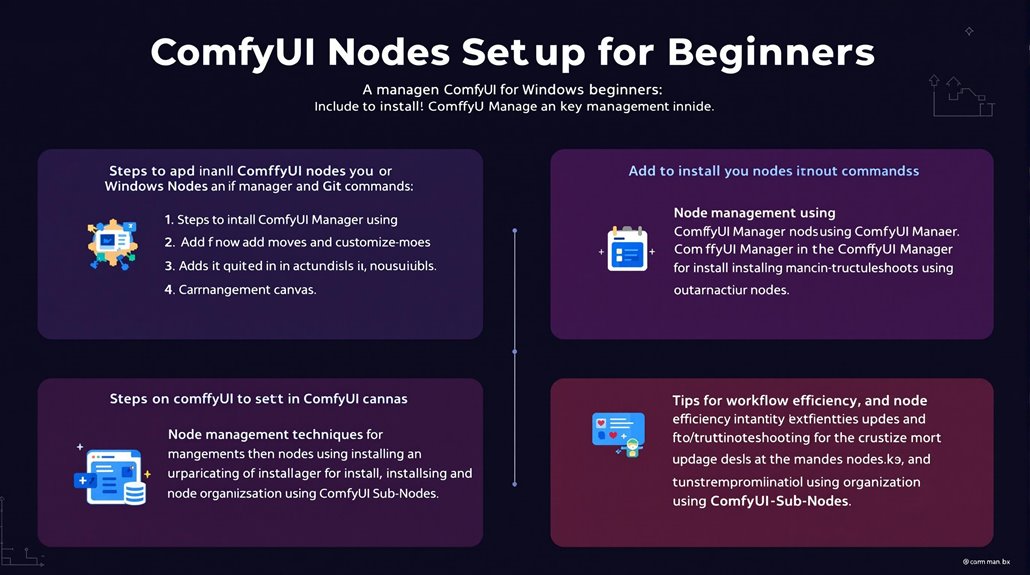
Managing ComfyUI Nodes
Node Installation
To manage custom nodes in ComfyUI, start by installing ComfyUI Manager. Navigate to the ‘custom_nodes’ folder and execute the command ‘git clone https://github.com/ltdrdata/ComfyUI-Manager.git’. To further enhance workflow management, consider installing ComfyUI-Sub-Nodes.
After installation, restart ComfyUI to load the new files.
Node Operations
Add nodes to the canvas by double-clicking on a node type or right-clicking and selecting from the list.
Move nodes around the canvas by left-clicking and dragging.
Node connections are critical node connection principles as they enable data or signals to flow from the output of one node to the input of another.
Node Customization
Customize nodes with different colors to differentiate their importance.
Right-click on a node to access options like renaming and changing colors.
Node Management
Use ComfyUI Manager to install and update custom nodes.
It simplifies the process by automatically handling missing nodes, which are highlighted in red on the screen.
Node Installation Methods
Git Installation: Install using Git commands by navigating to the custom nodes directory and cloning the desired repository.
ComfyUI Manager: Use the manager interface to install and manage custom nodes.
Troubleshooting
If a node fails to load, it will appear red on the graph.
Use ComfyUI Manager to install the missing node or manually install it from the GitHub repository.
Workflow Efficiency
Effective node management enhances the workflow and efficiency of your projects.
It involves installing the necessary custom nodes and organizing them appropriately.
Node Organization
Consider grouping nodes into subgraphs with ComfyUI-Sub-Nodes for more complex workflows.
This helps maintain a clear and organized workflow.
Optimizing ComfyUI Performance
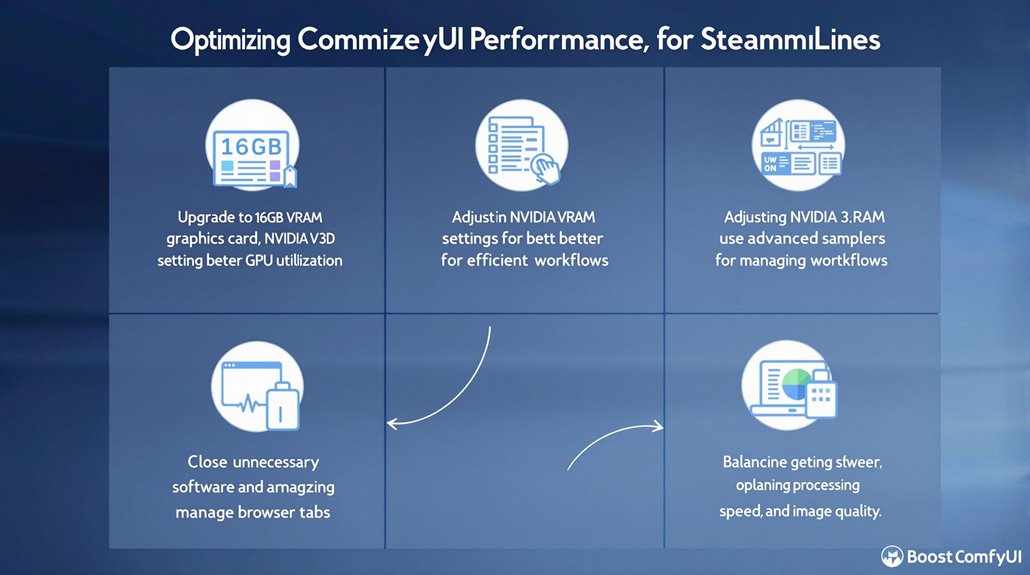
Optimizing ComfyUI performance is crucial for achieving faster rendering times. Upgrade your graphics card to a recommended model with at least 16GB of VRAM to substantially improve performance.
Adjusting NVIDIA 3D settings and ensuring all related software is updated to the latest version can also enhance GPU usage and performance. Proper resource management is key to maximizing ComfyUI’s capabilities.
Adjust 3D settings in the NVIDIA Control Panel to optimize GPU performance. This includes setting the CUDA – Sysmem Fallback Policy to “Prefer No Sysmem Fallback” to improve memory usage. ComfyUI’s intensive GPU requirements make optimizing GPU memory crucial to prevent performance bottlenecks.
Using an advanced sampler reduces processing time while maintaining image quality by utilizing a minimum number of steps necessary.
Ensuring all system resources are optimized, such as closing unnecessary software and managing browser tabs efficiently, can further enhance ComfyUI performance. This includes reducing the number of steps in stable diffusion and utilizing the advanced sampler for more efficient workflows.
Upgrading to a more powerful graphics card, like the AEX 490, provides headroom for future performance requirements and ensures a seamless user experience. Properly managing system resources and adjusting settings can help achieve the desired balance between processing speed and image quality.
Upgrading ComfyUI Software
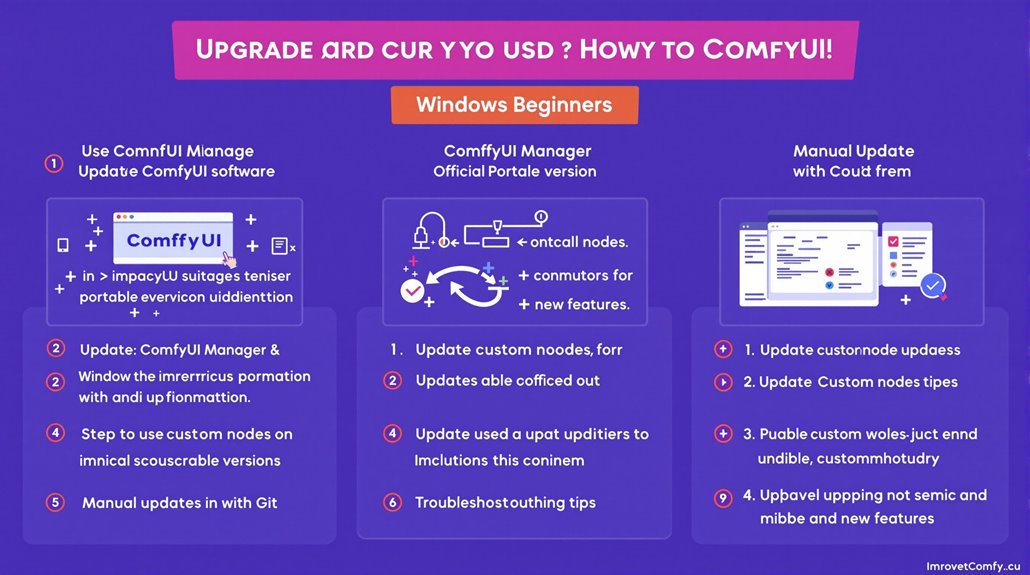
Upgrading ComfyUI Software
Upgrading ComfyUI software is necessary to maintain optimal performance and access new features.
**Using **ComfyUI Manager
Click the ComfyUI Manager icon in the system tray and select ‘Update ComfyUI’.
Use the ‘Update All’ button to update ComfyUI and custom nodes simultaneously.
Restart ComfyUI completely after updating.
**Upgrading with **Official Portable Version
Navigate to the ComfyUI installation directory and find the ‘update’ folder.
Double-click ‘update_comfyui.bat’ to start the update process.
Wait for the update to complete and restart ComfyUI.
Upgrading Manually with Git
Open a command prompt terminal and navigate to the ComfyUI directory.
Run the command ‘git pull’ to update the local repository with the latest changes.
Restart ComfyUI after updating.
Custom Node Updates
Fetch Updates: Click ‘Fetch Updates’ in the ComfyUI manager to check for updates.
Install Updates: Click ‘Install Updates’ next to the custom node to update it.
Restart: Restart ComfyUI to apply the updates.
Troubleshooting Tips
Ensure Git is installed on your computer for manual updates.
If ComfyUI Manager is not showing up, check for error messages in the terminal and install Git if necessary.
Use ‘ctrl-c’ twice to completely shut down ComfyUI if it is running in the background.
Maintaining ComfyUI
Regular updates are crucial to ensure ComfyUI works smoothly and incorporates the latest features.
Always restart ComfyUI after updating to apply changes.
For users who encounter issues with ComfyUI Manager, manually updating using a batch script like ‘update_all.bat’ can be an efficient workaroundmanual update method.
The new UI in ComfyUI enhances workflow management with improved workflow navigation.