
ComfyUI Setup in 5 Steps
Download the Package: Visit the official GitHub repository to download the ComfyUI package, choosing between the official package and the Aaaki integrated package that includes basic model resources.
Extract and Install: Extract the package and follow the installation instructions tailored to your system specifications, ensuring you have an Nvidia graphics card for the GPU version.
Run ComfyUI: Use either the official installer or Aaaki launcher to run ComfyUI. Select the appropriate batch file ('run_cpu.bat' for CPU or 'run_nvidia_gpu.bat' for Nvidia GPU) to start the program.
Access the GUI: Open the GUI interface at http://0.0.0.0:8188 and initialize the workflow setup by constructing nodes and configuring settings.
Refine and Manage Workflows: Guide yourself through refining and managing workflows for seamless stable diffusion operations, adjusting settings as needed to optimize performance.
Important System Requirements:
GPU: An Nvidia graphics card with at least 4GB VRAM is recommended, preferably RTX3060 or higher.
CPU: Can run on CPU but with slower speed; use the '–cpu' option.
Memory: At least 8GB of system memory is recommended.
Operating System: Supports Windows systems and provides Mac installation instructions for Macs with Apple Silicon.
Storage: Use an SSD for faster loading and running of model files, with at least 40GB of hard disk space recommended.
Software Dependencies: A Python environment is required, but one is embedded in the installation package; Python libraries such as 'torch' and 'transformers' need to be installed.
Table of Contents Toggle
- Key Takeaways
- Download ComfyUI Package
- Unzip and Launch Aaaki
- Run ComfyUI Application
- Access GUI Interface
- Initialize Workflow Setup
Key Takeaways
ComfyUI Setup in 3 Simple Steps
Download ComfyUI: Get the official ComfyUI package or Aaaki integrated package from GitHub.
Meet System Requirements: Use an Nvidia graphics card with 4GB VRAM and 8GB system RAM.
Run ComfyUI: Extract the package, run the corresponding batch file, and access the GUI at http://0.0.0.0:8188.
Key Takeaways:
System Compatibility is crucial for running ComfyUI smoothly.
Proper Extraction of the package ensures easy setup.
Correct Batch File selection is necessary for launching ComfyUI.
Download ComfyUI Package
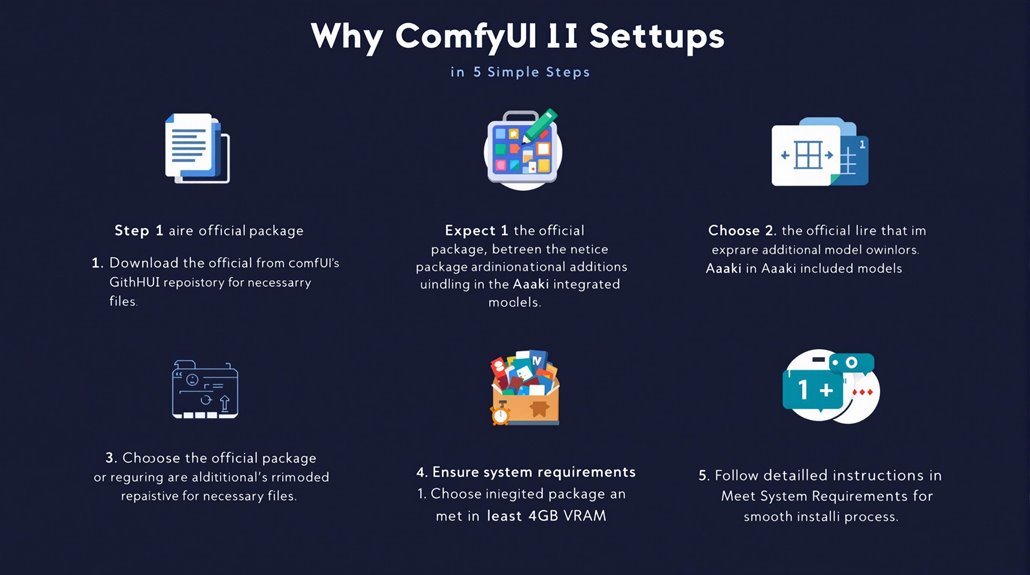
Downloading ComfyUI Packages
To set up ComfyUI, download the package from its official GitHub repository. The direct link to the integrated package is found in the README section.
This package supports the Windows system with an Nvidia graphics card requirement for the GPU version.
Official Package vs. Aaaki Integrated Package
Two primary package versions are available: the official package, which includes necessary files for ComfyUI without additional models, and the Aaaki integrated package, which includes basic model resources ready to use after extraction.
Download Links
Official Package: Access the official download link in ComfyUI's GitHub repository.
Aaaki Integrated Package: Available on Quark Netdisk, requiring additional membership for large files. The standalone Aaaki launcher can be downloaded from Google Drive and used with the official portable version of ComfyUI.
System Requirements
Nvidia graphics card for the GPU version.
No specific CPU requirements are mentioned.
Detailed instructions are provided in the official repository and Aaaki package descriptions for a smooth installation process.
It is essential to extract the downloaded package using a tool like 7-Zip or WinRAR to avoid extraction issues.
Choosing the Right Package
For users seeking a straightforward installation, the Aaaki integrated package is recommended, as it includes necessary models and minimizes configuration issues.
The official package, while requiring additional model downloads, offers flexibility for users preferring to manage their resources.
It is crucial to ensure that your system has at least 4GB VRAM for optimal performance.
The official package, while requiring additional model downloads, offers flexibility for users preferring to manage their resources.
Unzip and Launch Aaaki
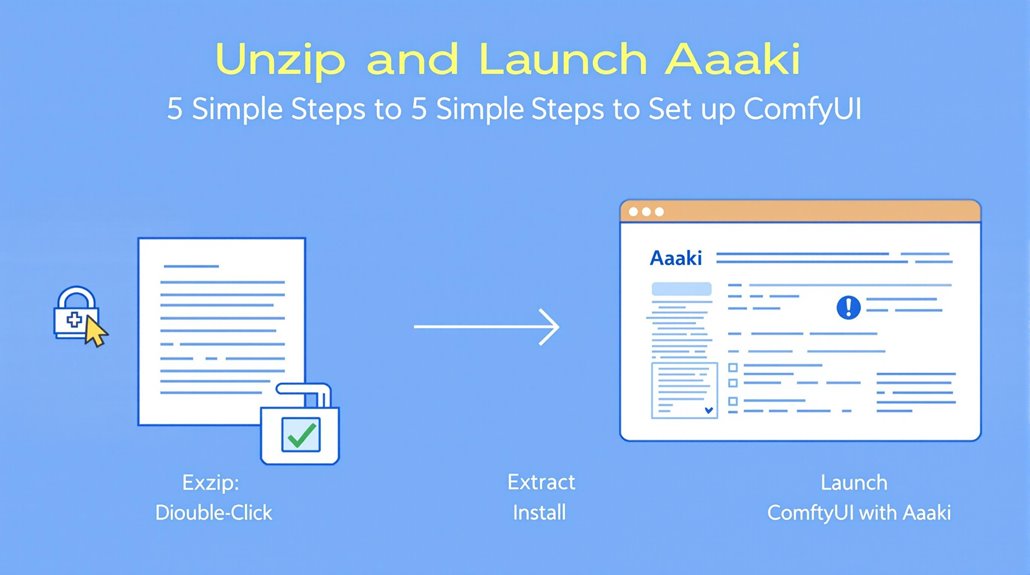
Unzipping a Zip File:
Open File Explorer and find the compressed folder.
Right-click on the folder and select "Extract All."
Extraction Process:
Follow the instructions to complete the extraction process.
Alternatively, use the "Extract All" option from the command ribbon or double-click the compressed folder to open and drag files to a new location.
Command Line Extraction:
For users preferring command-line operations, navigate to the zip file directory using the "cd" command in Command Prompt as an administrator, and execute 'tar -xf Name.zip', replacing "Name" with your zip file name.
Troubleshooting Zip Extraction:
Ensure complete extraction before proceeding.
Check command and path specifications to avoid errors. Use verbose or debug options to diagnose issues and correctly handle uncompressed file contents.
Key Extraction Methods:
File Explorer Method: Right-click the compressed folder and select "Extract All."
Command Ribbon Extraction: Use the "Extract All" option from the command ribbon.
Command Line Extraction: Use the "tar" command with the "-xf" option.
Handling Nested Zip Files:
If the extracted folder contains additional zipped files, repeat the extraction process for each nested zip file to ensure all files are properly extracted.
In automation scenarios, using UiPath's Extract/Unzip Files Activity can streamline the process, providing a more efficient and reliable way to extract files from zip archives.
Bullet point lists are helpful in presenting information clearly, making it easy to quickly absorb multiple subtopics by using unordered and unnumbered lists to organize key points and instructions.
Run ComfyUI Application
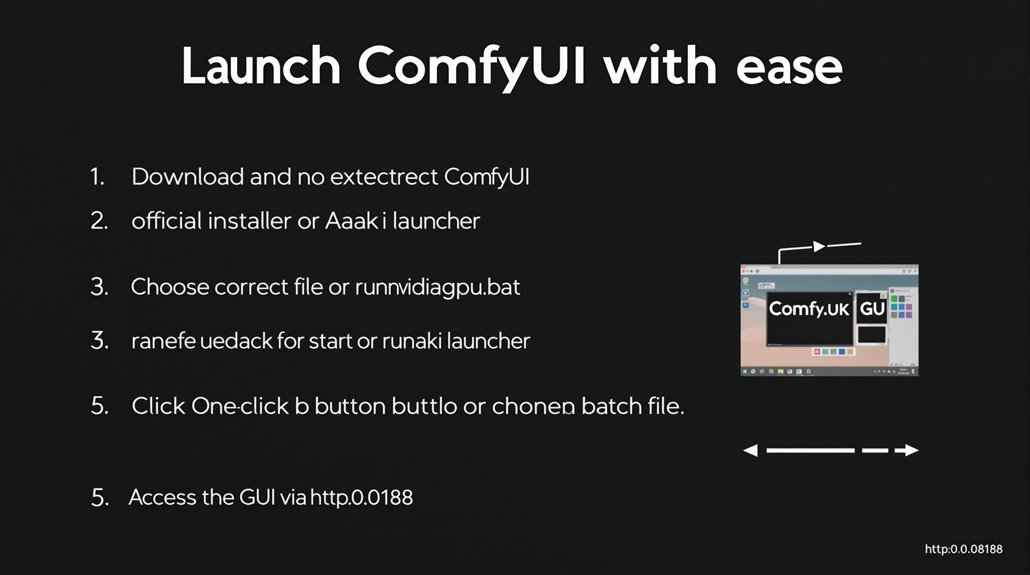
Launching ComfyUI
To run ComfyUI, you can use either the official installer or the Aaaki launcher.
For the official installer, go to the unzipped folder and select the batch file that matches your graphics card type. Use 'run_cpu.bat' for CPU or AMD graphics cards, and 'run_nvidia_gpu.bat' for Nvidia graphics cards.
Double-click the chosen batch file to start ComfyUI. A successful launch is indicated by "Starting server" and a GUI URL like http://0.0.0.0:8188 in the console. If the browser doesn't open automatically, manually enter the provided URL.
The Aaaki launcher provides an alternative method. Double-click the Aaaki ComfyUI Launcher icon in the unzipped folder to start the launcher. Ensure it runs normally and click the One-click Start button to launch ComfyUI.
This method simplifies the startup process and addresses common issues such as graphics compatibility and network connectivity. Confirm the correct batch file or launcher option is used to match your system specifications.
After launching ComfyUI, ensure you have the Stable Video Diffusion models downloaded and properly configured to analyze and create videos from static images.
Using the Aaaki Launcher
Download and Extract: Download the Aaaki launcher and extract it to a folder.
Start the Launcher: Double-click the Aaaki ComfyUI Launcher icon to start the launcher.
One-click Start: Click the One-click Start button to launch ComfyUI.
Troubleshooting
If you encounter issues, ensure the correct batch file is used or restart the Aaaki launcher.
Check for network connectivity and graphics compatibility to avoid any startup issues.
Confirm that necessary dependencies and environments are properly configured.
Workflows in ComfyUI are created by connecting nodes together.
Access GUI Interface
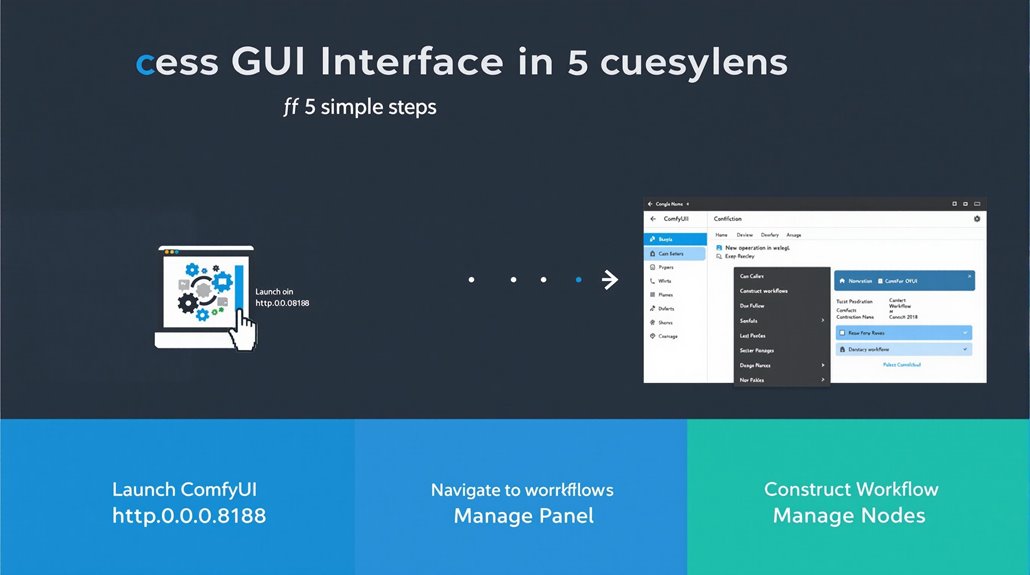
Accessing the ComfyUI Interface
To access the ComfyUI interface, open your web browser and navigate to http://0.0.0.0:8188 after launching ComfyUI with the official installer or Aaaki launcher.
The interface consists of a main operation area for constructing workflows, workflow node information, and a menu panel.
Key Components
Main Operation Interface: Construct workflows by arranging nodes.
Workflow Node Information: Displays details about each node.
Menu Panel: Includes buttons and options for managing workflows.
Navigating the Menu Panel
Drag Button: Move the panel by clicking and dragging.
Queue Size: Displays the current number of image generation tasks.
Settings Button: Opens the ComfyUI settings panel for customization.
Constructing Workflows
Zoom: Use the mouse wheel or two-finger pinch to zoom in and out.
Move Nodes: Drag nodes around the workspace with left-click hold and drag.
Connections: Connect inputs and outputs of the same type.
Queue Panel: Access by pressing Ctrl-0 (Windows) or Cmd-0 (Mac).
In constructing workflows, node groups can be customized by defining which inputs and outputs appear as customizable interfaces.
Customizing Settings
Batch Size: Specify the number of images generated at once.
Auto Queue: Enable automated addition of workflows to the queue.
ComfyUI is a node-based graphical user interface designed to facilitate image generation workflows by connecting different blocks (nodes) together, providing flexibility and transparency in data flow.
Initialize Workflow Setup
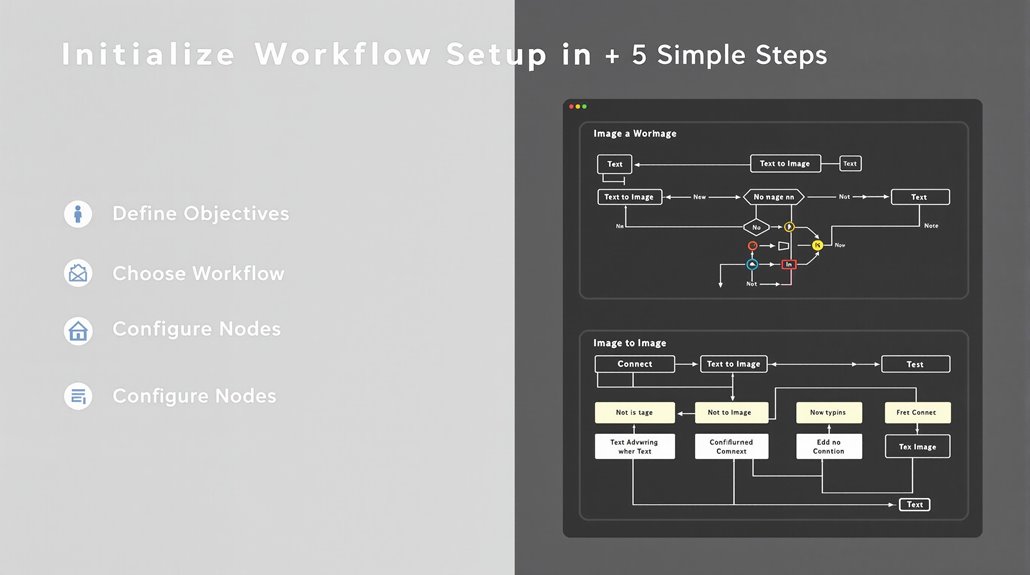
Initializing a Workflow Setup in ComfyUI
To set up a workflow in ComfyUI, start by defining the objectives of the task at hand. Determine whether the goal is to generate a specific image type or transform an existing one. This involves understanding the project's requirements and goals.
Choose between text-to-image or image-to-image workflows based on the objective. For text-to-image, select detailed text prompts that convey the desired image.
For image-to-image, select images for modifying or enhancing existing visuals.
Configuring node types and connections is crucial. Use a load checkpoint node to initialize the workflow with a specific model. Ensure proper node configuration to guarantee that the workflow operates as intended and produces high-quality images.
Test each node individually before connecting them to guarantee seamless workflow execution. Verify that inputs are correctly processed and outputs are as expected.
Key Components of a Workflow
Node Selection: Choose relevant nodes such as "Load Checkpoint" and "CLIP Text Encoder" based on the workflow objective.
Edge Creation: Connect nodes by dragging output dots to input dots of other nodes.
Workflow Settings: Use the settings area to save, load, and refresh workflows, as well as access the CLIP space for advanced prompt manipulation.
Testing: Run the workflow to ensure it functions as intended and adjust as necessary.
The workflow in ComfyUI is fundamentally composed of Nodes and Edges, providing a flexible and modular approach to creating custom image generation processes.
Participating in contests, such as the OpenArt $133,000 contest Financial Incentives, can also provide significant opportunities for growth and recognition.