


To start using ComfyUI, ensure your system meets the minimum hardware requirements. This includes having an NVIDIA GPU with at least 4GB of VRAM, 8GB of system RAM, and high-speed storage with at least 40GB of free space.
Download the official portable version of ComfyUI and unzip it. Then, run ‘run_nvidia_gpu.bat’ if you have an NVIDIA GPU, or ‘run_cpu.bat’ if you only have a CPU. This will launch ComfyUI, and you’ll see a URL in the console, usually http://0.0.0.0:8188.
Click this URL to access ComfyUI. You can then start creating custom workflows by loading templates, adding new nodes, and managing node connections. This process allows you to develop complex stable diffusion workflows with ease.
Follow further steps to explore advanced features and troubleshoot any issues you may encounter. ComfyUI offers a modular setup and intuitive flowchart interface, making it a popular choice for building complex workflows.
Ensure you have a Python environment and necessary dependencies like PyTorch installed to run ComfyUI smoothly. Detailed setup instructions are available for major operating systems.
Key Takeaways
Getting Started with ComfyUI:
- Ensure Compatibility: Your system needs an NVIDIA GPU with 4GB VRAM and at least 8GB of system RAM to run ComfyUI.
- Install ComfyUI: Download the official ComfyUI installation package and follow the installation steps for your operating system.
- Launch ComfyUI: Run ‘run_nvidia_gpu.bat’ for NVIDIA systems or ‘run_cpu.bat’ for other configurations, then access the interface at http://0.0.0.0:8188.
Installing ComfyUI Locally
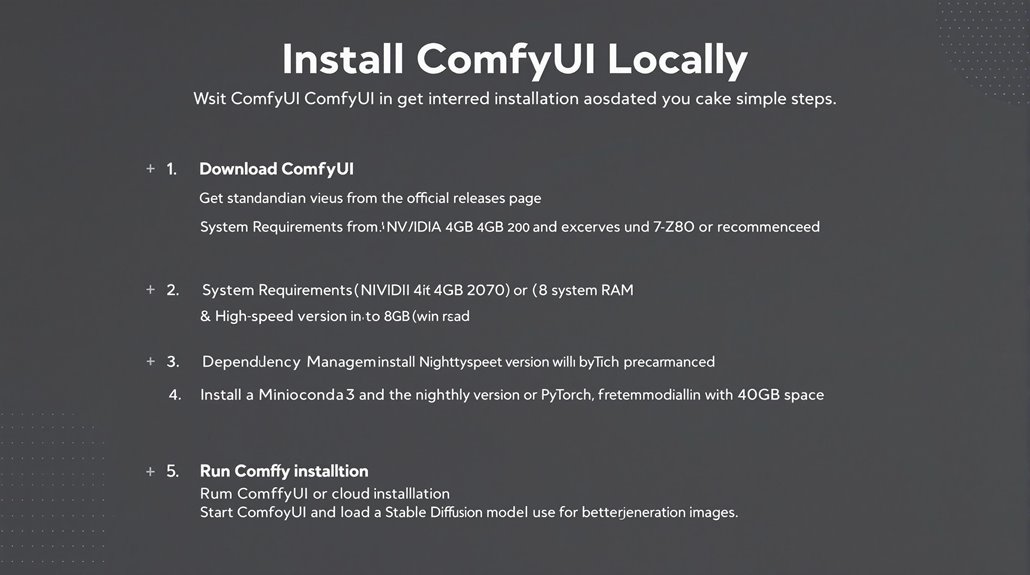
Installing ComfyUI Locally
ComfyUI’s local installation requires careful consideration of system requirements for peak performance. The minimum hardware specification includes an NVIDIA GPU with 4GB VRAM.
System Requirements
An NVIDIA RTX 2070 or newer with 8GB+ VRAM is recommended for ideal performance.
At least 8GB of system RAM is necessary, and high-speed storage like an SSD with at least 40GB of free space is highly recommended.
Official Support
The official ComfyUI package only supports Windows systems and requires an NVIDIA graphics card.
Users can download the standalone version from the official releases page and extract it using a tool like 7-Zip or WinRAR.
Dependency Management
Dependency management is vital, with the need to install Miniconda3 and the nightly version of PyTorch.
Alternatively, users can opt for ComflowySpace, an optimized version of ComfyUI, or refer to the official GitHub repository README for detailed instructions on non-Windows systems.
Ensuring Compatibility
Ensuring system compatibility is essential for a smooth installation process.
For optimal performance, a high-speed storage device like an SSD is recommended, and at least 40GB of free space is required.
The command line installation method is recommended due to its universality .
Alternative Options
Users can also consider installing ComflowySpace, which is an optimized version of ComfyUI.
Alternatively, they can use the cloud version to avoid hardware limitations.
Detailed instructions for these alternatives can be found in the official documentation or GitHub repository.
Understanding ComfyUI Basics
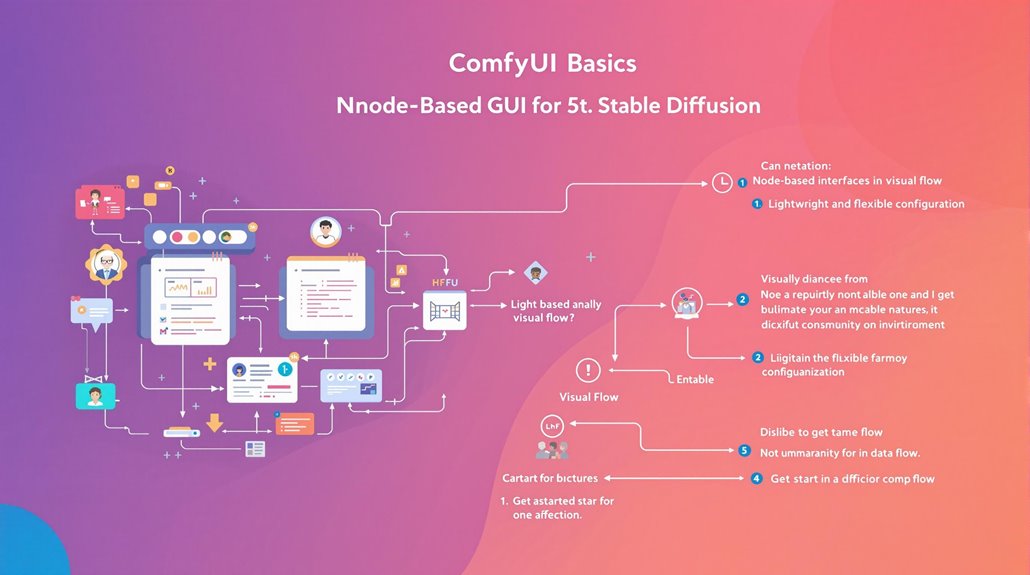
Understanding ComfyUI Basics
ComfyUI offers a versatile platform for creating and managing Stable Diffusion workflows using a node-based graphical user interface (GUI). This framework allows users to construct processes by connecting different blocks, or nodes, which facilitates visual programming and parameter customization.
ComfyUI supports a wide range of Stable Diffusion models, including SD1.x, SD2.x, SDXL, and more. It also features specialized models and advanced features like SDXL Turbo and latent previews with TAESD.
Key Features of ComfyUI
- Node-Based Interface: ComfyUI’s interface is designed for ease of use, enabling experimentation with complex Stable Diffusion workflows without the need for coding.
- Visual Flow: Users can connect different components, adjust parameters, and visualize the flow of operations, thanks to the node interconnectedness and clear view of data flow.
ComfyUI breaks down workflows into rearrangeable elements, making customization and parameter adjustment straightforward. The platform is known for its lightweight and flexible configuration. The system’s modular design supports integration with AI models, enhancing the versatility of the image generation process.
The platform is also known for its transparency in data flow and ease of sharing reproducible workflows.
Additionally, ComfyUI facilitates detailed control over workflow elements such as image generation processes, allowing users to tailor outputs to specific needs.
Benefits of Using ComfyUI
ComfyUI offers several benefits, including:
- Lightweight: It runs fast and efficiently.
- Flexible: It is very configurable.
- Transparent: The data flow is in front of you.
- Easy to Share: Each file is a reproducible workflow.
Launching ComfyUI Successfully
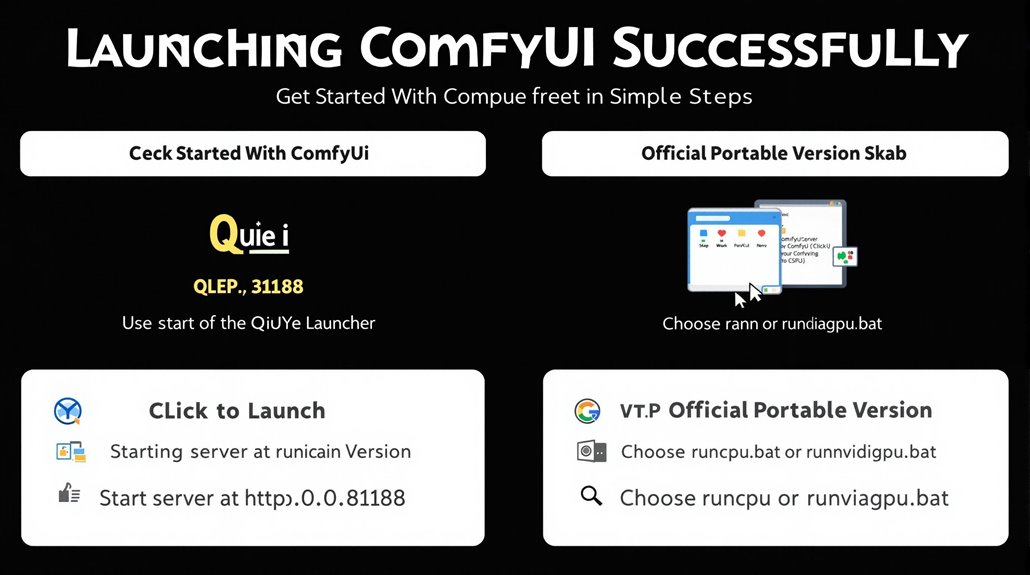
Launching ComfyUI
Launching ComfyUI successfully requires a few straightforward steps. You can use either the QiuYe Launcher or the Official Portable Version.
Using the QiuYe Launcher
Click the blue One-Click Launch icon at the bottom right of the launcher’s home page to start ComfyUI. The operation automatically opens the console and runs the necessary scripts.
Launch Confirmation
Look for Starting server and To See the GUI go to: http://0.0.0.0:8188** to confirm a successful launch**. If the browser does not launch automatically, visit the provided URL directly.
Using the Official Portable Version
Unzip the ComfyUI portable package to a desired directory. Choose run_cpu.bat or run_nvidia_gpu.bat based on your system configuration and double-click to launch ComfyUI. Specifically, for efficient performance, it is recommended to use a GPU with at least 4GB VRAM.
Launch Confirmation
Look for Starting server and To See the GUI go to: http://0.0.0.0:8188 to confirm a successful launch. If the browser does not start as expected, visit the provided URL directly.
System Configuration is Key
The choice between the QiuYe Launcher and the Official Portable Version primarily depends on user preference and system configuration.
Ensure your system meets the necessary requirements for a smooth launch.
Successful Launch
A successful launch is indicated by the console displaying Starting server and providing a URL to access the GUI.
Visiting this URL confirms that ComfyUI is running correctly.
Troubleshooting
If the browser does not launch automatically, or if you encounter any issues, refer to the provided URL to access the GUI manually.
This ensures you can still use ComfyUI despite any initial launch problems.
Additional Consideration
When using the Official Portable Version, verifying that all dependencies are installed helps prevent common launch issues.
Creating Custom Workflows
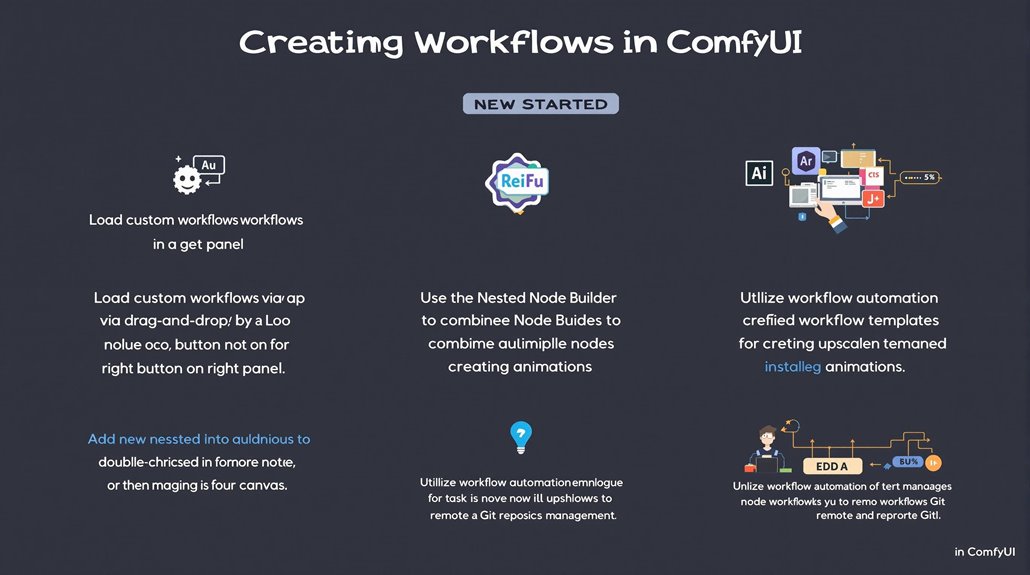
Creating Custom Workflows in ComfyUI allows users to tailor image manipulation processes. Users load Custom Workflows via drag-and-drop methods or the Load button on the interface’s right panel, ensuring the workflow metadata includes necessary details.
Installing missing components like nodes, models, and LoRAs is crucial after loading a workflow.
Workflow Construction involves adding new nodes by double-clicking, searching for specific nodes, or right-clicking on the canvas. Node management in ComfyUI enables users to create, connect, and manage nodes for efficient workflows.
Combining multiple nodes into one using the Nested Node Builder and installing custom nodes enhance functionality.
For greater efficiency, users arrange nodes to create organized workflows and leverage predefined workflow templates for tasks like upscaling images and creating animations. Utilizing common workflow patterns, such as SDXL workflows for high-resolution image generation and upscaling workflows, further streamlines the process. Additionally, using pre-defined templates like the Img2Img ComfyUI workflow can simplify the process of altering original images based on user inputs.
Mastering node customization and leveraging workflow automation allows users to achieve detailed image manipulation and processing with ease. This is achieved by understanding how to connect nodes, manage custom nodes, and apply automation techniques effectively in ComfyUI.
To build efficient workflows, users can also install custom nodes quickly using Git commands, copy repository URLs, and execute ‘git pull’ commands in the terminal or command prompt. Essential custom nodes include Efficiency Nodes for minimizing unnecessary connections and the Nested Node Builder for combining multiple nodes.
Organized workflows are crucial for efficient image processing. By arranging nodes logically and leveraging predefined templates, users can create workflows that are easy to manage and optimize. This helps to reduce complexity and enhance the overall workflow automation process in ComfyUI.
The ability to sync workflows to a remote Git repository and manage them anywhere further enhances workflow management capabilities in ComfyUI remote workflow management.
Using ComfyUI for AI Art
Modifying AI Art with ComfyUI
ComfyUI is a powerful, node-based graphical user interface built on Stable Diffusion, allowing users to create complex AI-generated artworks by combining different operations and models. This includes text-to-image, image-to-image, and inpainting workflows.
Advanced AI Techniques
ComfyUI enables users to blend art styles using multiple AI models, controlling depth and lighting, and emulating artist techniques. The style libraries and upscaler nodes provide high-resolution outputs.
Dynamic mixing of multiple reference images enhances style diversity. The platform’s community-driven development and update frequency ensure that users have access to the latest AI models and tools, such as those shared on Civitai.
Custom AI Art
Users can fine-tune text prompts and parameters for precise creative control over their AI-generated art. With detailed guides and tutorials available, including step-by-step instructions and video tutorials, even beginners can master ComfyUI.
Key Features of ComfyUI
- Node-based Interface: Allows users to construct custom workflows by connecting different nodes, each representing a specific function or operation.
- Flexible Workflows: Supports text-to-image, image-to-image, and inpainting workflows, offering versatility in AI art creation.
- LoRA Integration: Enables fine-tuning of checkpoint models for precise control over styles and elements in AI-generated images.
- Advanced Controls: Provides detailed settings for image generation, including seed, step count, and sampler choices.
- Seamless Integration: Compatible with various models, including Automatic1111 and Stable Diffusion 3.5, for enhanced capabilities.
Practical Usage
To use ComfyUI, users should familiarize themselves with basic controls such as zooming, connecting nodes, and moving the workspace. Detailed tutorials and guides are available to assist in creating specific workflows like SDXL and inpainting. ComfyUI’s node-based interface also facilitates real-time interaction directly within web pages, enhancing creative productivity.
With practice, users can leverage ComfyUI’s powerful features to create sophisticated AI art.
Troubleshooting Common Issues
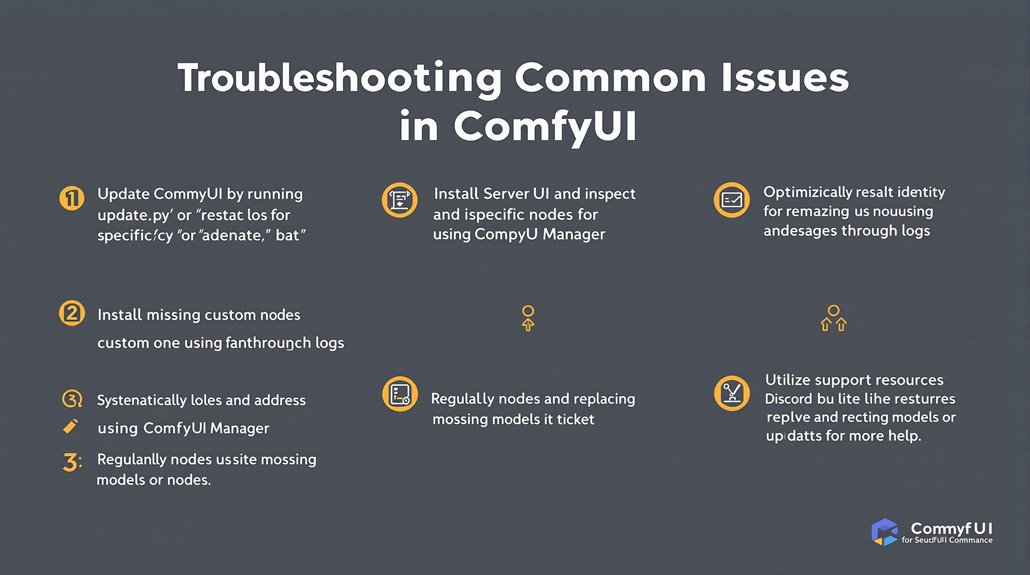
Troubleshooting ComfyUI Issues
Update ComfyUI
Ensure ComfyUI is up to date by running the ‘update.py’ file or ‘update.bat’. This resolves backend file changes and fixes missing libraries.
Restart Server and Inspect Logs
For node and workflow issues, restart the server from the Server Manager.
Inspect ‘logs > CMFY.log’ for specific error messages.
Install Missing Custom Nodes
Use ComfyUI Manager to install necessary nodes. Ensure proper node connections and configurations, such as matching preprocessor and controlnet models.
Error Identification
Detailed error information is available in the ComfyUI log screen (CMD) and ‘logs > CMFY.log’.
Identify and address errors systematically. The PngInfo issue, for instance, often arises from a missing library and can typically be resolved by updating ComfyUI.
Node Optimization
Replace problematic nodes with alternatives and update ComfyUI or Comfy Manager when indicated.
Restart ComfyUI regularly to resolve issues like missing models or nodes not appearing.
Leveraging Support Resources
For Creators Club or Team Subscription users, utilize support resources like Discord or ticket support to efficiently resolve issues.
Utilizing Update Features
Regular updates through ComfyUI Manager can help in resolving compatibility issues and integrating new features seamlessly.
Resume productive use of ComfyUI.
