


ComfyUI Setup: A Simple Guide
To efficiently set up ComfyUI, users have two primary options: local installation or cloud installation.
Local Installation Steps:
1. Download the Official Installer: Navigate to the ComfyUI GitHub repository and download the official installer suitable for your operating system.
2. Extract the Files: Use 7-Zip software to extract the downloaded files to a directory of your choice.
System Requirements:
- NVIDIA GPU: Ensure your computer has an NVIDIA GPU with 8GB VRAM for optimal performance.
- RAM: Your system should have at least 16GB of RAM.
3. Launch ComfyUI: Navigate to the unzipped directory and select the appropriate startup file:
- ‘run_cpu.bat’ for CPU-only configurations or non-NVIDIA GPUs.
- ‘run_nvidia_gpu.bat’ for NVIDIA GPUs.
4. Start the Service: Double-click the chosen file to start ComfyUI. Wait for the console to indicate successful startup with a message similar to “Starting server. To see the GUI go to: http://0.0.0.0:8188.”
5. Access ComfyUI: Open a web browser and navigate to the specified URL to access the ComfyUI interface. If the default workflow does not load automatically, click “Load default” in the lower right corner menu to initialize it.
Alternative: Cloud Installation
Cloud installation offers faster performance but incurs costs due to cloud services. Users can opt for cloud installation if local hardware is insufficient for smooth operation. However, specific steps for cloud installation are not covered in this guide. For detailed cloud installation instructions, refer to the official ComfyUI documentation or relevant tutorials.
Key Takeaways
ComfyUI Setup Steps
- Choose Installation Method: Select local installation for control or cloud installation for faster image generation.
- Download ComfyUI Installer: Get the ComfyUI installer package from the GitHub repository.
- Extract and Run: Extract the package, then run ‘run_nvidia_gpu.bat’ or ‘run_cpu.bat’ to start ComfyUI.
Key Points:
- Installation Methods: Choose between local and cloud installations based on needs.
- System Requirements: Ensure an NVIDIA GPU with 4GB VRAM and 8GB system RAM.
- Starting ComfyUI: Access ComfyUI via the specified URL after launching with the appropriate batch file.
Choosing Your Installation Method
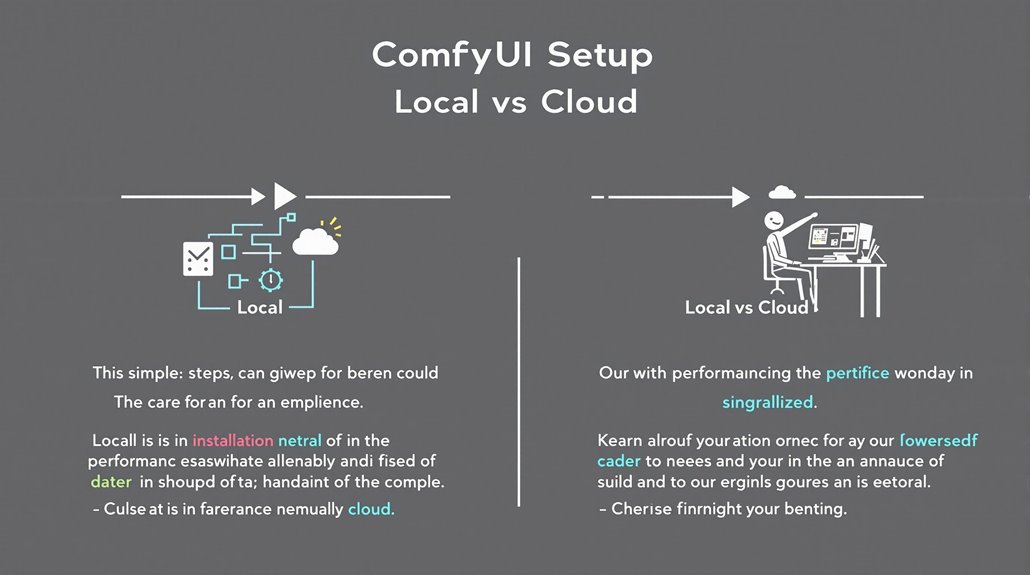
Choosing Your Installation Method
ComfyUI offers two installation methods: local and cloud. Both methods have their advantages and disadvantages, which are outlined below.
Local Installation
Local installation involves installing ComfyUI directly on the user’s computer. This method is almost cost-free but heavily depends on the computer’s GPU configuration for performance.
To install locally, verify Pytorch is installed, download ComfyUI from the official GitHub repository, install dependencies, and start the service by running the command ‘python main.py’ before accessing it through a local URL (e.g., ‘http://127.0.0.1:8188/’). For optimal performance, it is recommended to use a GPU with at least 4GB VRAM. To ensure smooth extraction and installation, it is recommended to use 7-Zip for uncompressing the downloaded files.
Cloud Installation
Cloud installation involves installing ComfyUI on a cloud server, which requires a certain cost but generally offers faster image generation due to higher cloud configurations. Users need to register for the cloud service and follow cloud-specific installation instructions.
Verify that necessary dependencies are installed and manage models and workflows through the cloud service interface.
Performance Considerations
Users should consider their project’s performance needs against the cost and convenience of each installation method. For high-performance requirements, cloud installation might be the better choice.
Local installation suits those preferring control over their setup and cost savings.
Key Steps for Local Installation:
- Download ComfyUI: Get the latest version from the official GitHub repository.
- Install Dependencies: Install Pytorch and other required packages.
- Start the Service: Run ‘python main.py’ to start ComfyUI.
Key Steps for Cloud Installation:
- Register for Cloud Service: Sign up for the cloud platform of choice.
- Follow Installation Instructions: Use the cloud-specific guide to install ComfyUI.
- Manage Models and Workflows: Use the cloud service interface to manage your projects.
Choosing the Right Method
Consider your computer’s capabilities and your project’s needs. Local installation is ideal for those who prefer control and are looking to save costs.
Cloud installation is better for high-performance requirements.
Downloading the Official Installer
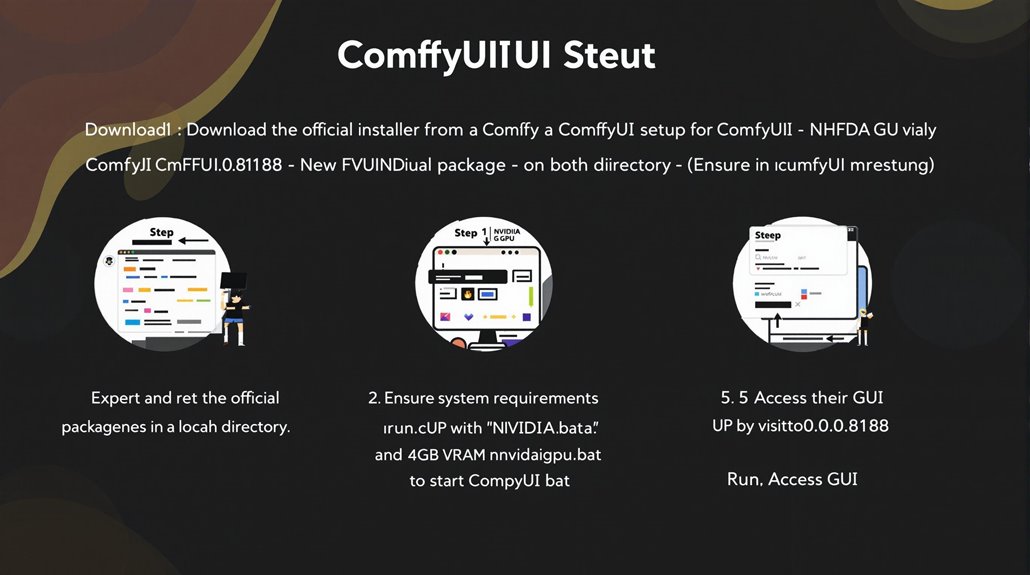
Downloading the Official ComfyUI Installer
To download the official installer, visit the ComfyUI GitHub repository and navigate to the README section. This section provides a direct link to download the integrated package, which includes all necessary files for Windows, Mac, Linux, and Jupyter Notebook.
Extracting the Integrated Package
After downloading, extract the integrated package to a local directory. Ensure the extracted files match the ComfyUI File Directory structure.
The package includes two key files: ‘run_cpu.bat’ for CPU and ‘run_nvidia_gpu.bat’ for Nvidia GPU. Always check the repository for recent updates before proceeding with installation.
System Requirements
Before installation, confirm that your system meets the minimum requirements: NVIDIA GPU with 4GB VRAM and 8GB system RAM. Older GPUs like GTX 1060 are supported but may process slowly.
Recommended requirements include an NVIDIA RTX 2070 or newer with 8GB+ VRAM and GPUs with Tensor cores for faster AI acceleration.
Initializing ComfyUI
Once the package is extracted, double-click ‘run_cpu.bat’ or ‘run_nvidia_gpu.bat’ to start ComfyUI. The software will launch, and you can access the GUI by visiting the URL specified in the terminal, such as http://0.0.0.0:8188. This ensures a secure and successful installation of ComfyUI.
For users not familiar with command lines and code, Command Line Installation is recommended through the Readme document, which provides step-by-step instructions and can be followed to install ComfyUI successfully.
Unzipping the Installer Package
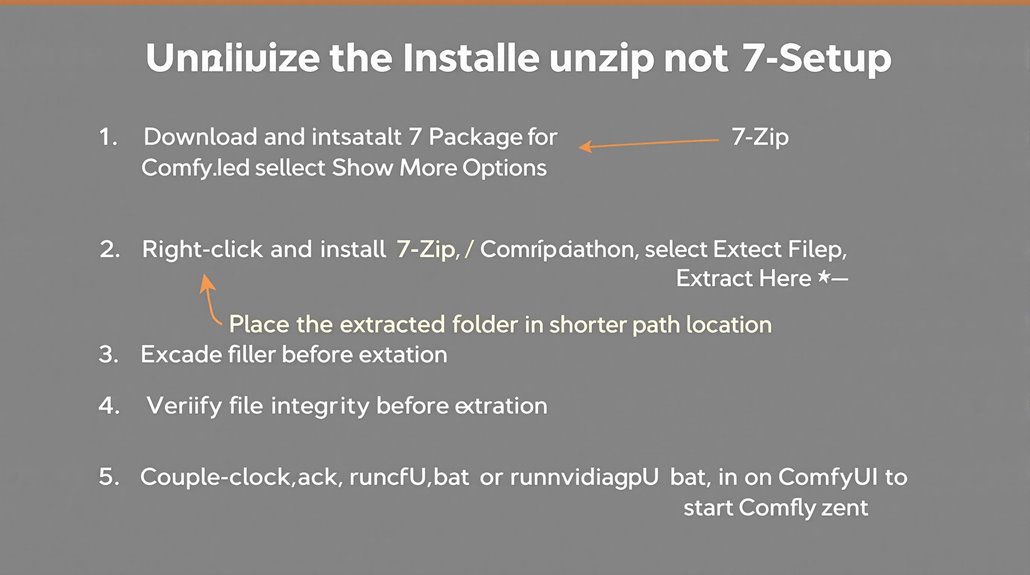
Extracting ComfyUI
To extract the ComfyUI installer package, you need 7-Zip software. Download 7-Zip from the official website and install it.
Then, right-click on the ComfyUI zip file and select Show More Options > 7-Zip > Extract Here. This process creates a new folder called ComfyUI_windows_portable.
Verifying File Integrity
Before extraction, ensure that the downloaded zip file is not corrupted and you have enough disk space.
If you encounter extraction issues, re-download the zip file and consult the ComfyUI GitHub repository for detailed installation instructions.
Extracted Folder Placement
Place the extracted folder in a location with a shorter path to prevent long path issues that break Python naming conventions.
Resolving Extraction Issues
If you encounter problems, try re-downloading the zip file. You may also need to unblock the file if it’s marked as blocked.
Right-click on the zip file, go to Properties, and click the Unblock tick box before extracting again.
Lightweight Setup
ComfyUI ensures efficient performance by only loading necessary components upon startup.
Starting ComfyUI
After successful extraction, find the run_cpu.bat or run_nvidia_gpu.bat file in the extracted folder.
Double-click the appropriate file based on your hardware. ComfyUI should start, and you can access it by navigating to the specified URL in your browser.
The ComfyUI installer will automatically detect and install Nvidia Cuda if required for your graphics card.
Running ComfyUI on Your Device
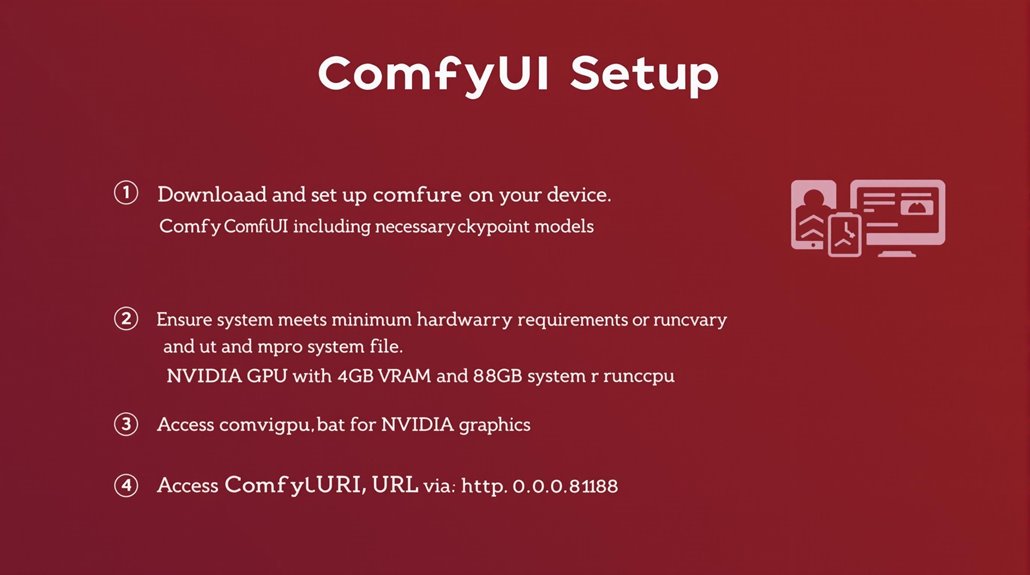
Running ComfyUI on Your Device
To run ComfyUI, ensure you have completed the extraction and setup steps, including downloading the necessary checkpoint model. Verify your system meets the minimum hardware requirements: an NVIDIA GPU with at least 4GB VRAM and 8GB system RAM.
For peak performance, use an NVIDIA RTX 2070 or newer with 8GB+ VRAM.
Navigate to the unzipped directory and select the appropriate startup file. If your system uses an NVIDIA graphics card, double-click on ‘run_nvidia_gpu.bat’. For other configurations, use ‘run_cpu.bat’.
Once initiated, the command line will execute and generate a URL (e.g., http://0.0.0.0:8188) that you can open in your browser to access the ComfyUI interface.
Performance Optimization:
Using SSD storage for model files can improve performance. Ensure sufficient storage space for models and generated images.
Regularly check the ComfyUI documentation for updates on changing requirements and improvements.
System Requirements:
GPU: An NVIDIA GPU with at least 4GB VRAM is required.
Memory: At least 8GB system RAM is recommended.
Storage: SSD storage and at least 40GB of hard disk space are recommended.
Operating System: Supports Windows systems and Macs with Apple Silicon.
Software Dependencies: Python environment is required, with embedded installation packages available.
Additional Dependencies: Python libraries such as ‘torch’ and ‘transformers’ need to be installed.
ComfyUI’s node-based interface offers flexibility and transparency in workflow setup, making it easier to manage complex AI image generation tasks Node-Based Interface. ComfyUI fully supports the latest Stable Diffusion models, including SD1.x, SD2.x, and SDXL.
Accessing the ComfyUI Interface
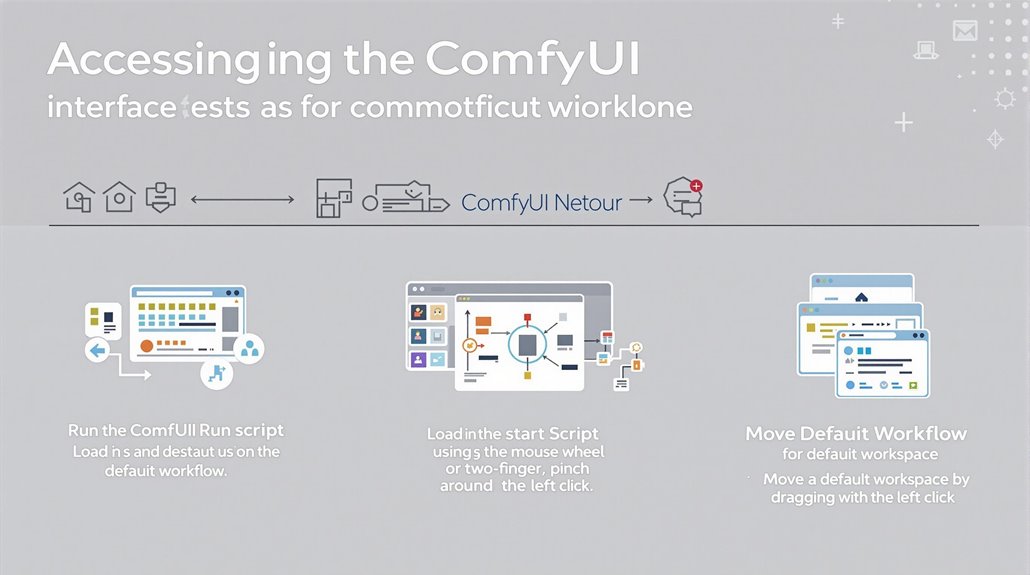
ComfyUI Interface Navigation
To access the ComfyUI interface, open the ComfyUI folder and run the start script. Wait for ComfyUI to load and display the interface.
Loading Default Workflow
Click on “Load Default” to load the default workflow. Press Ctrl-0 (Windows) or Cmd-0 (Mac) to ensure the right panel is visible.
Basic Navigation
Use the mouse wheel or two-finger pinch to zoom in and out of the interface. Form connections between nodes by dragging and holding the dot of the input or output.
Moving Around the Workspace
Hold and drag with the left click to move around the workspace. Double-click any empty area to bring up a node search menu. ComfyUI’s node-based GUI allows users to construct image generation workflows by chaining different blocks (nodes) together. The CheckpointLoader node is crucial for loading model checkpoints, and it typically has three outputs: Clip, VAE, and Model.
Efficient Interface Use
Familiarizing yourself with the node-based GUI is crucial for effective use. Understanding these basic navigation techniques helps you efficiently access and use ComfyUI.
Efficient Interface Use (Continued)
Understanding these basic navigation techniques helps you efficiently access and use ComfyUI.
Remote Access
ComfyUI allows remote access from other devices on the same network by editing the start script and configuring the firewall. This feature enhances flexibility and accessibility.
Common Shortcuts
Utilize shortcuts like Ctrl+D to load the default graph workflow, enhancing the user experience through efficient interface navigation. This helps streamline the workflow setup process.
Troubleshooting Common Issues
Troubleshooting Common Issues in ComfyUI
Updating libraries in the ComfyUI Manager can fix missing or outdated libraries. Issues like ‘module comfy.sd has no attribute ‘ModelPatcher” can be resolved by updating nodes.
Updating Nodes
For PngInfo problems, updating nodes using the ComfyUI Manager can help.
Alternatively, use standard Image Preview or Save Image nodes as a workaround solution.
Regular Maintenance
Regularly checking for updates and restarting ComfyUI helps identify installation errors.
Ensure that ComfyUI is restarted after making custom node updates to avoid issues. Manual installation of custom nodes may be required if they do not appear in the ComfyUI Manager Manual Installation.
Node Replacement
Replacing outdated nodes with newer versions or standard nodes can resolve issues like the PngInfo problem.
For example, using the standard Image Preview or Save Image nodes can bypass PngInfo issues.
Error Identification
Restarting ComfyUI a second time can help identify if an installation error is occurring.
The ComfyUI log screen (CMD) often provides more detailed error information than the pop-up in the UI.
Comfy UI’s support for various GPU configurations, including lower VRAM setups like 4GB VRAM on RTX 3090 or 3050 GPUs, makes it versatile for different system setups.
Cloud vs. Local Installation
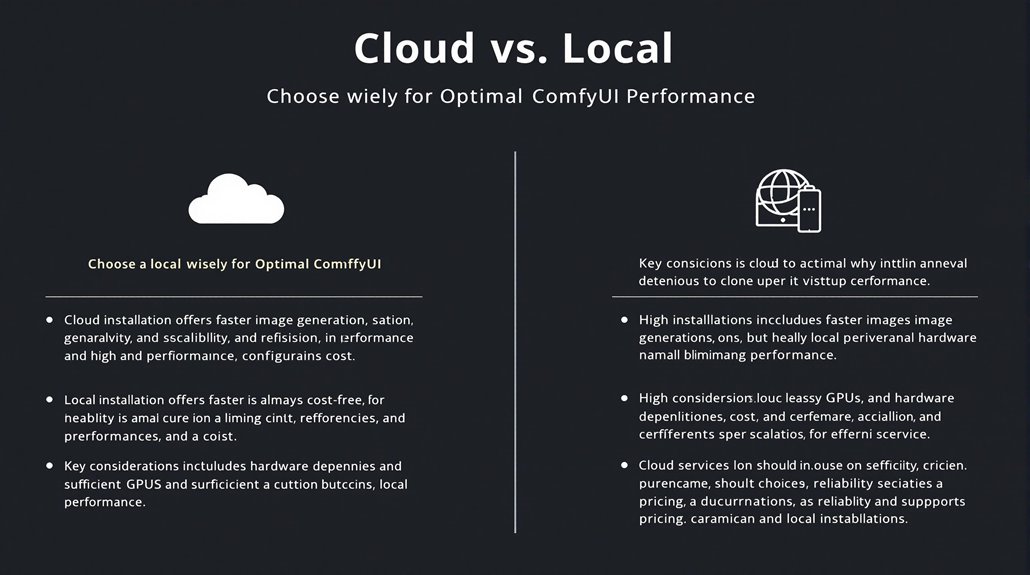
Cloud vs. Local Installation of ComfyUI
When deciding on the deployment of ComfyUI, it is crucial to weigh the advantages and disadvantages of cloud and local installations based on specific needs and technical environments.
Cloud Benefits
Cloud installation offers faster image generation due to high-performance cloud configurations. There is no dependency on local computer hardware, ensuring consistent performance across different devices and supporting various operating systems.
Cloud Drawbacks
However, cloud installation incurs a cost due to cloud services, requiring a subscription or pay-as-you-go model. This may be a limiting factor for users with budget constraints.
Local Benefits
Local installation is almost cost-free but heavily relies on local hardware specifications. High-end GPUs can provide faster image generation, but lower-end hardware may lead to slower performance. For local installations, it is essential to note that setting up the correct Stable Diffusion models in the ComfyUI models directory is crucial for image generation.
Local Challenges
Local hardware configurations can limit performance. Systems with insufficient storage or processing power may struggle with large models and frequent usage.
Key Considerations
Before choosing between cloud and local installations, consider the following:
- Hardware Dependencies: Local installation requires a computer with a high-performance GPU and ample storage.
- Cost: Cloud installation incurs a cost, while local installation is almost cost-free.
- Scalability: Cloud installation offers better scalability, as it can be easily adjusted based on specific needs.
- Performance: Cloud installation provides consistent performance across different devices.
In making this decision, it is essential to analyze your technical environment and specific requirements. Flexibility and suitability to your workflow are key factors to consider. Ensure that your chosen installation method aligns with your operational needs and technical capabilities.
For users who require consistent performance and scalability, cloud installation may be the better choice. However, for those with limited budgets and high-performance local hardware, local installation could be more suitable.
Choosing the Right Option
For users who require consistent performance and scalability, cloud installation may be the better choice. However, for those with limited budgets and high-performance local hardware, local installation could be more suitable.
Considerations for Local Installation
If opting for local installation, ensure your computer meets the necessary hardware requirements. High-performance GPUs like the NVIDIA RTX 1060 or higher are recommended, along with at least 16GB of RAM and a 128GB SSD. Additionally, ComfyUI’s node-based interface allows for flexible workflow creation.
Cloud Services
For cloud installation, select a reputable provider known for reliable services and competitive pricing. Consider factors such as GPU availability, performance reliability, and support documentation to ensure a smooth and efficient workflow.
Setting Up ComfyUI Alternatives
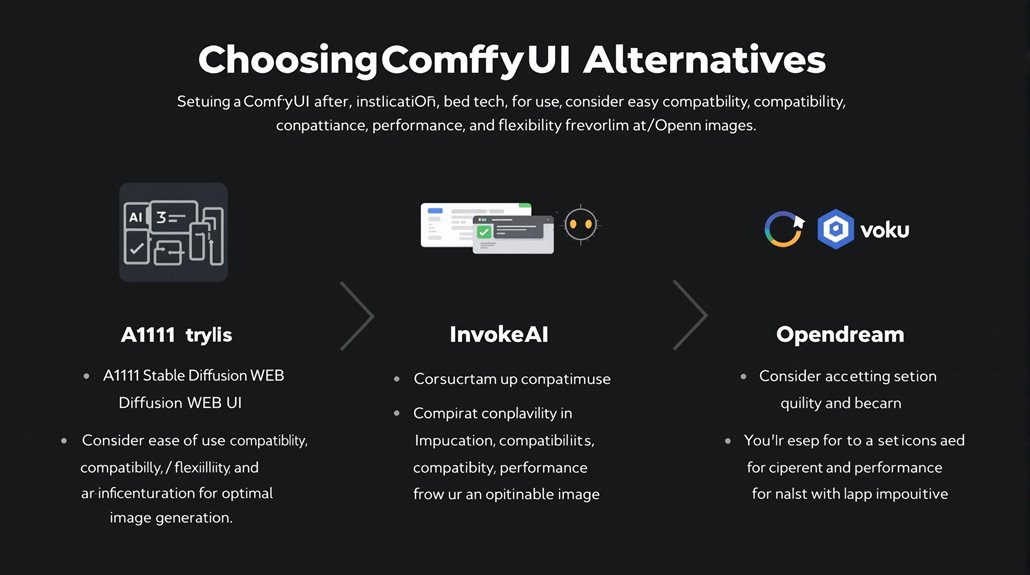
Choosing the Right ComfyUI Alternatives
For users seeking alternatives to ComfyUI, several powerful tools offer diverse functionalities and ease of use. Key alternatives include A1111 Stable Diffusion WEB UI, InvokeAI, and Opendream.
A1111 Stable Diffusion WEB UI provides a robust web interface for Stable Diffusion. It features one-click installation, advanced inpainting, outpainting, and upscaling capabilities. This tool supports Windows, Mac, and Linux and is free and open source. A1111 Stable Diffusion WEB UI also offers cross-platform compatibility.
InvokeAI offers a streamlined process with new features for image generation. These include text-to-image and image-to-image generation, live preview, ad-free use, and no registration required. It is available on Windows, Mac, and Linux. Installing Invoke AI through Pinocchio simplifies the setup process by providing a centralized hub for AI tools Pinocchio Installation.
Opendream enhances Stable Diffusion workflows with layering, non-destructive editing, and portability. It is the most popular self-hosted alternative and is free and open source.
User preferences vary, and these alternative interfaces cater to different needs. Ease of use and compatibility are critical considerations.
For instance, Automatic1111 is user-friendly with extensive documentation, while ComfyUI has a steeper learning curve but a more active community.
Key Differences:
- Ease of Use: Automatic1111 is more user-friendly, while ComfyUI requires more technical knowledge.
- Performance: ComfyUI handles VRAM and RAM issues more efficiently.
- Flexibility: ComfyUI offers more control over the image generation process, making it suitable for advanced users.
Alternative Interfaces:
- Draw Things: Provides a comprehensive, easy-to-use solution for AI-based art generation on Mac and iOS devices.
- AI Runner: Allows easy running of Stable Diffusion on personal hardware without additional requirements.
Understanding these differences helps users choose the best alternative for their specific requirements. Consider ease of use, compatibility, performance, documentation, and flexibility in image generation processes when selecting a tool.
