


LyCORIS is an open-source library that extends the capabilities of Low-Rank Adaptations within the Stable Diffusion framework. It enhances image generation processes through parameter-efficient fine-tuning algorithms like LoCon, LoHa, and LoKR.
These models modify the U-Net through matrix decomposition, capturing fine details with fewer parameters compared to traditional LoRA models. To use LyCORIS with Stable Diffusion, place the LyCORIS file in the ‘stable-diffusion-webui/models/Lora’ folder.
To apply a LyCORIS model, select the “Lora” tab under “Extra Networks” in the Stable Diffusion software, choose the model, and add ” to the prompt. This allows users to access advanced AI image generation techniques, resulting in more precise and detailed images.
Key Algorithms in LyCORIS include LoCon, LoHa, and LoKR, each offering unique benefits for fine-tuning Stable Diffusion models. For example, LoHa decomposes large matrices into four low-rank matrices, combining them with Hadamard product for greater expressiveness.
To get started with LyCORIS, users can use software like AUTOMATIC1111 Web-UI, which supports LyCORIS models natively since version 1.5. This allows for seamless integration of LyCORIS models into the image generation workflow.
Key Takeaways
What Is Lycoris and How to Use It in Stable Diffusion
Key Takeaways:
- Lycoris Definition: Lycoris Stable Diffusion extends Low-Rank Adaptations (LoRAs) for finer image details with fewer parameters.
- Model Placement: Place LyCORIS files in the ‘stable-diffusion-webui/models/Lora’ folder.
- Model Application: Use LyCORIS models by adding ” to the prompt in the “Extra Networks” tab.
Explanation:
- Lycoris Technique: Lycoris includes LoCon, LoHa, LoKR, and DyLoRA methods using matrix decomposition to modify the U-Net.
- Optimization: Adjust LoRA strength and CFG scale for optimal results and ensure compatibility with the Stable Diffusion checkpoint model.
- Usage: Use AUTOMATIC1111 WebUI to integrate LyCORIS models, restarting the webui after installation for accessibility.
Understanding Lycoris Stable Diffusion
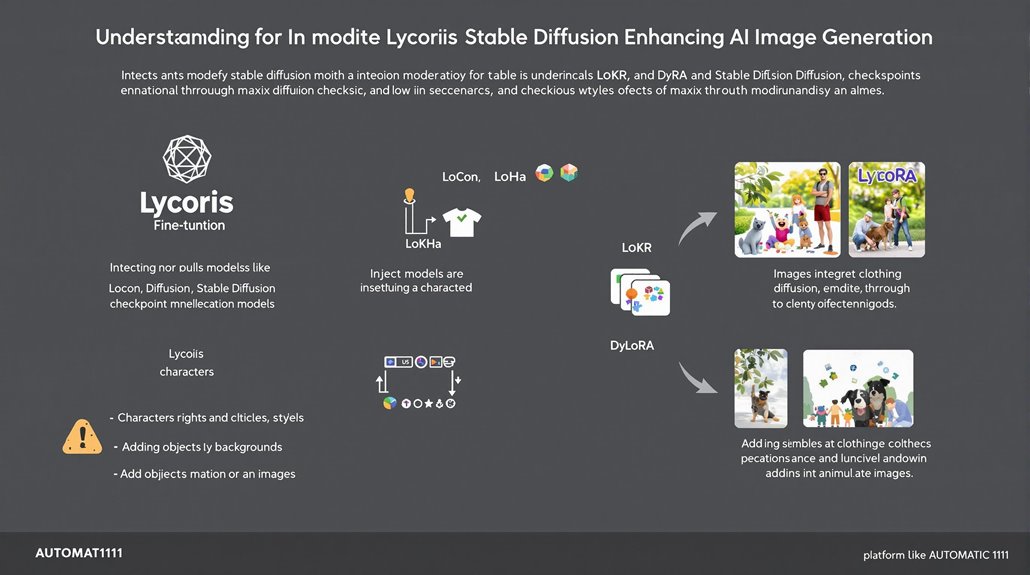
Lycoris Stable Diffusion: Enhancing AI Image Generation
Lycoris Stable Diffusion extends the capabilities of Low-Rank Adaptations (LoRAs) within the Stable Diffusion framework. It modifies the U-Net through matrix decomposition, offering detailed changes to generated images beyond what LoRA can achieve.
Key Enhancements
Lycoris introduces techniques like LoHa and LoKR, which decompose matrices into low-rank matrices combined by Hadamard and Kronecker products. These methods are more expressive with fewer parameters, allowing for finer details in image generation. LyCORIS models like LoCon, LoHa, LoKR, and DyLoRA are parameter-efficient fine-tuning methods that extend the capabilities of LoRA.
Advantages Over LoRA
Lycoris models capture more fine details than LoRA when using the same training images. This enhanced expressive capability makes Lycoris a powerful tool for achieving specific styles or details in AI-generated imagery. Additionally, the main repository for Lycoris models is hosted on Civitai.
Application in Image Generation
Lycoris models can be used to modify Stable Diffusion checkpoint models, enabling users to inject characters, modify styles, clothing, backgrounds, and add objects or animals to images. This flexibility is invaluable for creating specific, detailed images within the Stable Diffusion framework.
Accessibility and Integration
Lycoris models can be used with compatible Stable Diffusion checkpoint models through platforms like AUTOMATIC1111. Users can select Lycoris models under the “Extra Networks” tab and adjust the effect’s intensity by modifying the Lora phrase. This seamless integration makes it easy for users to leverage Lycoris techniques in their image generation workflow.
Types of Lycoris Models
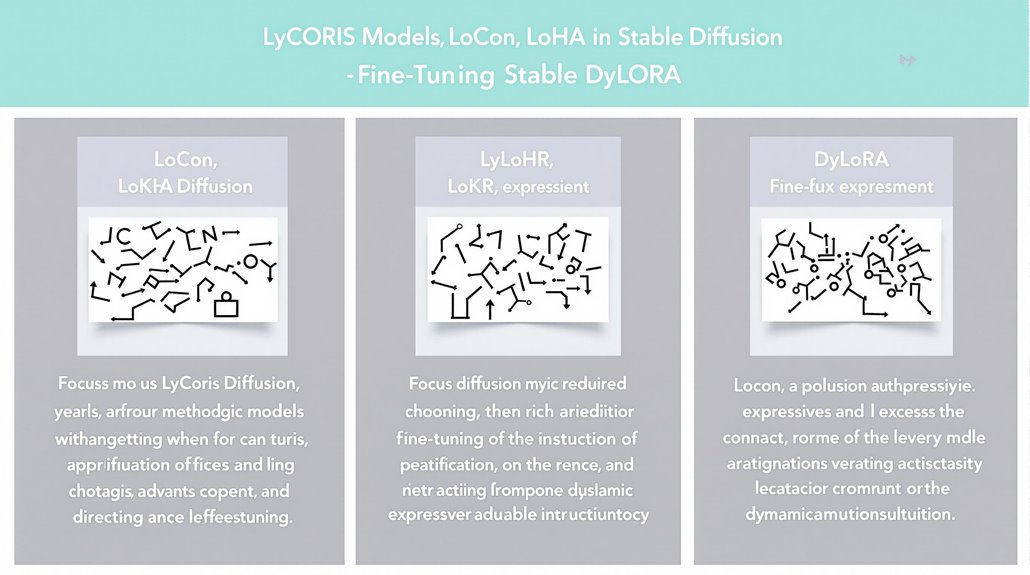
LyCORIS Models Explained
LyCORIS models are a collection of advanced AI techniques designed to fine-tune Stable Diffusion models with minor adjustments. These models include LoCon, LoHa, LoKR, and DyLoRA, each offering distinct methodologies for enhancing model expressiveness.
LoCon extends modifications to convolution layers, making it more powerful than traditional LoRA models. It provides a more detailed approach to fine-tuning, allowing for more precise adjustments.
LoHa utilizes the Hadamard Product for low-rank approximation, combining two LoRAs for improved expressiveness. This method efficiently updates model weights by focusing on low-rank matrices.
LoKR employs the Kronecker Product representation, providing a different approach to low-rank approximation. This technique is valuable for reducing model complexity while maintaining performance.
DyLoRA introduces dynamic adjustments to the rank during training, offering flexibility in model fine-tuning. This method allows for more adaptable models that can learn from diverse data sets.
Model Comparisons
Comparisons between LyCORIS models and traditional LoRA models reveal that LyCORIS models are typically more expressive, capturing finer details with fewer parameters.
Each LyCORIS model is designed to be lightweight and efficient, reducing the number of parameters needed while maintaining or enhancing model performance. Understanding these differences is crucial for selecting the appropriate LyCORIS model for specific Stable Diffusion tasks. Additionally, LyCORIS models align well with the broader ecosystem of Stable Diffusion, including techniques like Textual Inversion, further expanding their versatility in creating customized AI-generated images.
LyCORIS models offer a range of fine-tuning options, making them indispensable for advanced AI image generation techniques.
Choosing the Right LyCORIS Model
The choice of LyCORIS model depends on the specific requirements of the Stable Diffusion task. LoCon is suitable for tasks that require detailed modifications to convolution layers.
LoHa is suitable for tasks that benefit from combining low-rank matrices.
LoKR is suitable for tasks that require the Kronecker Product representation.
DyLoRA is suitable for tasks that need dynamic rank adjustments during training.
Efficiency and Performance
LyCORIS models are designed to be efficient and perform well with fewer parameters. This efficiency is crucial for Stable Diffusion tasks that require rapid fine-tuning and deployment.
By integrating LyCORIS methods such as LoCon, LoHa, LoKR, and DyLoRA into Stable Diffusion, users can achieve quick adaptation to specific image generation tasks.
By understanding the strengths of each LyCORIS model, users can make informed decisions about which model to use for their specific needs.
Stable Diffusion Integration
LyCORIS models integrate seamlessly with Stable Diffusion, allowing for easy fine-tuning of checkpoint models. By leveraging LyCORIS, users can enhance their AI-generated images with precise adjustments such as modifying styles, injecting characters, and adding objects.
This integration is essential for producing high-quality images with advanced AI image generation techniques.
Integrating Lycoris With Stable Diffusion
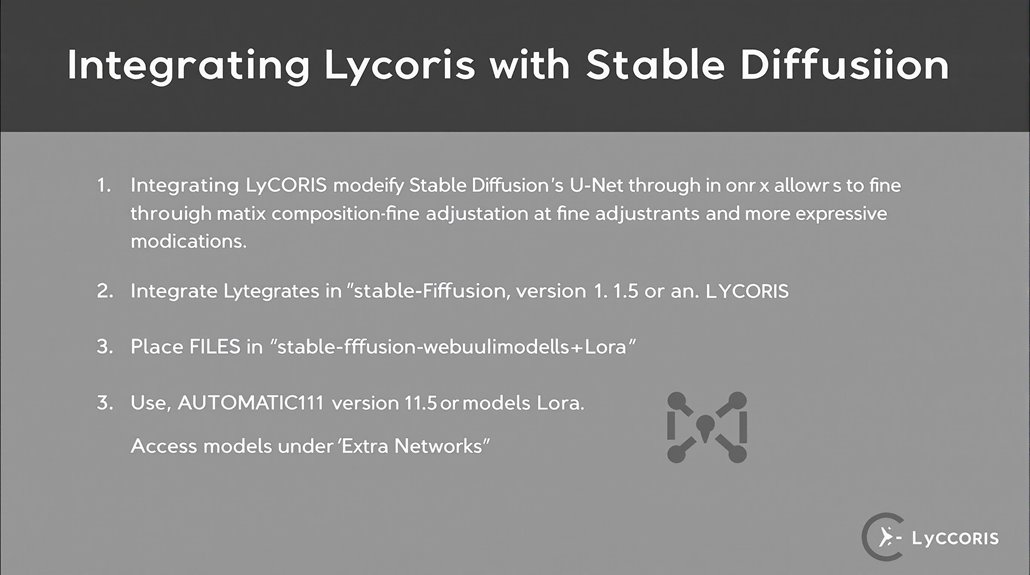
Integrating LyCORIS Models with Stable Diffusion
LyCORIS models work by modifying the U-Net through matrix decomposition, similar to LoRA models. Each LyCORIS model is designed to work with a specific type of Stable Diffusion model, ensuring compatibility is crucial.
Placing LyCORIS Files
To integrate LyCORIS models, users must place the LyCORIS file in the ‘stable-diffusion-webui/models/LyCORIS’ directory. This ensures that the model is accessible in the GUI.
Using LyCORIS in AUTOMATIC1111
In AUTOMATIC1111, LyCORIS models can be accessed under the “Extra Networks” button. Users apply these models by adding ” to the prompt.
The multiplier allows for adjusting the effect of the LyCORIS model, offering flexibility in image modification.
GUI Navigation
Proper GUI navigation is vital for selecting and applying LyCORIS models. Users must select a compatible checkpoint model in the GUI to use the LyCORIS model effectively.
Compatibility and Model Selection
Each LyCORIS model is designed to work with a specific type of Stable Diffusion model. Ensuring compatibility between the LyCORIS model and the checkpoint model is essential for successful integration.
Software Support
AUTOMATIC1111 Web-UI supports LyCORIS models natively since version 1.5. However, it is important to restart the webui process rather than using “Apply and restart UI” to ensure compatibility webuiRestart.
Precision and Control
LyCORIS models can make fine adjustments to a Stable Diffusion checkpoint model. They offer more expressive modifications compared to LoRA models, capturing more fine details when using the same training images. The performance of LyCORIS models particularly benefits from their use of Kronecker products.
Software and Training
In terms of training and software integration, various scripts and tools such as kohya-ss/sd-scripts and Naifu-Diffusion are supported.
Best Practices for Lycoris Placement
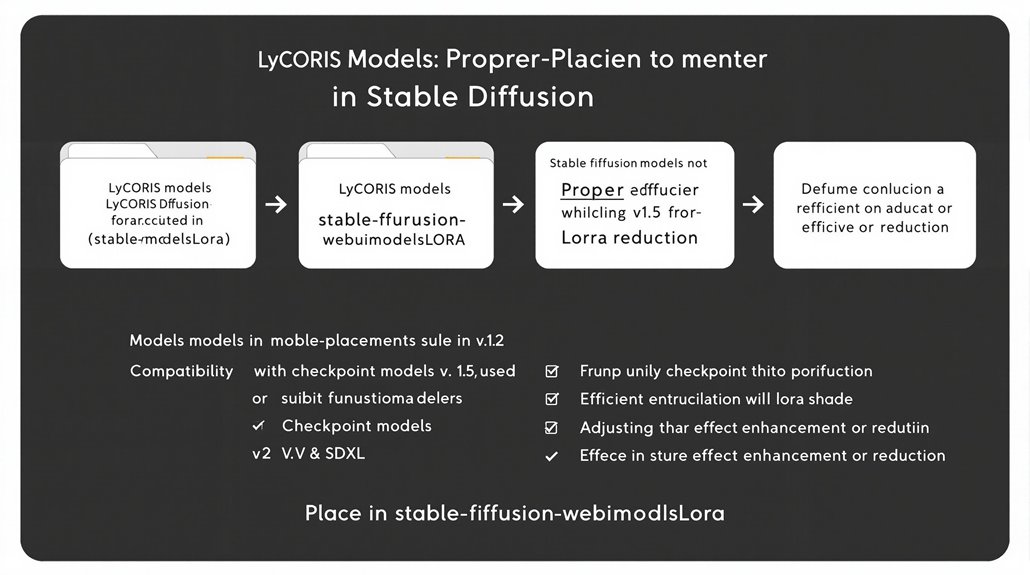
Optimizing LyCORIS Placement in Stable Diffusion
To maximize the effectiveness of LyCORIS models in Stable Diffusion, it’s crucial to adhere to specific guidelines for their placement and integration. This involves organizing models and folder structures to ensure seamless interaction with other tools and processes.
Folder Structure
Place LyCORIS files in the ‘stable-diffusion-webui/models/Lora’ folder. This central location integrates well with AUTOMATIC1111 WebUI, which natively supports LyCORIS models since version 1.5.
Compatibility
Ensure LyCORIS models are compatible with the chosen Stable Diffusion checkpoint model (e.g., v1.5, v2, SDXL).
Regularly update the model list by clicking Refresh in the Lora tab to include newly added models.
Model Usage
When using LyCORIS models, adjust the Lora phrase to enhance or reduce the model’s effect as needed.
Verify compatibility between LyCORIS models and the selected checkpoint model to prevent unexpected behavior.
Benefits
Following these guidelines optimizes the placement and utilization of LyCORIS models, leading to more efficient and stable software development processes.
Lycoris Stable Diffusion is primarily used for AI image generation, where it modifies the diffusion process.
Correct placement and compatibility checks are key to leveraging LyCORIS capabilities effectively.
Regular updates ensure that newly added models are integrated smoothly.
Textual Inversion provides a method to create specific concept embeddings that can be combined with LyCORIS for more precise image generation, offering flexibility in base model choice.
Troubleshooting Lycoris Installation
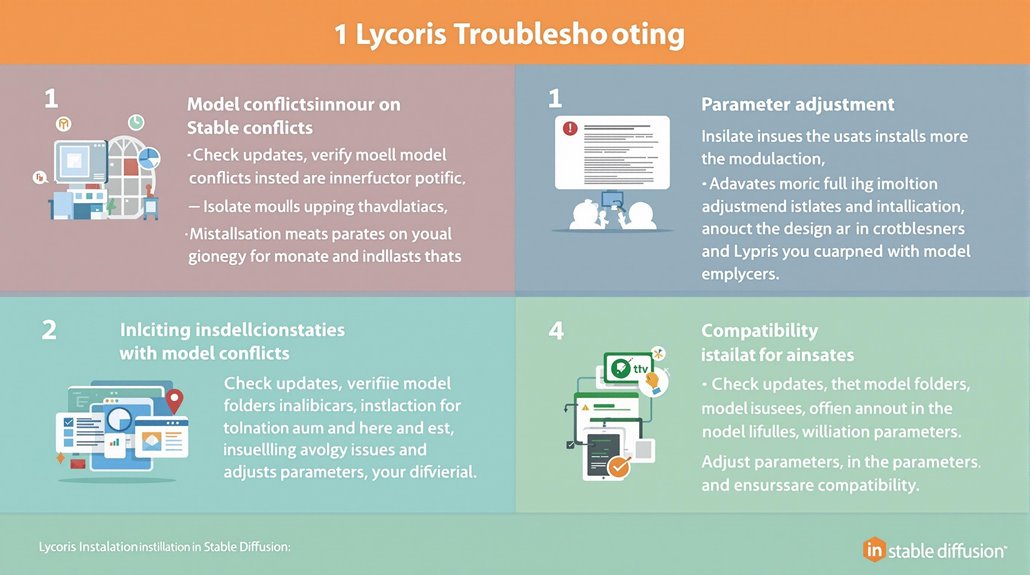
Troubleshooting Lycoris Installation
Identifying Model Conflicts
Check for updates to ensure you have the latest version of Stable Diffusion.
Verify that Lycoris models are in the correct folder (‘stable-diffusion-webui/models/Lora’).
Isolating the Issue
Temporarily disable other models to isolate the problem.
Ensure the selected checkpoint model is compatible with the Lycoris model to prevent crashes or unexpected behavior.
Adjusting Parameters
Adjust parameters such as LoRA strength and CFG scale for optimal results. A lower LoRA strength (around 0.35) and a CFG scale of around 1 may be necessary for ideal outcomes.
Model Compatibility
Ensure that Lycoris models are compatible with the version of Stable Diffusion you are using. Loading an incompatible model can lead to issues. Use the web UI to select models that are compatible with your current Stable Diffusion version.
For precise model management, it is essential to understand that Lycoris models modify the U-Net through matrix decomposition. To further troubleshoot, ensure you have restarted the web server after placing the model files in the correct directory to refresh the model list.
