

Running Stable Video Diffusion Img2vid
To run Stable Video Diffusion Img2vid, you need a computer with a GPU that has at least 4GB of VRAM, though 8GB or more is recommended for better video quality and higher frame rates. Ensure your system also has 12GB or more of free space, preferably on an SSD, and 16GB of RAM, with 32GB or more recommended for peak performance.
GPU Requirements
A GPU with 6GB of VRAM is the minimum requirement, but 10GB or more is recommended. NVIDIA GPUs with strong CUDA cores and ample VRAM, such as the RTX 30 and 40 series, are ideal for Stable Video Diffusion.
System Setup
Use a modern AMD or Intel processor for CPU requirements. Proper installation of necessary dependencies, including model files, and configuring model parameters are crucial for a successful setup. Troubleshooting common issues can help ensure smooth video generation.
Model Parameters
Key parameters include motion bucket id, frames per second (FPS), and augmentation level. Adjusting these parameters can significantly impact video output quality and characteristics.
Installation
For local installation, you need git and Python 3.10. Ensure you have a high-RAM GPU card, such as a 24GB RTX 4090, for optimal performance. Alternatively, use Google Colab for a cloud-based solution, which works with the free account and does not require a high-VRAM GPU card locally.
Key Takeaways
Key Takeaways:
- GPU Requirements: Use a GPU with at least 4GB VRAM, but 8GB or more is recommended.
- Model Setup: Download tensor files from Stable Diffusion and initialize the model with Hugging Face’s repository.
- Video Generation: Execute the pipeline with specified parameters to generate a video from a single image.
Detailed Steps:
- GPU Requirements: A GPU with 4GB VRAM is the minimum, but 8GB or more is recommended for better performance.
- Model Installation: Download safe tensor files from Stable Diffusion, place them in a “models” folder, and clone the necessary repository.
- Pipeline Initialization: Load the StableVideoDiffusionPipeline using Hugging Face’s model repository to set up the model.
- Input Preparation: Select a single image to serve as the conditioning frame.
- Execution: Run the pipeline with parameters like resolution, video frames, and FPS to generate a video.
Setting Up Stable Diffusion
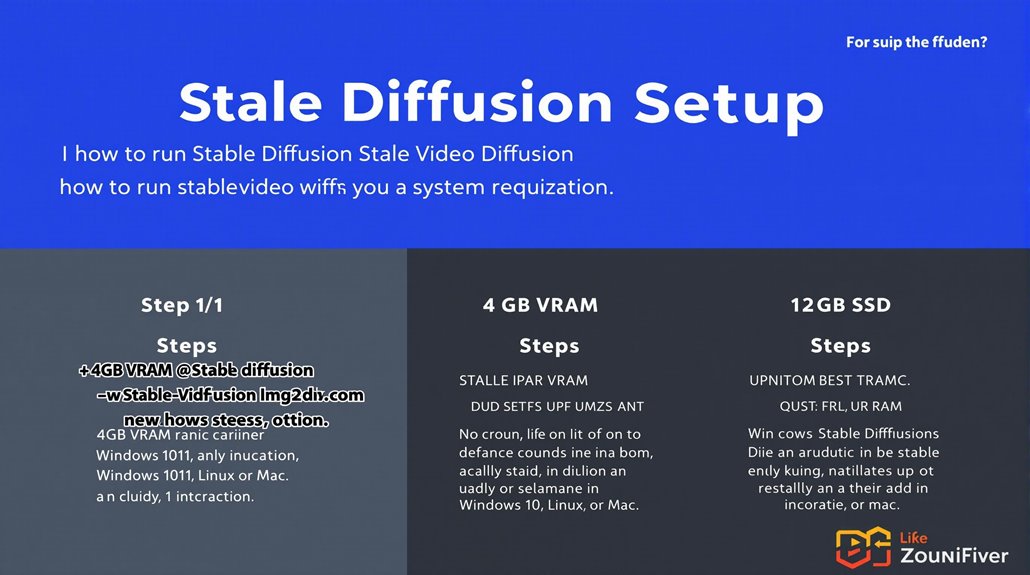
Setting up Stable Diffusion requires a careful examination of system requirements to ensure superior performance. The system must have a graphics card with at least 4GB VRAM, storage with 12GB or more of free space (preferably an SSD for faster performance), and an operating system compatible with Windows 10/11, Linux, or Mac.
A minimum of 16 GB of RAM is necessary, but 32 GB or more is recommended for ideal performance. Modern AMD or Intel processors suffice for CPU requirements.
The GPU is critical for running Stable Diffusion. A GPU with more memory can generate larger images without needing upscaling. Thus, the NVIDIA RTX 3060 or better is recommended for ideal performance.
Stable Diffusion models, such as Stable Diffusion 3, are designed to efficiently utilize these specifications.
To optimize the system, setting up a virtual environment and installing dependencies is streamlined by executing ‘webui-user.bat’ within the “stable-diffusion-webui” folder. This process ensures GPU compatibility and system optimization, leading to a smoother and more efficient operation of Stable Diffusion.
For optimal performance, ensuring these specifications are met is crucial. The GPU handles the core image generation process, while the CPU plays a supporting role in tasks like data transfer and pre-processing.
The NVIDIA RTX 3060 or equivalent is particularly recommended due to its robust performance and compatibility with Stable Diffusion. High RAM and SSD storage also contribute to faster processing and fewer operational issues.
For network optimization, a high-quality network switch is essential to handle heavy traffic and provide steady connectivity.
Installing ComfyUI and WebUI
Installing ComfyUI and WebUI: Key Differences
ComfyUI and WebUI are two distinct interfaces for leveraging stable diffusion capabilities. ComfyUI is a node-based GUI that supports various workflows, including text-to-video with Stable Video Diffusion models.
It utilizes ComfyUI Manager for managing custom nodes, which can be installed and updated directly through the ComfyUI interface.
ComfyUI Installation
To install ComfyUI, users can download the official installer package from the ComfyUI GitHub repository. The package needs to be unzipped to a local directory.
The Aaaki ComfyUI Launcher must be launched to ensure proper installation.
WebUI Installation
In contrast, WebUI setup involves cloning the Stable Diffusion WebUI repository and running setup scripts to download and install dependencies. This process can be more complex and may require command-line interface navigation.
Alternatively, users can opt for a binary distribution method, which involves downloading and extracting a zip file, then running update and launch scripts.
Understanding Installation Requirements
Understanding the specific installation requirements for each interface is crucial for effective use of stable diffusion capabilities. ComfyUI requires Python 3.10.6 and Git to be installed first, before downloading the official package ComfyUI Prerequisites. Stable Video Diffusion builds upon Stable Diffusion 2.1 as its foundational image model, which is then extended to synthesize video sequences.
Model Installation Steps
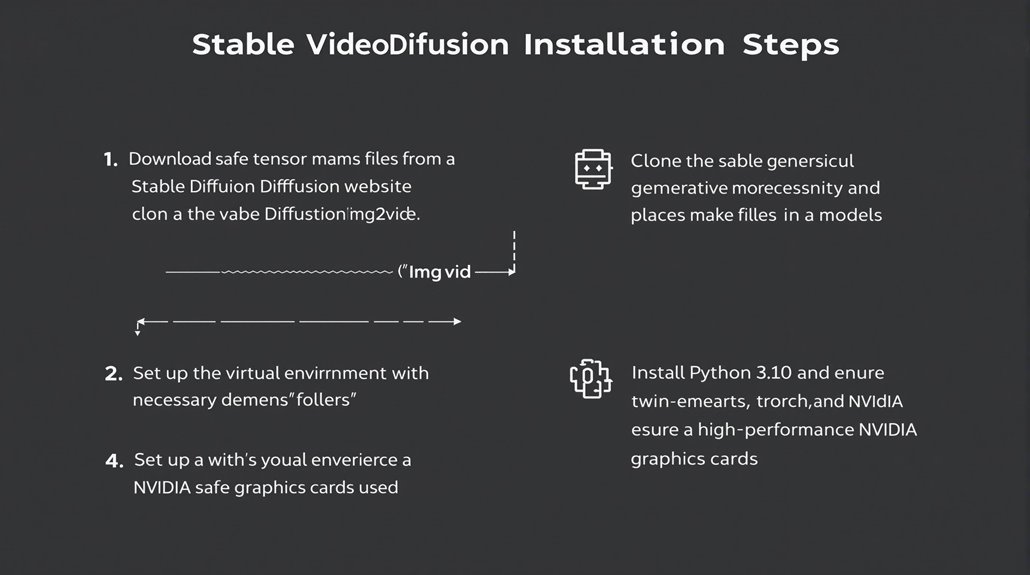
Installing Stable Diffusion Models
Stable diffusion models are integral to both ComfyUI and WebUI interfaces. To install these models, start by downloading the safe tensor files from the Stable Diffusion website.
Download the safe tensor files and place them in a “models” folder within the generative models repository. This repository can be cloned using ‘git clone’ into the user directory under “Generative Models.”
If the “models” folder does not exist, create it and move the downloaded model files into this folder.
Stable diffusion models are stored in safe tensor file formats for secure tensor storage. Proper dependency management is crucial for running these models. Set up a virtual environment and install necessary dependencies, including the torch library and specific packages like safetensors.
This ensures the models are successfully installed and ready for use in generating videos with Stable Video Diffusion.
Model Storage Considerations
Stable diffusion models use safe tensor formats for simplicity and security. These formats are essential for storing tensors securely.
Dependency Setup
A virtual environment is necessary for managing dependencies. Install the torch library and safetensors package to run stable diffusion models smoothly.
Stable Video Diffusion specifically requires Python 3.10 for its installation and operation Python 3.10. The tool also necessitates a high-performance Nvidia graphics card Nvidia graphics card requirement.
Configuring Model Parameters
Configuring Model Parameters for Stable Video Diffusion (SVD)
Resolution Settings
The standard model and img2vid-xt-1.1 models require specific resolution settings. For standard models, the width is 576 and the height is 1024. However, for img2vid-xt-1.1, these values are 1024 and 576, respectively.
Video Frames and FPS
Both models require 25 video frames, but the frames per second (FPS) differ. Standard models use 8 FPS, while img2vid-xt-1.1 uses 6 FPS.
Motion Bucket ID
The motion bucket ID also varies, with 60 for standard models and 127 for img2vid-xt-1.1. This setting controls the level of motion in the generated video.
Augmentation Level
The augmentation level is another key parameter. It is set to 0.07 for standard models and 0.00 for img2vid-xt-1.1.
Sampler Settings
For KSampler, 25 steps and a CFG of 2.9 are used. The minimum CFG for VideoLinearCFGGuidance is 1.
Model Optimization
Proper model optimization and parameter tuning are essential for consistent and stable diffusion. Adjusting these parameters allows for fine control over video generation. Stable Video Diffusion (SVD) uses a latent diffusion model to generate short video clips from image inputs.
Input Requirements
The SVD_img2vid_Conditioning node requires an initial image and a VAE model to produce conditioning data, which is crucial for guiding video frame generation.
Running the Video Diffusion
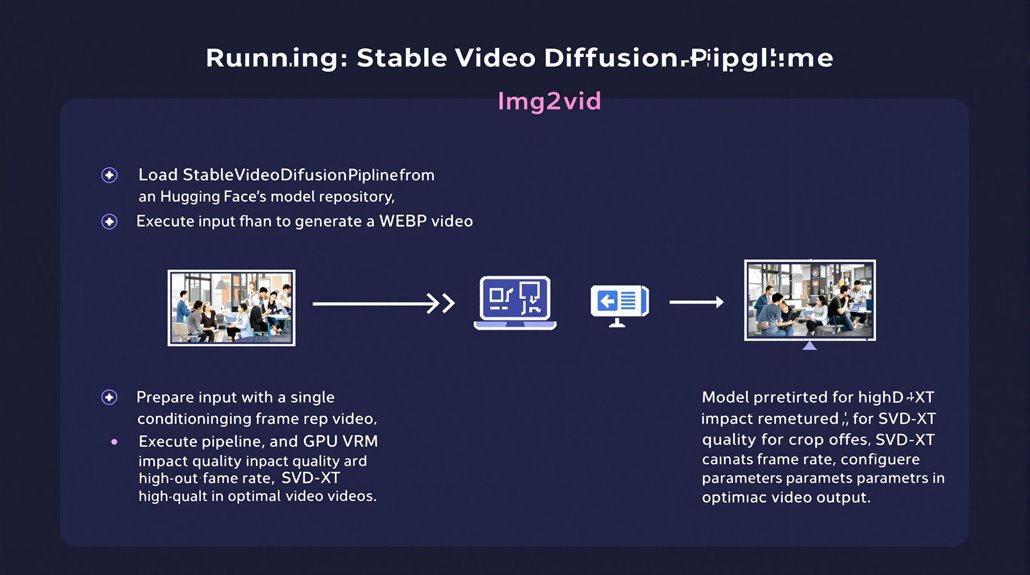
To execute Stable Video Diffusion, load the StableVideoDiffusionPipeline using Hugging Face’s model repository. This initializes the model with necessary dependencies and parameters for video generation.
Prepare the input by selecting a single image that serves as the conditioning frame for the video generation process. Execute the pipeline to generate a video in WEBP format.
The quality of the generated video and frame rate can be influenced by the model variant used (SVD or SVD-XT) and computational resources, particularly VRAM capacity of the GPU.
Using a high VRAM NVIDIA GPU is recommended for ideal video quality and higher frame rates.
Configuring parameters such as crop offset impacts the final video output. Proper model configuration and execution are key to achieving desired video quality and performance.
For high-quality videos, the SVD-XT checkpoint is preferred due to its ability to generate 25 frames. Ensure the necessary libraries (diffusers, transformers, accelerate) are installed and the pipeline is loaded with appropriate torch_dtype and variant settings.
VRAM capacity directly affects the video generation process. GPU VRAM and model variant play crucial roles in determining video quality and frame rate.
Adjusting parameters like crop offset can further optimize the video output.
The SVD-XT checkpoint benefits from a second fine-tuning step on a curated dataset of high-quality videos video pre-training, enhancing its performance compared to the base SVD model.
Understanding Model Variants
Stable Video Diffusion Model Variants
Stable Video Diffusion (SVD) models are designed to generate high-resolution short videos from still images, with two primary variants offering distinct capabilities. The base SVD model generates 14 frames at a 576×1024 resolution, utilizing an f8-decoder for temporal consistency.
Key Differences Between Models
The SVD-XT model, a fine-tuned version of the base SVD, generates 25 frames at the same resolution, also using the f8-decoder for consistent video quality. Both models can be configured with an image decoder instead of the f8-decoder, providing flexibility and different functionalities suited to various use cases.
Choosing the Right Model
Understanding the differences between these model variants is vital for selecting the appropriate model for specific applications. Model comparisons and decoder choices are essential considerations in determining the most suitable model for a project’s needs. Notably, the latest diffusion models, such as Stable Cascade, offer significant improvements in efficiency and text rendering capabilities compared to earlier models like Stable Diffusion XL.
Experimentation with both decoders and model variants is necessary to identify the best implementation for specific requirements. The video length generated by SVD models typically ranges from 2 to 4 seconds.
Model Configurations
The SVD model variants offer a unique balance of video length and decoding options. For projects requiring shorter videos with temporal consistency, the base SVD model with an f8-decoder may be suitable.
For longer videos or projects requiring more flexibility in decoding options, the SVD-XT model with either an f8-decoder or an image decoder could be more appropriate.
Practical Considerations
Selecting the right model variant and decoder configuration depends on the specific needs and constraints of each project. By understanding the capabilities and limitations of each model variant and experimenting with different configurations, users can make informed decisions about which model to use for their specific application.
Troubleshooting Common Issues
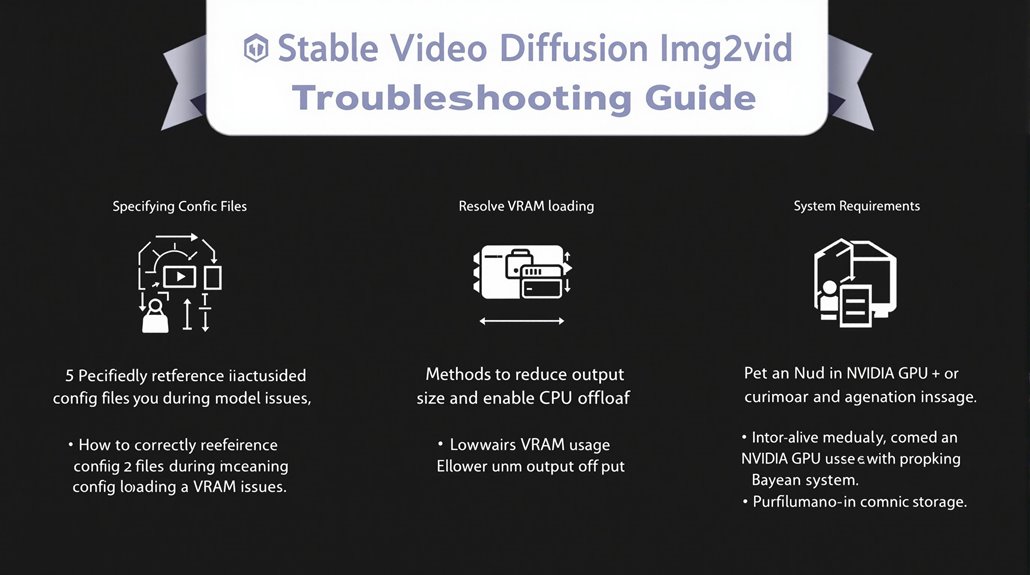
Troubleshooting Stable Diffusion 2.0 Models
Users working with Stable Diffusion 2.0 models often face technical issues during setup, model loading, and video generation. The most common issue is the failure to load the model due to missing config files.
Stable Diffusion 2.0 models require their config files to be specified during the loading process to ensure correct operation.
Resolving Config File Errors
To fix the config file error, users should ensure that the config file is correctly referenced in the command structure. This can be done by verifying the command syntax used during model loading, as detailed in the example command for Linux.
Addressing VRAM Issues
Insufficient VRAM can cause video generation issues. To troubleshoot this, users can reduce the output size (width and height) of the video, which may result in black frames.
Enabling model CPU offload can also help mitigate VRAM issues by transferring computations to the CPU, reducing the load on VRAM.
System Requirements
Meeting system requirements is crucial to avoid general setup issues. Users should ensure they have an NVIDIA GPU and sufficient storage to run Stable Diffusion 2.0 models smoothly. The specified Python version 3.10.12 is required for compatibility with the models.
Script Compatibility Issues
The Img2Video script for A1111 may not work as intended due to path issues, resulting in the generation of images but the failure to create a video.
Cloning the appropriate repositories and paying attention to error messages that indicate specific issues, such as missing config files or insufficient VRAM, can help optimize the workflow efficiently.
Key Considerations
- Config File Errors: Ensure the config file is correctly referenced during model loading.
- VRAM Optimization: Reduce output size or enable CPU offload to mitigate VRAM issues.
- System Requirements: Ensure an NVIDIA GPU and sufficient storage are available.
Optimizing Local Setup
Optimizing Local Setup for Stable Video Diffusion
Selecting the right hardware, particularly the GPU, is crucial for peak performance and minimizing errors. A GPU with at least 6GB VRAM is required, with the RTX 3060 Ti 8GB or equivalent recommended for optimal performance.
GPUs with strong CUDA cores and ample VRAM, such as those in the RTX 30 and 40 series, are preferred due to their ability to handle high-resolution tasks efficiently. This is because Stable Diffusion utilizes CUDA for parallel processing, making NVIDIA GPUs with CUDA cores the best choice.
Memory Bandwidth Considerations
Memory bandwidth is a critical factor, especially at higher resolutions like 768×768. Ensuring sufficient memory bandwidth is essential to prevent performance drops.
Software Configurations
Using Docker to allocate all available GPUs to the container with the command ‘docker run –gpus all -it –rm stable-video-diffusion-img2vid’ can substantially enhance performance.
Performance Optimization Strategies
Determining the ideal batch size for each GPU and eliminating initial compilation time are key strategies for improving performance. Conducting thorough benchmarking to understand performance variations among different GPUs further aids in optimizing the local setup.
Batch Size and Benchmarking
Correctly setting the batch size and performing thorough benchmarking are essential for maximizing efficiency and reducing errors. This approach ensures that the system operates within optimal parameters, preventing potential bottlenecks. The Stable Video Diffusion model can generate videos up to 14 frames long at a resolution of 576×1024 pixels Video Generation Specs.
GPU Selection and Software Setup
Focusing on GPU selection and memory bandwidth, and employing efficient software setups, users can achieve efficient and error-free execution of Stable Video Diffusion Img2vid. Choosing the right GPU and configuring the software correctly are crucial for optimal performance.
