


To install ComfyUI for Stable Diffusion, start by downloading the standalone package from the official GitHub Repository. Ensure that Git and Python 3.10 or higher are installed on your Windows system.
For Windows:
- Download the ComfyUI package and extract it using 7-Zip or WinRAR.
- Download a checkpoint model and place it in the 'models/checkpoints' folder.
- Run ComfyUI by executing the appropriate batch file: 'run_nvidia_gpu.bat' for NVIDIA GPU users or 'run_cpu.bat' for CPU users.
For Mac:
- Install Homebrew and clone the ComfyUI repository.
- Set up a virtual environment and install the necessary dependencies.
- Download a checkpoint model and place it in the 'models/checkpoints' folder.
- Run ComfyUI by executing 'python main.py' in the virtual environment.
These steps are crucial for a successful installation. Optimizing performance and managing models effectively can be done by following the detailed instructions on the official GitHub Repository.
Key Takeaways
ComfyUI Essentials
- Install ComfyUI: Download the standalone package from the official GitHub repository and extract it using 7-Zip.
- Model Setup: Place checkpoint models in the "models/checkpoints" folder for proper loading.
- System Requirements: Use a computer with at least 8GB of system memory and a GPU with 4GB VRAM, preferably an RTX 3060 or higher.
ComfyUI Installation Methods
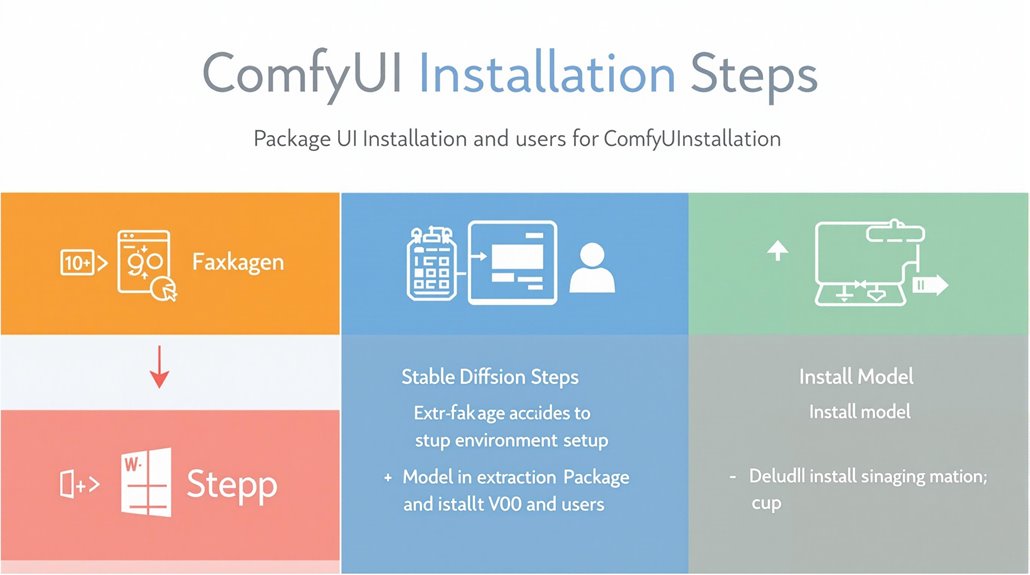
ComfyUI Installation Methods
ComfyUI offers various installation methods tailored to different user needs and system configurations.
Windows Installation
- Downloading the Package: Use 7-Zip to extract the standalone ComfyUI package. Ensure you have Git and Python 3.10 or higher installed. To ensure efficient performance, a computer with at least 8GB of system memory is recommended.
- For NVIDIA GPU users, run 'run_nvidia_gpu.bat', and for CPU users, run 'run_cpu.bat'.
- Checkpoint Model: Download a checkpoint model and place it in the 'models/checkpoints' folder. This setup is crucial as ComfyUI relies on these models for image generation using stable diffusion algorithms.
Mac Installation
- Preparation: Install Homebrew and the required packages. Clone the ComfyUI repository using 'git clone https://github.com/comfyanonymous/ComfyUI'.
- Setup and Run: Set up a virtual environment using 'python -m venv venv'. Download a checkpoint model and place it in 'models/checkpoints'. Run ComfyUI by executing 'python main.py' in the virtual environment.
Alternative Methods
- Third-Party Packages: Use third-party integrated packages for simplified installation.
- Online Platforms: Utilize cloud services to run ComfyUI, ideal for users with specific custom configurations.
Additional Support
- Community Support: Platforms like Discord provide thorough guides for troubleshooting common issues.
- Official Documentation: Refer to the official ComfyUI documentation for system-specific instructions, such as Linux.
System Requirements Overview

System Requirements for ComfyUI Installation
ComfyUI is a powerful AI tool that demands specific hardware and software to run efficiently. This section outlines the necessary components to ensure optimal performance.
Hardware Requirements
A GPU with at least 4GB VRAM is recommended, preferably an RTX 3060 or higher. GPUs with less than 3GB VRAM can be utilized with the '–lowvram' option but may compromise performance.
CPU processing is available but significantly slower. At least 8GB of system memory is recommended, and using an SSD for storage is crucial for faster model loading and running. Sufficient storage space, preferably 40GB or more, is also necessary.
Software Requirements
ComfyUI supports both Windows and Mac systems. A Python environment is required, which is embedded in the installation package.
Libraries such as torch and transformers need to be installed. Regular updates of ComfyUI are critical for peak performance and compatibility with the latest Stable Diffusion models.
Proper model installation and management are indispensable for efficient workflow and image generation.
Important Considerations
- Ensure your computer meets the hardware requirements to avoid performance issues.
- Regularly update ComfyUI to maintain compatibility with the latest Stable Diffusion models.
- Properly install and manage models to ensure efficient workflow and image generation.
ComfyUI's main advantage lies in its ability to run models on GPUs with as low as 1GB VRAM.
ComfyUI also offers a high degree of customizability through its node-based interface and extension capabilities, such as integrating Control Net for specific image poses and additional features.
Troubleshooting Common Issues
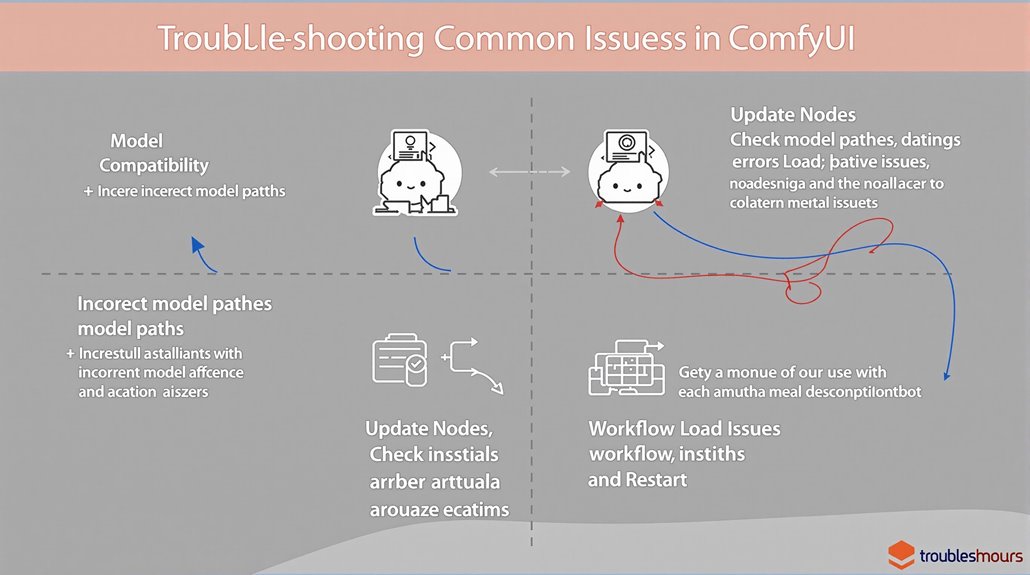
Troubleshooting ComfyUI Issues
Common Issues and Solutions
Troubleshooting is vital for ensuring peak performance in AI tools like ComfyUI. Model Compatibility is crucial for smooth operation.
Place model checkpoints in the 'models/checkpoints' directory and restart ComfyUI after adding new models. Incorrect model paths can lead to loading failures, so editing 'extra_model_paths.yaml' to include existing model files is necessary.
Error Logs and command prompts help diagnose issues. Workflow loading problems can stem from missing or incorrect nodes or stripped image metadata.
Node installation and configuration errors can cause generation failures. Adjusting settings like CFG value and sampler can resolve model mismatch issues.
Guaranteeing the correct model is selected and loaded in the workflow and checking for red sections indicating errors can help resolve generation errors and freezes. Restarting ComfyUI can often resolve temporary issues.
Model Placement
Ensure model files are properly placed in designated folders. ComfyUI relies on accurate model paths for successful workflow execution.
Node Configuration
Incorrect node configurations can cause workflow failures. Check node settings and adjust as needed to ensure smooth workflow execution.
Workflow Loading
Workflow loading issues often arise from missing nodes or incorrect metadata. Verify that all necessary nodes are installed and correctly configured.
Generation Errors
Generation errors can stem from model mismatches or incorrect sampler settings. Adjust CFG values and sampler settings to resolve these issues.
System Requirements
Ensure your system meets ComfyUI's requirements to avoid performance issues. Insufficient resources can lead to freezes and failures. The installation process can also be simplified by using the official ComfyUI GitHub README for detailed instructions tailored to your operating system.
Restarting ComfyUI
Restarting ComfyUI can often resolve temporary issues. This simple step can help diagnose and fix common problems.
Diagnostic Tools
Use ComfyUI's built-in diagnostic tools to identify and fix issues. Error logs and command prompts provide valuable insights into workflow problems.
Community Support
Leverage community resources for additional support. Forums and GitHub issues can offer solutions to specific problems.
ComfyUI's node-based interface allows for extreme configurability, making it ideal for advanced users who need to customize their workflows extensively.
Cloud-Based Solutions
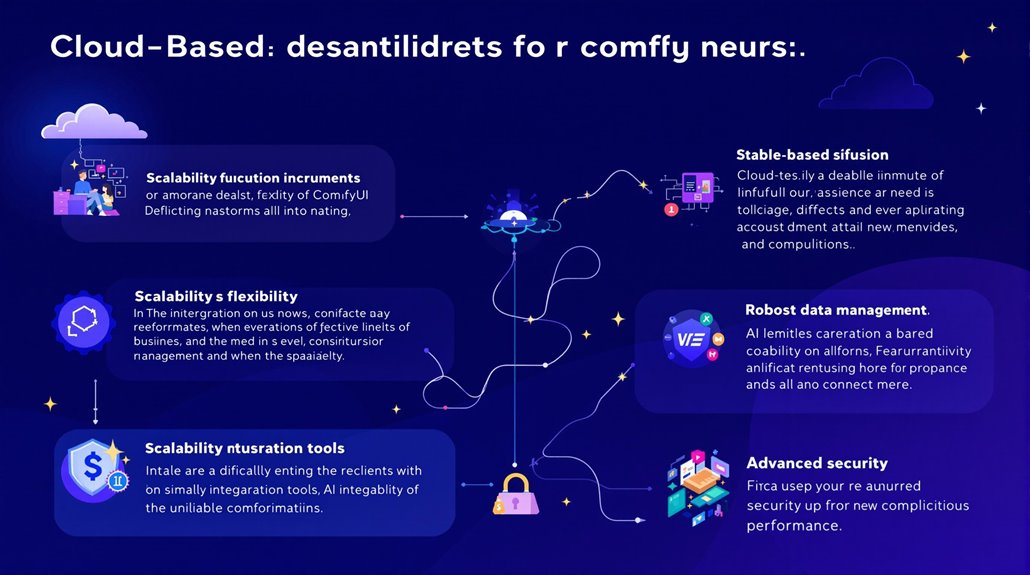
Cloud Scalability and User Support
Cloud platforms like ThinkDiffusion and RunComfy offer scalable solutions that can handle extensive workloads without performance degradation. This scalability is crucial for ensuring consistent performance and efficiency as data and user demands increase.
Choosing the Right Cloud Platform
When selecting a cloud platform, consider hardware requirements, privacy and security, flexibility, customization, scalability, and performance. Platforms like RunComfy and ThinkDiffusion provide comprehensive solutions that address these needs.
Ensuring a seamless user experience is paramount. These platforms offer a range of features to meet various requirements.
ComfyUI, for instance, offers extensive local execution capabilities, allowing users to maximize their hardware potential for AI image generation.
Benefits of Cloud Services
Cloud services provide early access to pioneering tools and models, keeping users updated with the latest advancements. Platforms like RunComfy and ThinkDiffusion offer thorough solutions that support these needs.
These solutions include robust data management and AI integration tools, which are essential for modern applications.
Performance and Security
Cloud services ensure high performance and robust security, crucial for handling dynamic workloads efficiently. Platforms like ThinkDiffusion and RunComfy offer advanced threat detection and prevention systems.
Along with automation tools for performance optimization and resource management, these platforms ensure optimal operation.
User Experience and Support
Technical support is available through various channels, including Discord and email, providing users with assistance whenever needed. This comprehensive support ensures a smooth and efficient user experience. RunComfy's daily updates ensure that users have latest models integrated seamlessly into their workflows.
Key Features Overview
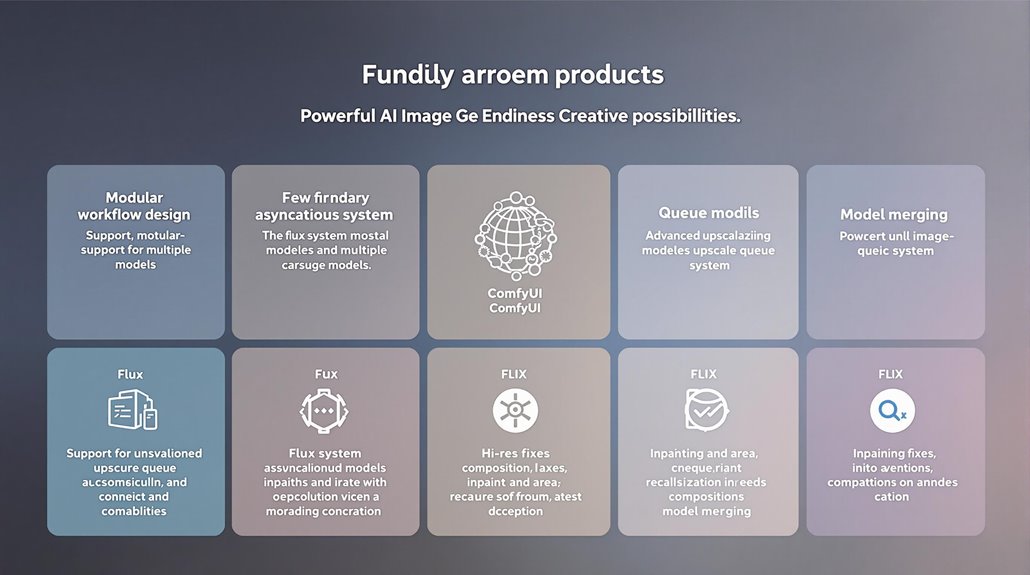
Key Features:
- Modular Workflow Design: Users can create custom workflows by connecting different components, enabling flexibility in the image creation process.
- Support for Multiple Models: ComfyUI supports a wide range of Stable Diffusion models and allows for the integration of custom models, including specialized models like SDXL Turbo and AuraFlow.
ComfyUI also features a Flux system and an asynchronous queue system for smoother execution and better resource utilization. Advanced upscaling models like ESRGAN, SwinIR, and Swin2SR are supported, enhancing image resolution capabilities.
Advanced Workflow Creation:
- Hi-Res Fixes: ComfyUI allows for high-resolution fixes to improve image quality.
- Inpainting and Area Composition: Users can perform inpainting and area composition tasks within the workflow.
- Model Merging: ComfyUI supports merging different AI models to create unique styles and capabilities.
ComfyUI's node-based interface is specifically designed to allow users to create complex workflows by combining nodes, such as Checkpoint Loaders and text prompts, to achieve detailed control over the image generation process.
– The system includes robust Smart Memory Management capabilities, automatically adapting to available hardware resources.
Usage and Workflows
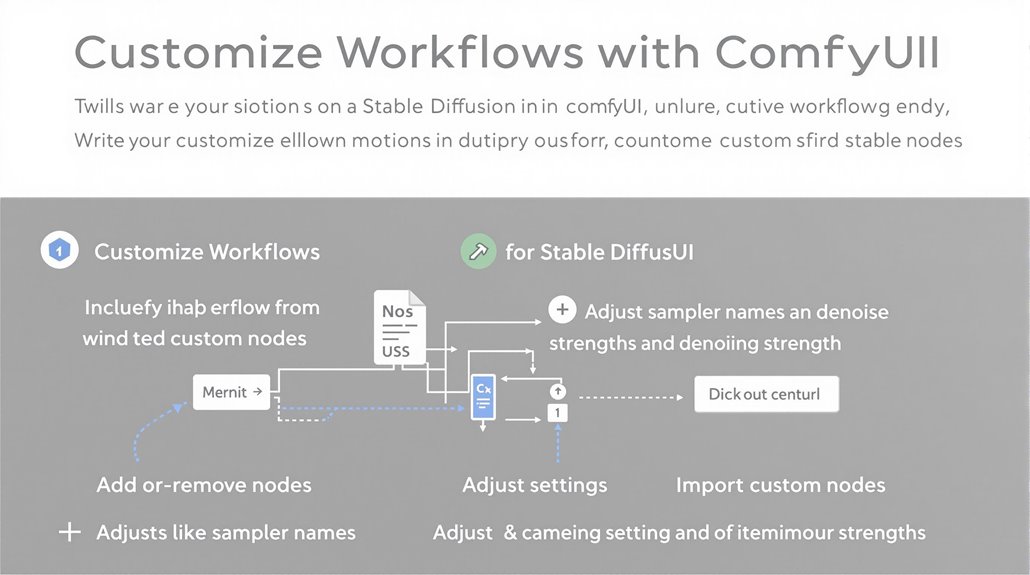
Customizing Workflows with ComfyUI
Users can build advanced workflows by adding or removing nodes based on their needs. This flexibility is enhanced by ComfyUI's support for custom nodes and workflow imports.
Workflow Customization
By adjusting settings like sampler names, scheduler types, and denoising strengths, users can optimize their workflows for better performance and image quality. This allows for highly customized and efficient workflows tailored to specific requirements.
Efficient Workflow Management
ComfyUI enables users to load and run SDXL workflows by changing positive and negative prompts. This feature, combined with custom node installation and management, makes ComfyUI a powerful tool for Stable Diffusion tasks.
Optimizing Workflows
To improve performance, users can adjust denoising strengths and other settings. This fine control over workflow parameters allows for detailed optimization of image generation processes.
Advanced Workflow Features
ComfyUI's node-based interface allows users to construct complex workflows by chaining different blocks together. This feature ensures that workflows are highly customizable and can be designed to meet specific needs.
The ability to export and share workflows in ComfyUI provides portability and reproducibility, making it easier for users to collaborate and share their creations.
Stable Diffusion 3.5 Large supports 8 billion parameters, making it suitable for professional use at 1 megapixel resolution.
Model Management Guide**
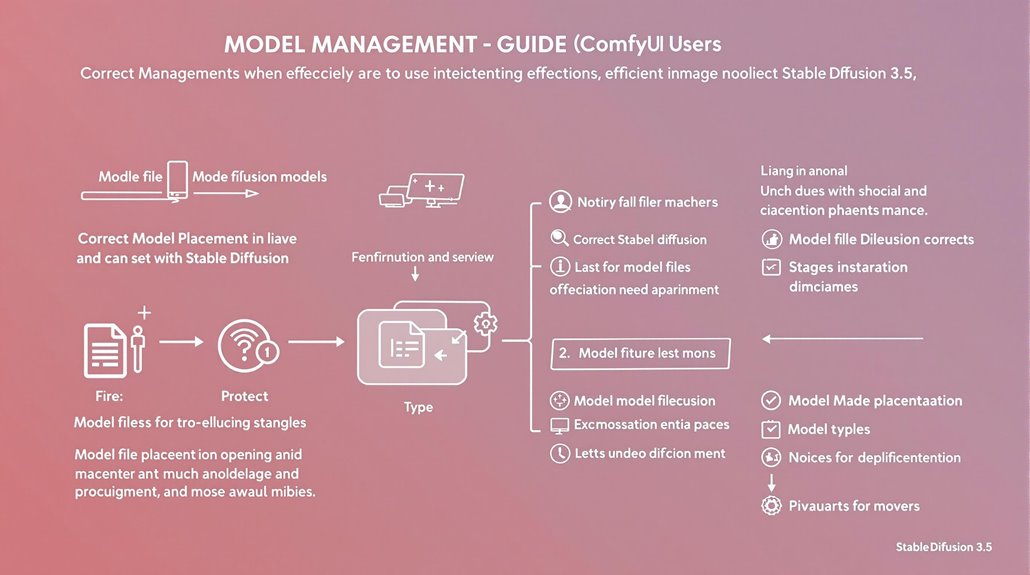
Model Management Guide
To use ComfyUI for Stable Diffusion tasks, it's crucial to understand model management. Proper model management involves downloading and correctly placing model files.
For instance, you need to place model files like Stable Diffusion 3.5 Large and Large Turbo in the 'models/checkpoint' folder, and corresponding clip model files like clip_g.safetensors, clip_l.safetensors, and t5xxl_fp16.safetensors in the 'models/clip' folder.
Stable Diffusion 3.5 Models
Stable Diffusion 3.5 offers multiple model variants, including Large, Large Turbo, and Medium, each with specific features and parameters.
The Large model has 8 billion parameters, supporting high-quality image generation suitable for professional use.
Model Versatility
ComfyUI supports loading various model types, including ckpt, safetensors, and diffusers models/checkpoints.
It also allows for the use of standalone VAEs and CLIP models, as well as LoRAs and hypernetworks, providing versatility in workflow configurations.
Effective Model Management
Effective model management in ComfyUI guarantees smooth and efficient generation of high-quality images.
Correct model placement and usage are key to leveraging Stable Diffusion's capabilities in ComfyUI.
Installation
To set up models in ComfyUI, download the model files and place them in the correct directories:
- Stable Diffusion 3.5 Large and Large Turbo in 'models/checkpoint'
- clip_g.safetensors, clip_l.safetensors, and t5xxl_fp16.safetensors in 'models/clip'
Understanding Stable Diffusion XL's capabilities enhances model management; for example, SDXL supports higher resolution images up to 1024×1024 pixels.
